Setup - Resource/Production Shifts
Last updated: September 23, 2026
Resource/Production Shifts
Overview
Resource Shifts are used to set up production and maintenance shift schedules. Shifts are configured as a pattern of days and hours that repeats itself, allowing you to enter rotating patterns by day/hour.
Prerequisites & Preparation
Required Permissions: Resource Manager or Administrator
Step-by-Step Configuration
Navigate to the Menu: Go to Setup > Resource Shifts.
Initiate Creation: Click Add New in the upper right corner of the Resource Shifts bar.
Enter Details:
Shift Name: Enter a name for the shift.
Shift Start Date: Select/enter the day you'd like the shift pattern to start.
Define Attributes:
Status: Make sure Active is checked.
Day-by-Day Times: Add Day One shift times, then continue adding additional days. On off days (not worked), check the Day Off box, which automatically sets start/end hours to zero. The actual day-of-week labels (Mon, Tue, etc.) should populate automatically. Once the end of your pattern is reached, shift setup is complete — the pattern will cycle back to the start day and repeat.
Note: Do not let start and end times overlap. For a 24-hour schedule, use 00:00–23:59 rather than 00:00–00:00, as overlapping minutes will cause scheduling issues.
Production Lines/Cells: Select the applicable lines/cells to associate with the shift.
Users: Select applicable users to associate with the shift (for future application).
Save & Finalize: Click Save.
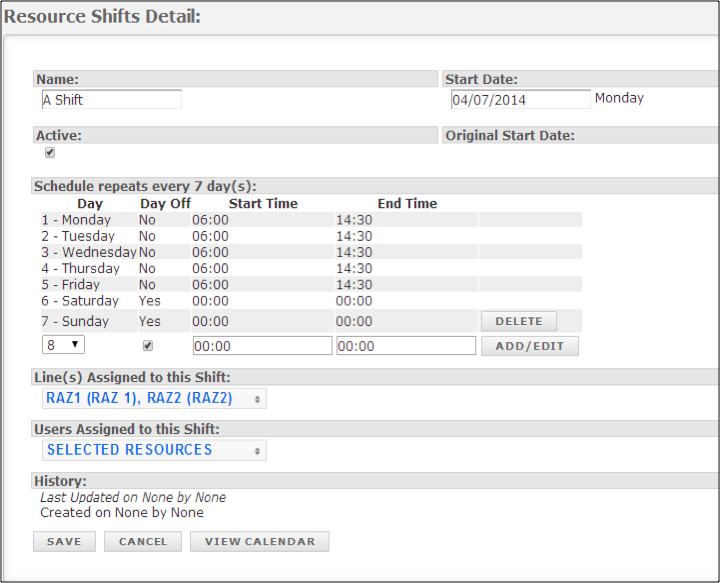
Click View Calendar to see shifts in calendar format and to edit exceptions (e.g., a holiday day off, an overtime day).
Use the Area/Line/Shift filters to see which lines are scheduled on a given shift.
Click on a line to delete or edit its shift.
Click on an empty day to add a new shift.
If you're using the Production Module: Shifts will be scheduled according to the pitch schedule templates that are loaded.
Note: Calendar view shows resource daily shifts currently in the system, and these are only generated through the current date.


Edit Daily Shift Times
You'll find Edit Daily Shift Times at the bottom of the schedule options. Use it to schedule out days, or to remove them — for example, to account for holidays or planned shutdown periods.
