📕 Setup - Attributes
Last updated: September 23, 2026
Overview
Attributes let you subcategorize Machines or Products. Use them to distinguish machines that share a type but differ in configuration — such as a machine that can be aligned vertically or horizontally, or CNC machines with different axis counts. For Products, Attributes can capture properties such as length, width, or density.
Prerequisites & Preparation
Required Permissions: System Manager or Administrator
Step-by-Step Configuration
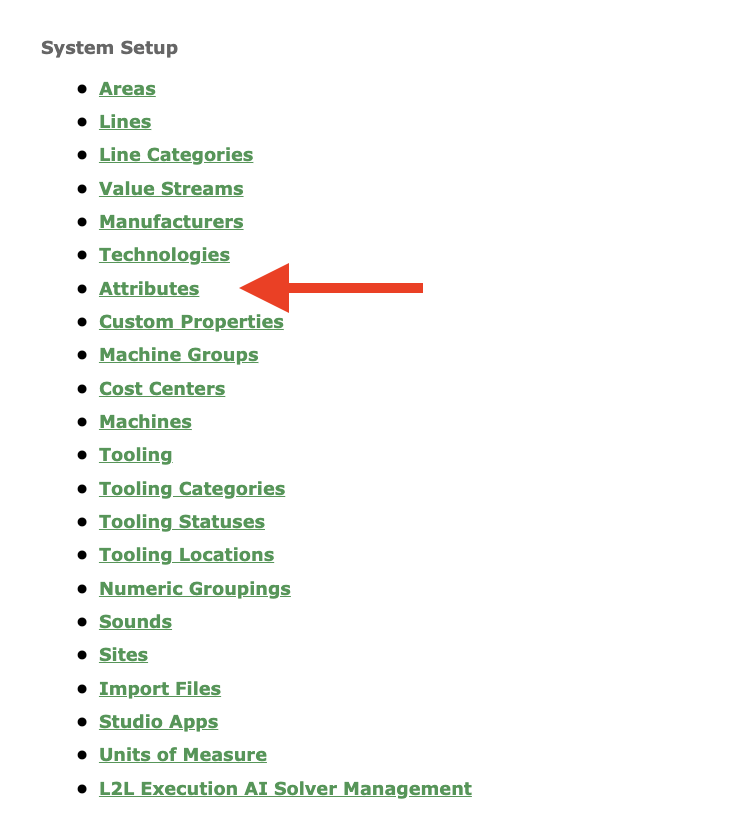
Navigate to the Menu: Select Setup on the left-hand menu, then, under System Setup, select Attributes.
Initiate Creation: Select Add New at the top right.
Enter Details:
Code: Enter a code.
Description: Enter a description.
Define Attributes:
Type: Select from the dropdown — Machine or Product.
Status: Use the Active checkbox to make active or inactive.
Save & Finalize: Click Save.
FAQs
After Attributes are configured, you can assign them to Machines and Products.
Attributes can be assigned to Machines through the Machine Import.
You'll find Attributes as a filter on several of our Reports.
There is a Read/Create/Update API for Attributes. You can find more information in the Record Areas of our API Documentation.
Attributes can be filtered by active/inactive status using the Filter button at the top right of the Attributes page.
Attributes can be exported using the Export button at the top right of the Attributes page.