How to create an L2L Web App
Last updated: June 19, 2026
How to Set it Up on a Mobile Device:
- Open the web browser of choice and navigate to your L2L site (e.g., company.l2l.com).
-
Log in to L2L on your web browser
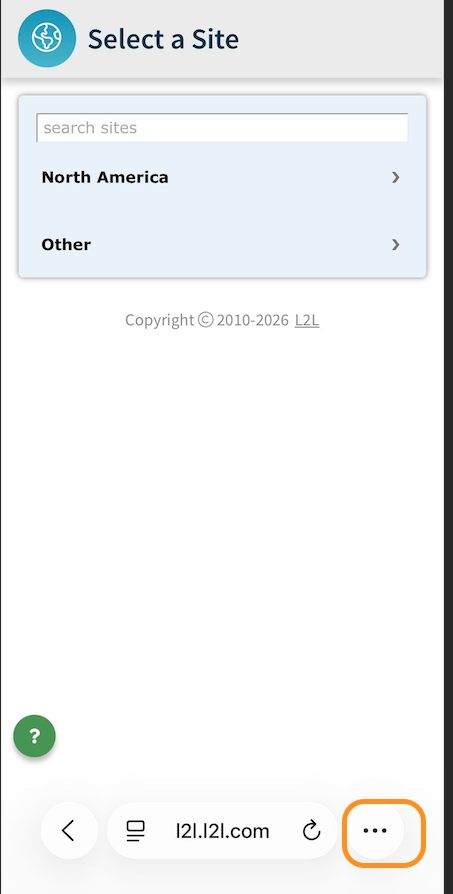
Safari:- Tap the 3 dots (...) to the right side of the address bar
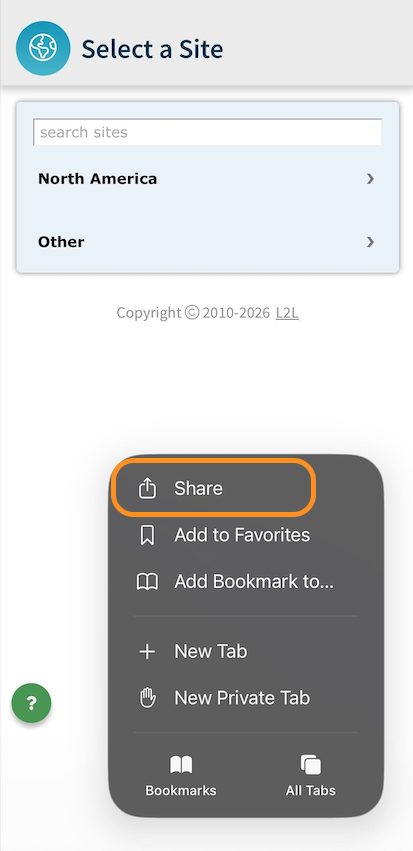
- Select the share icon
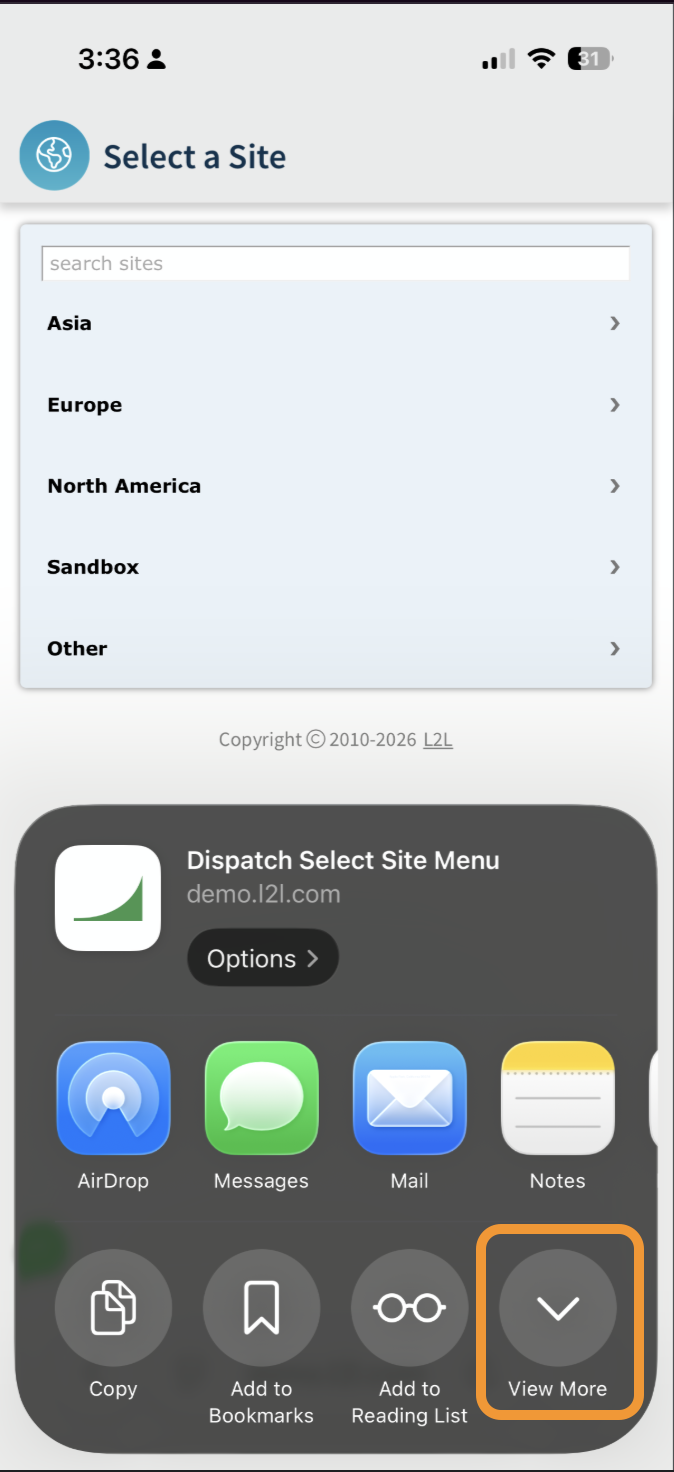
- Select the View More button
Chrome:
- Tap the share icon to the right side of the address bar
- Select the View More button
Firefox:
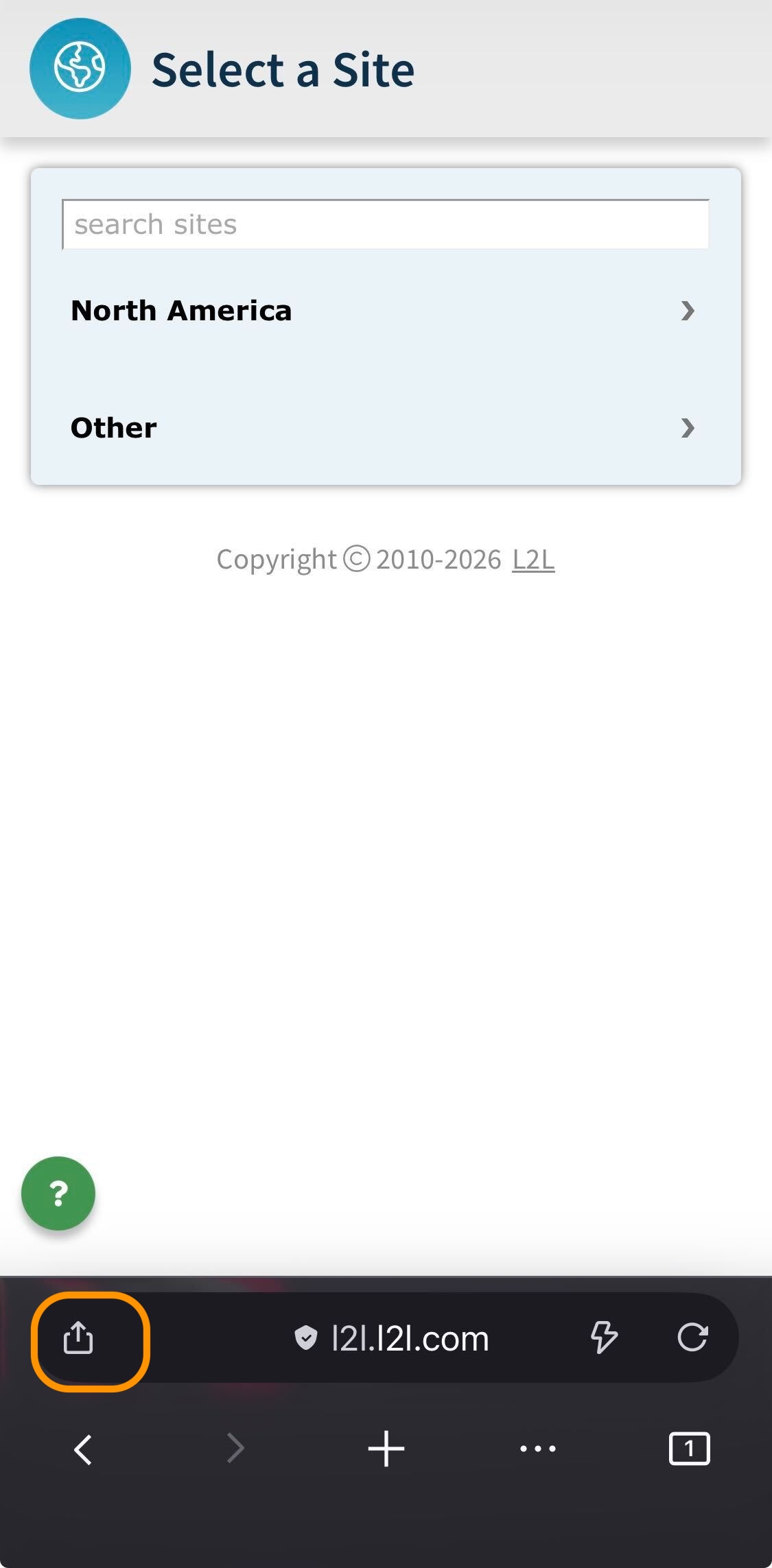
- Tap the share icon at the left side of the address bar
- Select the View More button for more options.
Android (Chrome), find the Menu (usually 3 dots)
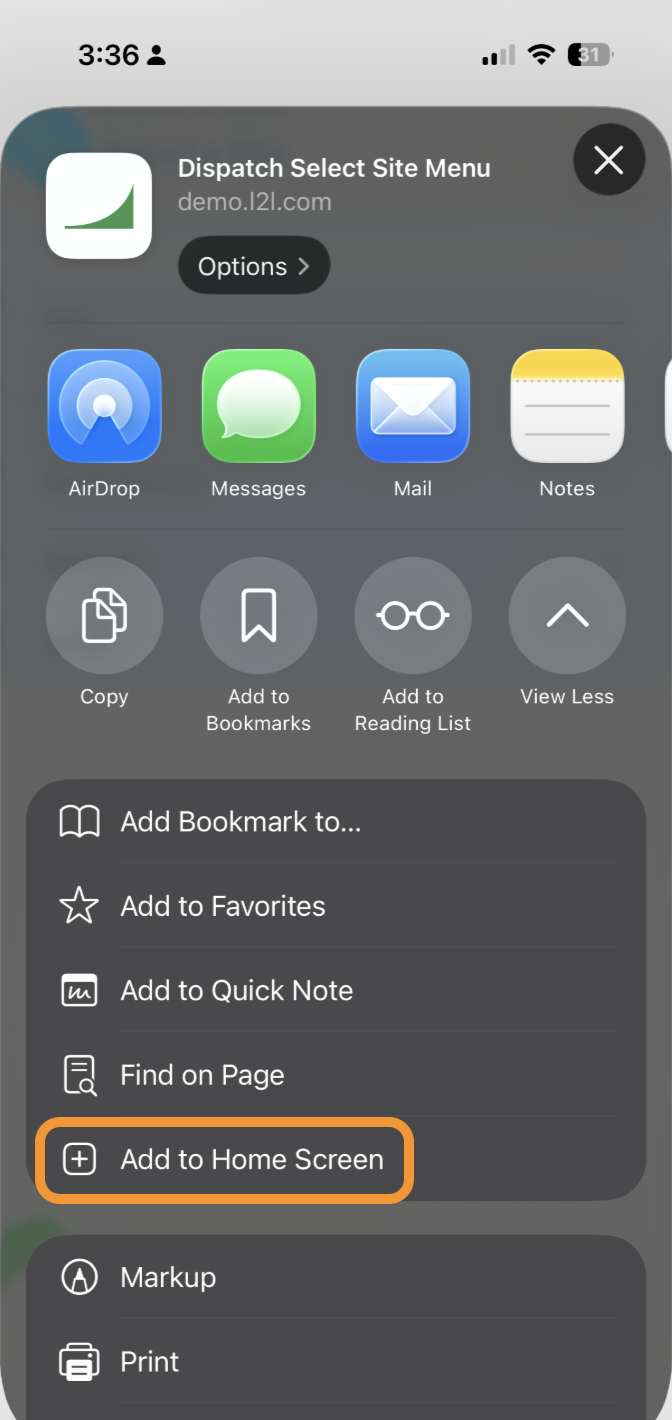
- Scroll to find Add to Home Screen.
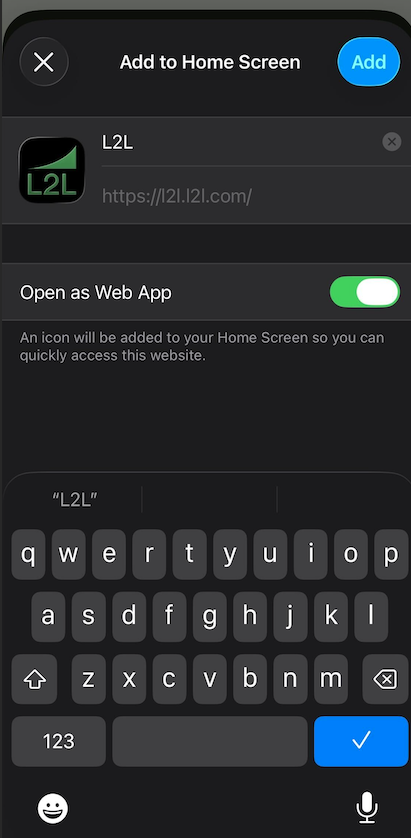
- Confirm the Name of the L2L Web App Shortcut and click Add.
*Note: Please make sure the Open as Web App option is enabled before adding. -
You will now see a shortcut for the L2L Web App on your home screen.
Here are some sample screenshots for reference: