Browser Notifications
Last updated: September 11, 2026
Enabling Browser Notifications in L2L
Browser notifications help you stay informed in real time — even when you’re not actively looking at L2L. Once enabled, you’ll receive alerts for new activity directly in your browser, so you can respond faster and never miss important updates.
Check out our Step by Step Walk through here: https://l2l.navattic.com/mkh01mi?g=cmf730e5m000000imqae72k36&s=0
How Notifications Work
When notifications are active:
Bell Icon – The bell icon in the upper right of L2L will light up when you have new notifications.
Notifications Page – Click the bell to open your Notifications landing page, where you can see up to 7 days of notification history.
Unread Filter – Switch to Unread Only view to focus on what you haven’t checked yet.
Mark All as Read – Quickly clear the list once you’ve reviewed everything.
The notifications bell will refresh every 90 seconds or on a page change.
Note: This notification format displays some basic information, not what is configured in notification formats for other notification types (email, mobile app, teams)
Configure Notifications
Admins need to configure notifications for users before users can enable notifications using the instructions below.
For information on how to configure notifications, please see this article.
Before You Start
If you’re using iOS (iPhone/iPad):
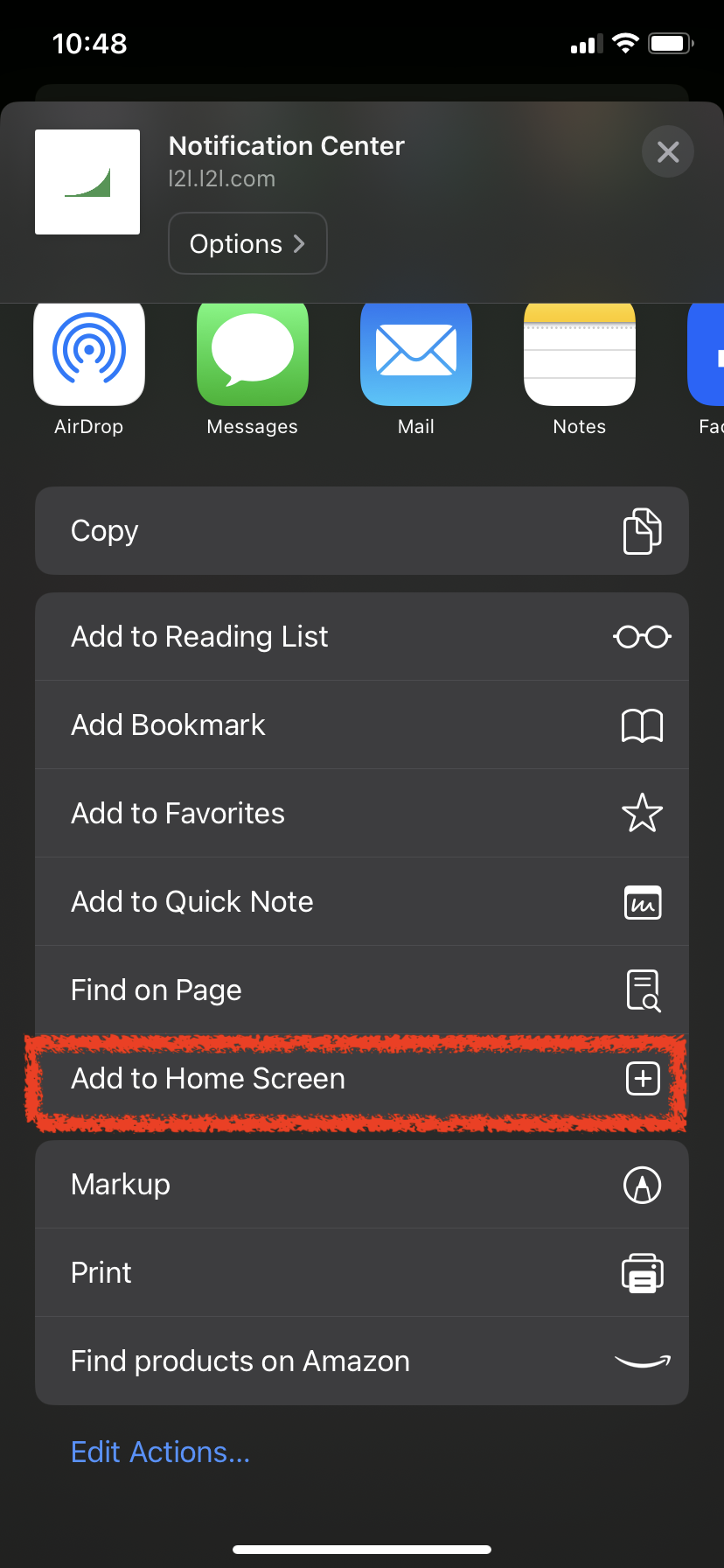
You’ll need to add your company L2L site as a Home Screen shortcut before enabling notifications.
To do this:
Open Safari and navigate to your L2L site (e.g.,
company.l2l.com).Tap the Share icon (up arrow at the bottom).
Select Add to Home Screen.
Step-by-Step: Enable Browser Notifications
Open Notification Settings
Click the bell icon in the upper right.
Select the three dots menu → Notification Settings.

Adjust Notification Preferences
In the settings window, check Browser Notifications.
Make sure no other boxes are checked except “L2L Mobile App” if you also use it.
Click Enable Browser Notifications.

Grant Permission
Your browser will display a pop‑up asking:
“Allow L2L to send notifications?”
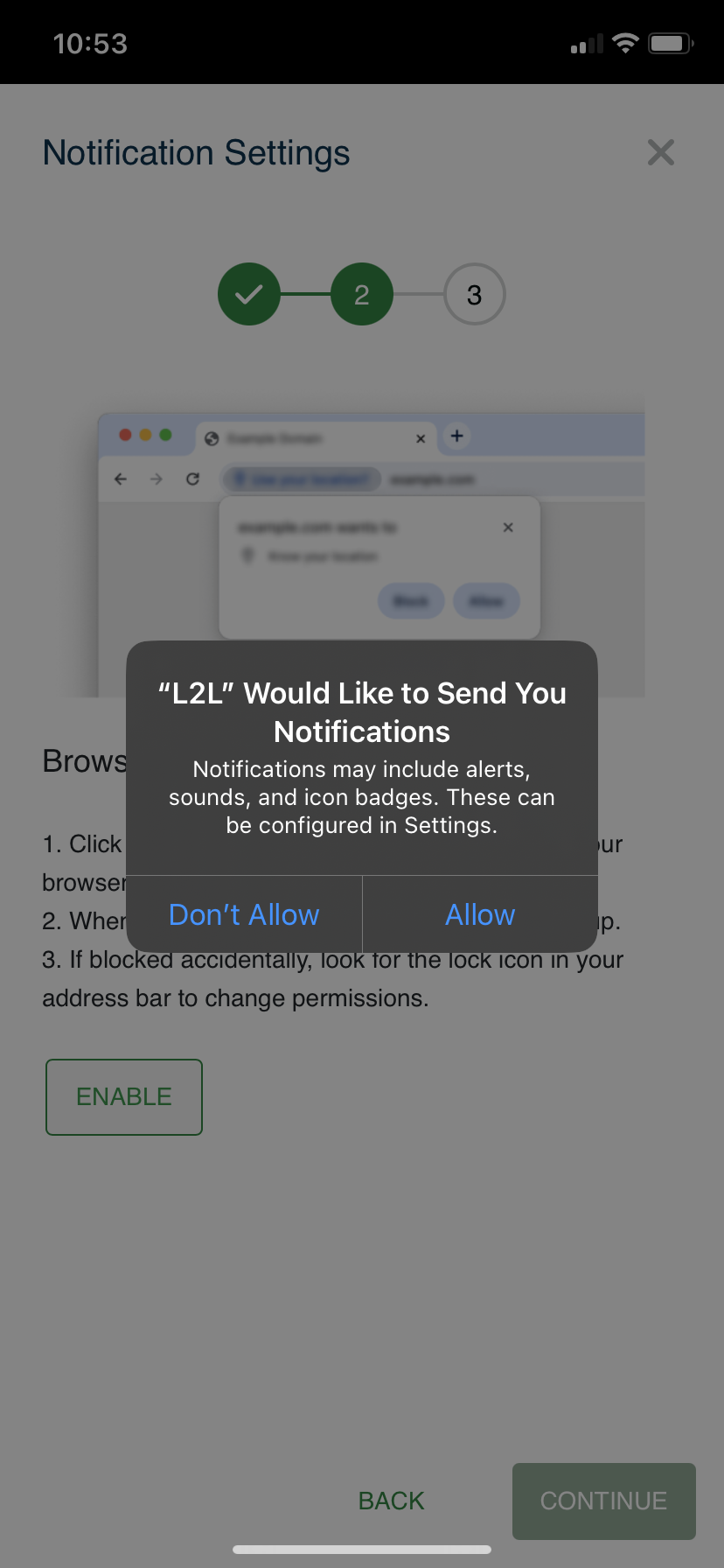
Click Allow.
If you don’t see this pop‑up, make sure Do Not Disturb is turned off.
Test & Complete Setup
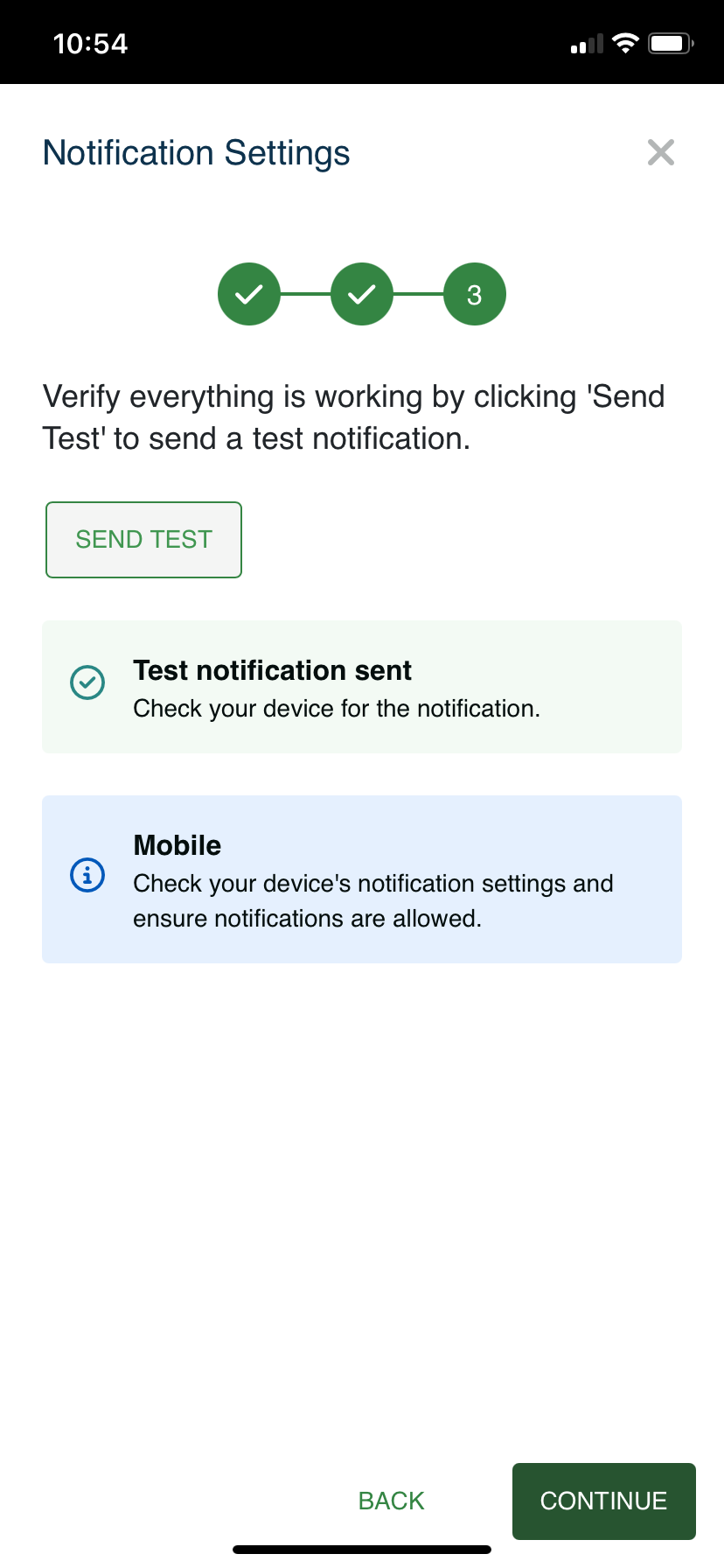
Click Continue.
On the next page, you can Send a Test Notification to confirm everything is working.
Click Complete Setup when done.
Confirm Your Device & Browser
The final screen will show which device and browser your notifications are set up on.
Note: Currently, Chrome Web Push notifications can experience delays if an Android device is in Doze Mode (the device is idle, locked, or conserving battery). While native mobile apps can sometimes override this and push notifications through immediately, the Android operating system restricts Web Push notifications. That means notifications may not appear until the device is unlocked and active again. Unfortunately, there isn’t a way to bypass this limitation.
Browser Notifications for Microsoft Edge
The embedded Edge app would need to be replaced with a direct install. You may need your IT department to do this for you:
Open Windows PowerShell
Remove the Edge store app by running
Get-AppxPackage -Name Microsoft.MicrosoftEdge.Stable | Remove-AppxPackageDownload and install the latest edge browser directly from Microsoft: Download and Deploy Microsoft Edge for Business
Using Notifications
For Dispatch type notifications, clicking the notification will open the related Dispatch.
For other types of notifications, the user will be routed to the associated product area. For example, production line notifications will route user to the production report
If Dispatch Portal is your default Dispatch view, the Dispatch will open there.
If Classic Dispatch is your default, it will open in the Edit view.
Tips and Troubleshooting
No pop‑up? Check your browser’s site settings and allow notifications for your L2L URL.
Still not receiving notifications? Reach out to L2L Support.
Mobile Safari users: Notifications will only work if your site is saved as a Home Screen shortcut.
Safari is the best browser to use with notifications when on an iOS device.
Web Push Notifications links are going to be based on where you are logged in when you subscribe your browser to browser notifications.
For Example: the domain name in the link will be l2l.l2l.com/... if you are using the l2l.com domain name when registering your browser. The domain name in the link will be l2l.leading2lean.com/... if you are using the leading2lean.com domain name when registering your browser.
Browser notification subscriptions can become invalid over time. Common causes include:
User clears browser data or cookies
User revokes notification permissions
The Home Screen shortcut (PWA) is uninstalled (especially critical for iOS)
Browser or OS updates
Extended inactivity
Push service endpoint changes (Apple/Google infrastructure)
If your browser notifications have stopped working, remove the existing subscription and re-subscribe:
Click the bell icon in the upper right.
Select the three dots menu → Notification Settings.
Scroll to the Devices receiving notifications section.
Click the trash can icon to remove the current subscription.
Click Enable Browser Notifications to create a new subscription.
Use the Send Test button to confirm it is working.
Note: Subscriptions are per-browser and per-device. If the issue is occurring on a specific device or browser, the subscription must be removed and re-created on that specific device/browser. If you are unable to delete a subscription on a mobile browser, try doing so from a desktop or laptop computer.
No pop‑up? Check your browser’s site settings and allow notifications for your L2L URL.
Still not receiving notifications? Reach out to L2L Support.
Mobile Safari users: Notifications will only work if your site is saved as a Home Screen shortcut.
Safari is the best browser to use with notifications when on an iOS device.
Web Push Notifications links are going to be based off where you are logged in when you subscribe your browser to browser notifications. For Example: the domain name in the link will be l2l.l2l.com/... if you are using the l2l.com domain name when registering your browser. The domain name in the link will be l2l.leading2lean.com/... if you are using the leading2lean.com domain name when registering your browser.