Managing Notification Groups & Machine Groups
Last updated: August 6, 2026
Administrators can save significant setup time by configuring notifications for entire departments, roles, or groups of equipment rather than managing users individually.
User & Role Notification Groups
Use this feature to configure a single notification rule that applies to multiple users or an entire permission role.
Setting Up a User/Role Notification Group
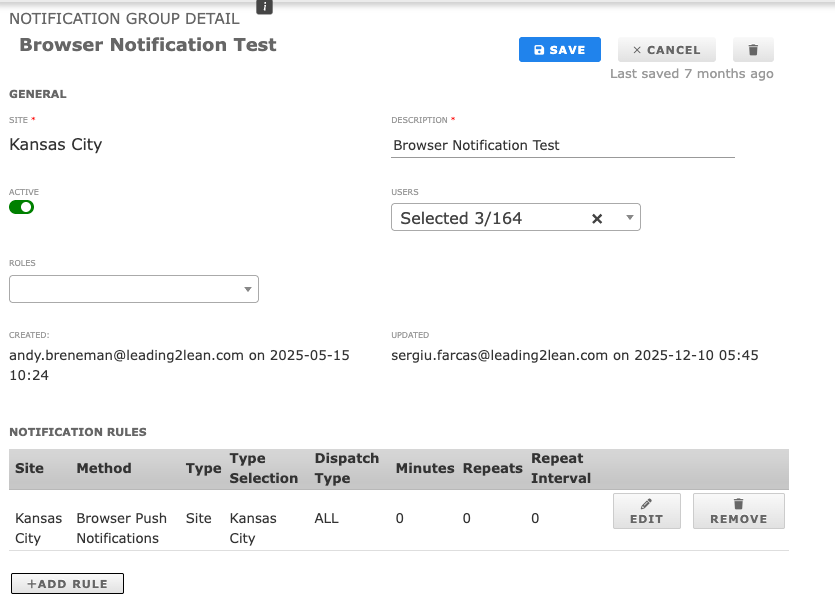
Go to the Setup menu and click Notification Groups.
Click Add New.
Configure the following fields:
Site: Defaults to your current site.
Description: Give the group a clear, descriptive name (this acts as the group's title).
Users / Roles: Select the specific users and/or user roles who should belong to this group.
Click + Add Rule to create a notification trigger
In the rule configuration modal, toggle Deliver to Mobile Devices ON if you want these alerts sent directly to the L2L Mobile App.
Select your Delivery Method (Email, Phone, SMS Email, Browser, Microsoft Teams, or WhatsApp) and configure the Notification Type details (such as Area, Machine, or Past Due triggers).
Phone and SMS email notifications were based on SMS text notifications, which most carriers no longer support. We suggest using an alternative option, as we cannot support this if it does not work.
Save your settings.
Machine Notification Groups
Instead of manually adding every single machine to a user's profile, you can group physical assets together. This is ideal when a specific maintenance team is responsible for a designated family of machines.
Setting Up a Machine Notification Group
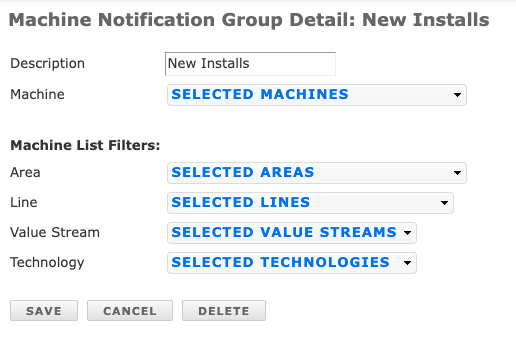
Go to the Setup menu and click Add Machine Notification Groups.
Enter a descriptive group name in the Description field (e.g., "A-Line Packaging Equipment").
Select the applicable criteria to group your machines (e.g., filter by Area, Value Stream, Line, or Technology).
Click Save.
Once created, you can select this machine group from the User Notifications setup page for any user, instantly applying the rule to all machines within that group.