WhatsApp Notifications
Last updated: June 19, 2026
What?
You can now receive notifications on your WhatsApp account!
How?
L2L Support can enable WhatsApp notifications for your Site.
- Once enabled, You or an Admin can add your WhatsApp phone number to your user profile.
- Users can do so by clicking on their username in the upper left and selecting 'User Settings'. Then enter your phone number. Admins can do so by going to Setup > Users and entering the phone number there.
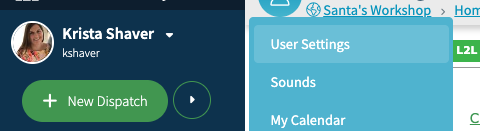
- Be sure to save.
- Now, if you have Notifications set up already, an Admin can go to that Notification and choose 'WhatsApp', otherwise set up a new Notification by following the steps in this article Notifications.
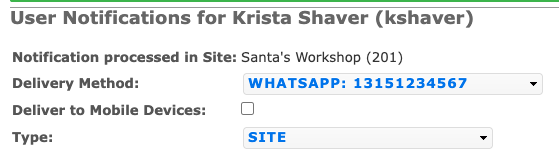
-
You'll now receive a Notification in WhatsApp.
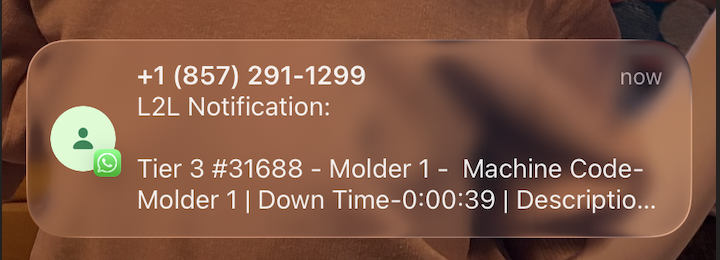

If notifications stop working, here are some Top Troubleshooting Steps:
- Enable System Notifications: Go to your phone’s Settings > Apps/Notifications > WhatsApp and verify notifications are allowed.
- Check In-App Settings: Open WhatsApp, go to Settings > Notifications and ensure alerts are enabled for messages and groups.
- Disable Battery Saver/Do Not Disturb: These modes stop background data, causing delayed notifications.
- Reset Notification Settings: Within WhatsApp settings, select "Reset notification settings" to fix potential bugs.
- Reinstall WhatsApp: If other steps fail, uninstall, restart your phone, and reinstall WhatsApp (ensure you back up your data first).
For Android Users:
- Clear the cache in your device's settings to resolve temporary bugs.
- Ensure "Background data" is enabled for WhatsApp to receive messages.
For iPhone (iOS) Users:
- Background App Refresh: Turn this on in Settings > General.
- Restart/Reinstall: A forced restart or reinstall often fixes notifications that only appear after opening the app.
- Log Out of WhatsApp Web: Sessions on a computer can steal notifications.