📕 Setup - User Sounds & Sound Settings
Last updated: September 23, 2026
Overview
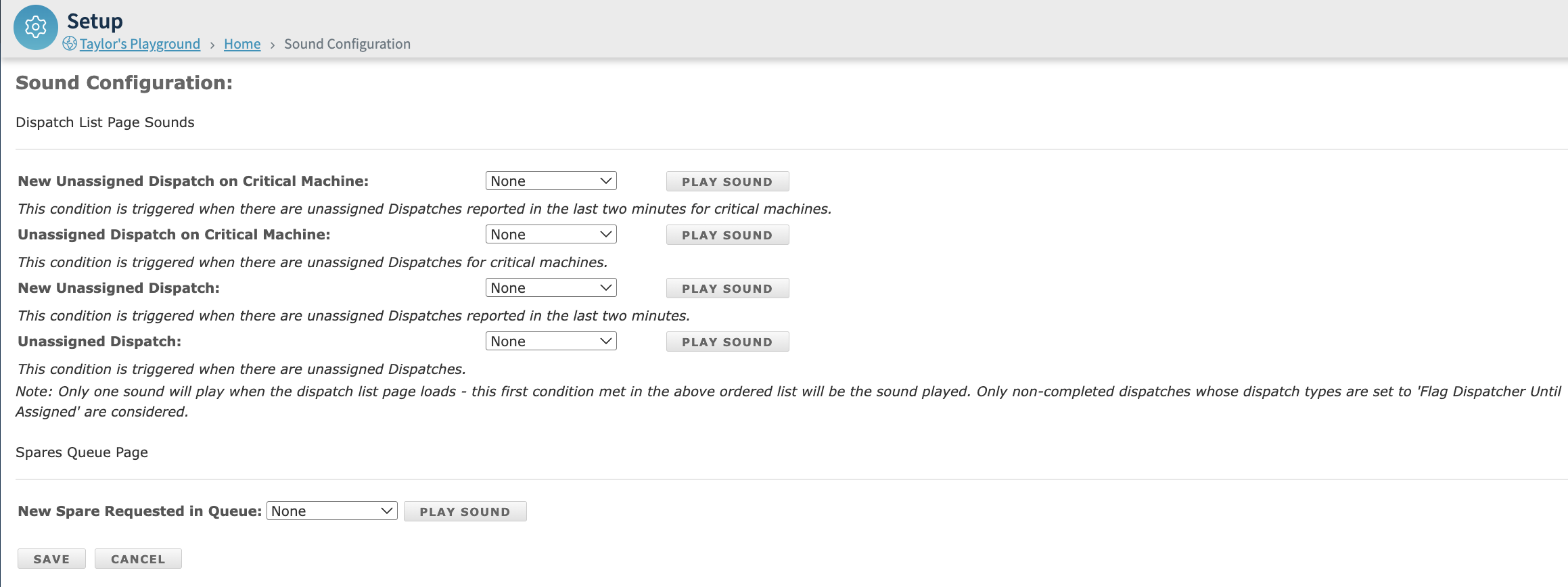
Sounds can be used for a variety of reasons within L2L, including:
New Unassigned Dispatches on Critical Machine
Unassigned Dispatches on Critical Machine
New Unassigned Dispatches
Unassigned Dispatches
New Spare Request in Queue
Prerequisites & Preparation
Required Permissions: None — every user has access to User Sounds.
Step-by-Step Configuration
Navigate to the Menu: Select the User Settings button (down arrow to the right of your name) at the top left of the page.
Initiate Access: From the flyout menu, select Sounds.
Enter Details: On the Sounds page, make your selections using the dropdowns.
Define Attributes: N/A
Save & Finalize: Click Save at the bottom of the page.

Overview
Administrators have the ability to add and maintain Sounds in Setup > Sounds. Sounds must be saved in MP3 format in order to import.
Prerequisites & Preparation
Required Permissions: Administrator only
Step-by-Step Configuration
To Add a New Sound:
Navigate to the Menu: Select Setup on the left-hand menu, then, under System Setup, select Sounds.
Initiate Creation: Select Add New at the top right of the page.
Enter Details:
File: Select Choose File, then select the MP3 file from your device that you wish to import.
Select Upload File.
File Description: Enter a description for the file.
Define Attributes: N/A
Save & Finalize: Click Save.
Each sound can be previewed by selecting the Play button.
To Delete a Sound:
Navigate to the Menu: Select Setup on the left-hand menu, then, under System Setup, select Sounds.
Select the Sound: Choose the sound you want to delete.
Delete: On the Sound Detail page, select Delete.

FAQs
In order to import a sound file, it must be in MP3 format.
There are a several sample sounds attached to the bottom of this article.
Attachments:
Always-A-Winner.mp3
buzzer_horn.mp3
1985_ring.mp3
chicken-cry1.mp3
school-bell.wav