📕 Setup - Trades
Last updated: September 23, 2026
Overview
The Trades section in Setup allows you to define and manage the different labor specialties used within your system (e.g., HVAC, Plumbing, Electrical). Properly configured trades ensure that Dispatches are categorized correctly and dispatched to the right personnel.
Prerequisites & Preparation
Required Permissions: Resource Manager or Administrator
Step-by-Step Configuration
Navigate to the Menu: Go to Setup > Trades.
Initiate Creation: Click the Add New button.
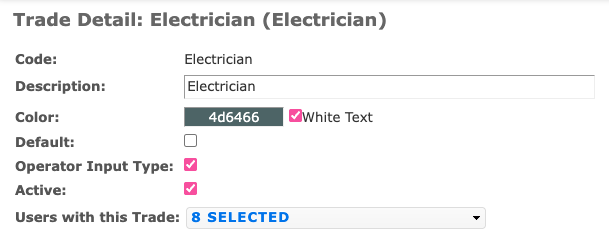
Enter Details: Complete the Trade Detail form.
Example: Enter "Electrician" in both the Code and Description fields.
Define Attributes: Review the optional fields to customize how the trade appears in the system.
Save & Finalize: Click Save to commit the new trade.
Field Definitions
Use these definitions to configure the trade's behavior in the field and on the dispatch board.
Name | Requirement | Description |
Code | Required | The unique identifier for the trade. |
Description | Required | The full name of the trade. |
Color | Optional | Assigns a specific color |
Default | Optional | If checked, this trade will be auto-selected for new Dispatches. (note: only selected if dispatch type does not have a default trade) |
Operator Input Type | Optional | Defines how operators interact with specific trades. |
Active | Required | Use this toggle to enable or disable the trade. |