📕 Setup - Custom Properties
Last updated: September 23, 2026
Overview
Custom Properties allow you to add extra fields to Machine Setup and Product Setup — useful for information like Asset Numbers, Warranty Dates, or additional UPCs on Products.
Prerequisites & Preparation
Required Permissions: System Manager or Administrator
Step-by-Step Configuration
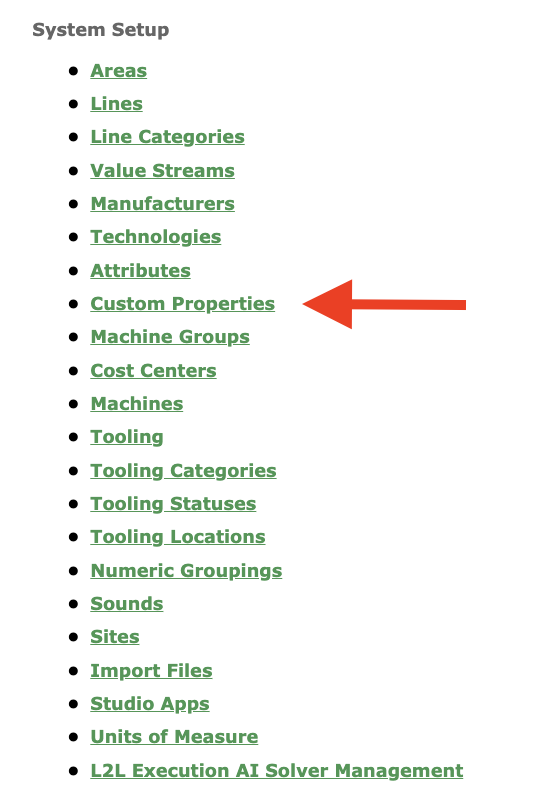
Navigate to the Menu: Select Setup on the left-hand menu, then, under System Setup, select Custom Properties.
Initiate Creation: Select the Add New button at the upper right corner.
Enter Details:
Name: Enter a name for the property.
Define Attributes:
Type: Select from the dropdown — Machine or Product.
Data Type: Select from the dropdown — Text, Date, Boolean, or Numeric.
Status: Use the Active checkbox to activate or inactivate the property.
Save & Finalize: Click Save.
FAQs
Customer Properties are also available via API, the Product Import or the Machine Import.
You must have Custom Properties set up prior to setting them for machines or products via import or API.
Custom Properties can be filtered by active/inactive status using the Filter button at the top right of the Attributes page.
Custom Properties can be exported using the Export button at the top right of the Attributes page.