Product Orders: Working with Build Sequences
Last updated: November 11, 2026
Build sequences are the individual orders that make up a product order. Every product order needs at least one build sequence to be completed in the Operator Portal. This article walks through creating and editing a build sequence.
How to create a build sequence
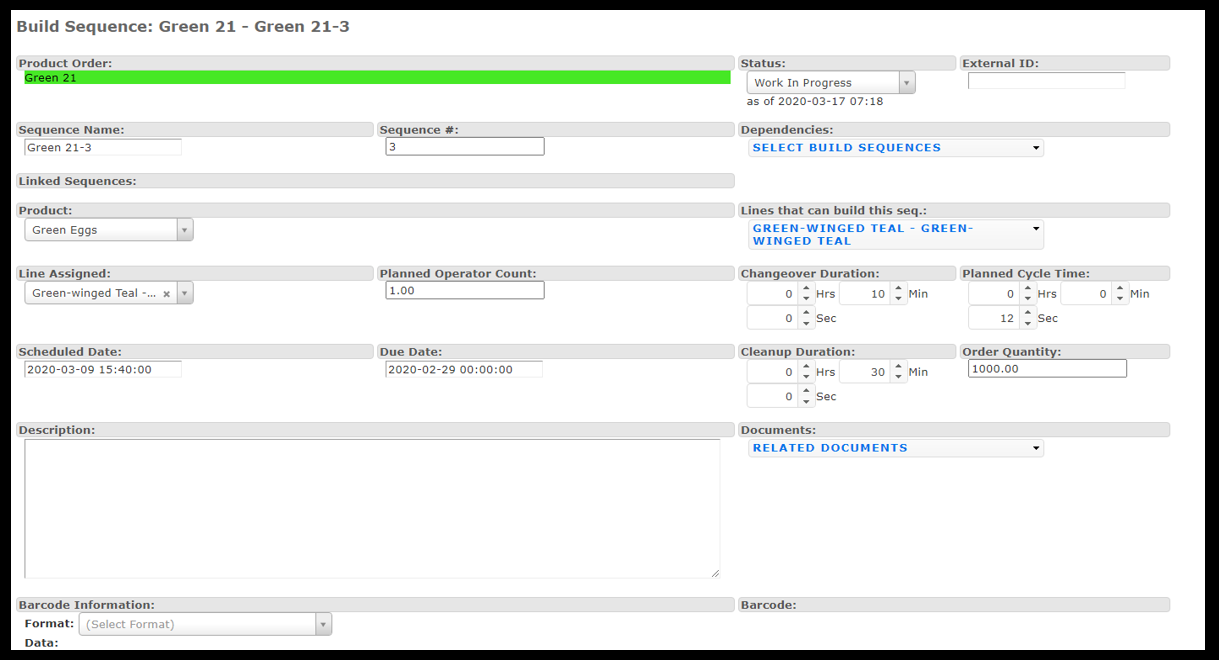
From the Product Orders screen, choose an order and select Add New from the Build Sequences table.
Give the build sequence a name and sequence number (the order of execution). The name can reference the operation for that sequence, the product order name, or whatever fits your site's needs.
The Product drop-down populates automatically from the product order.
Set up Dependencies for this build sequence, either here or on the main Product Order screen. Here, choose the sequence number the current sequence should follow. On the main screen, you can select all sequences and set them to follow the order sequence.
Select the Lines that can build the sequence. If several lines can build it, choose each one.
Use Line Assigned to choose which line will build the sequence.
Enter a Planned Operator Count: the number of operators planned to support production.
Review the durations and timing fields (see below).
If needed, modify the Scheduled Date, Due Date, and Order Quantity brought over from the product order.
Optionally, add a Description.
Add any Documents specific to this sequence (see below).
If there is a Barcode for this product, it populates automatically, or you can choose one on this screen.
Click Save.
About dependencies: You don't have to select a dependency. A dependency means one product is contingent on another being produced first. It does not prevent you from moving on to the next sequence before the first one is complete.
Durations and timing
Changeover Duration, Cleanup Duration, and Planned Cycle Time populate automatically from the corresponding Product Setup. Reports show actual vs. planned for each.
Planned Cycle Time: Enter a different value if it differs from the product's cycle time. This overrides the product's cycle time for the line.
Cleanup Duration: Time for clean-up after the build to prepare for the next order. A dispatch opens when the operator selects the Cleanup button on the order and closes when they click Complete Order. Reports show actual vs. planned.
Labor Duration: Updates automatically based on the order's start and end times multiplied by the operator count:
SUM(operator_count * (end time - start time) * 60).Production Duration: Reflects the planned production time within the order's actual run window (from Start Time to End Time). When an order finishes, duration calculations are clipped to these boundaries. Pitches that straddle the start or end contribute a pro-rated portion of time, and pitches entirely outside the window contribute zero.
Note: Cleanup Duration requires the production setting Allow operators to overbuild orders to be enabled.
Sequence documents and barcodes
Documents added to a build sequence are supplementary to the documents attached to the product order itself. For details on order-level vs. sequence-level documents, see Adding Documents, Attachments, and Standard Work to Product Orders.
If a barcode exists for the product, it populates automatically on the build sequence. You can also choose a different barcode on this screen.