Work Order Module Overview

Last updated: June 19, 2026

L2L's Work Order Module allows you to create and schedule improvement projects with all the information required to complete work requests for facilities actions to planned project-based production including labor, materials and costs. 


Settings

The Setting tab is where administrators set the custom parameters, rules and rights that best suit their business. For more information please use this link to our Settings article.

Notifications and Routing Rules Setup
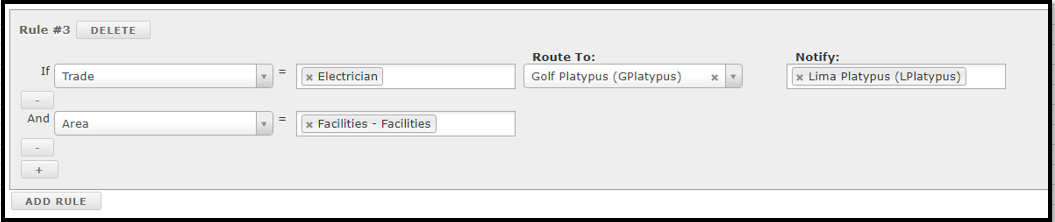
If you add yourself to the Work Order Routing Rules, you will be notified whenever a Work Order is created that matches the routing rules.  
 
To get to the routing rules page, first click on setting in the work order module. Above the security settings, you will see the edit routing button. (See screen shot below)
mceclip1.png
 How to set a rule.
1. Click on the add rules button located at the bottom of the current rules.
2. In the first section (IF) from the left you will select the drop-down arrow and select how you want to start the rule. Your choices are Area, Line, Value Stream, Category, or Trade.
3. Next you select the equals (=) section which corresponds with your IF section. 
Example: If you selected trade in your first section (IF) drop-down, then in the second (=) you would select a trade from the selection
4. Nest you select who needs to approve this work order in the Route To: section. Use the dropdown to locate the person who needs to approve these types of work orders.
5. Nest you can select who you want to notify that this new work order was created. Here you can add as many people as needed in the Notify section.
 
Note: You can add to the creation of the rule by selecting the plus (+) button below the IF section if you need to add more criteria as to who needs to approve and be notified. Think of this as AND logic.
Example: If Trade = Electrician AND Area equals (=) Facilities then route to X and notify X (See Below) 
 
mceclip0.png
 
Screen_Shot_2019-01-18_at_1.26.00_PM.png
 
In Addition to that, you can adjust your work order notifications to notify upon 'Denied', 'Completed', and 'Launched' statuses by selecting 'TRUE' under the dropdown.
mceclip0.png
*Make sure all of your intended recipients have valid email addresses configured in their L2L User profile or they will not receive notifications. Without an e-mail address, these Users will not be able to have "Routing" rules configured. 

Work Order Widgets

To get a glimpse at the overall work orders, there is an icon at the top far right that will open a widget view.

Screen_Shot_2022-02-04_at_9.41.10_AM.png

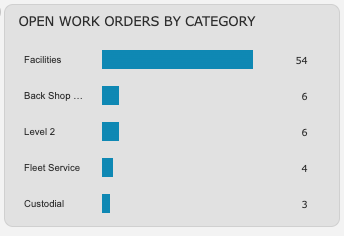
You can see Open Work Orders by Category:

This widget will show you the top 6 categories with the highest count of open work orders. We do not show Closed, Completed or Denied in this widget.
 

Screen_Shot_2022-02-04_at_9.56.34_AM.png


Work Order Planning:

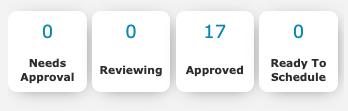
This widget separates work orders by status. You'll see the number of work orders in the statuses Reviewing, Approved, Ready to Schedule, and Needs Approval. Needs Approval and Ready to Schedule will appear in red text if greater than 0.

Clicking on any of the tiles will open a filtered view of the Work Orders with that status.
Screen_Shot_2022-02-04_at_9.56.40_AM.png


30 Day Work Order Trend:

This widget shows the number of completed work orders in a 30 day window against the number of launched work orders in the same 30 day window. You can see the dates along the bottom (x-axis) and the number of work orders along the left (y-axis).

Screen_Shot_2022-02-04_at_9.56.45_AM.png


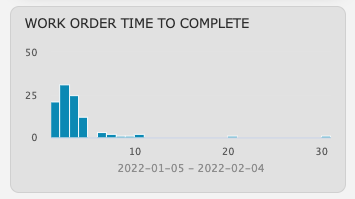
30 Day Work Order Time to Complete:

This widget is in histogram format with the x-axis representing weeks up to 30 and the y-axis representing the number of work orders completed in a 30-day timeframe.

For example, the first bar shows the number of work orders completed in 1 week or less and the second bar represents a completed duration of greater than 1 week but less than or equal to two weeks. The last bar (30) shows the number of work orders completed in 29+ weeks. 
Screen_Shot_2022-02-04_at_9.56.53_AM.png

How to Create and Approve Work Orders

For a full detailed walkthrough on how to create and approve work orders, check out this link
