Work Orders: Dashboard Widgets
Last updated: November 11, 2026
To get an overview of your work orders, click the icon at the top far right of the Work Order module to open the widget view.
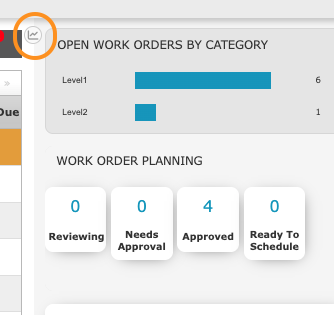
Widget | What it shows |
|---|---|
Open Work Orders by Category | Top 6 categories by count of open work orders |
Work Order Planning | Work order counts by planning status |
30 Day Work Order Trend | Completed vs. launched work orders over 30 days |
30 Day Work Order Time to Complete | How long completed work orders took, by week |
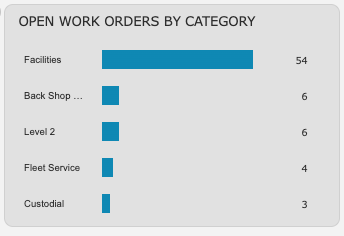
Open Work Orders by Category
Shows the top 6 categories with the highest count of open work orders. Closed, Completed, and Denied work orders are not included.
Work Order Planning
Groups work orders by status: Reviewing, Approved, Ready to Schedule, and Needs Approval. Needs Approval and Ready to Schedule appear in red text when greater than 0.
Click any tile to open a filtered view of the work orders with that status.

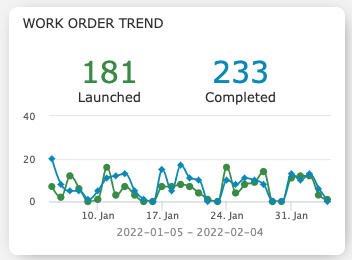
30 Day Work Order Trend
Shows the number of completed work orders in a 30-day window against the number of launched work orders in the same window. Dates are along the bottom (x-axis) and the number of work orders along the left (y-axis).
30 Day Work Order Time to Complete
A histogram with the x-axis representing weeks (up to 30) and the y-axis representing the number of work orders completed in a 30-day timeframe.
For example, the first bar shows work orders completed in 1 week or less, and the second bar shows those completed in more than 1 week but no more than 2 weeks. The last bar (30) shows work orders completed in 29+ weeks.
