注文ルーティングテンプレート
Last updated: June 19, 2026
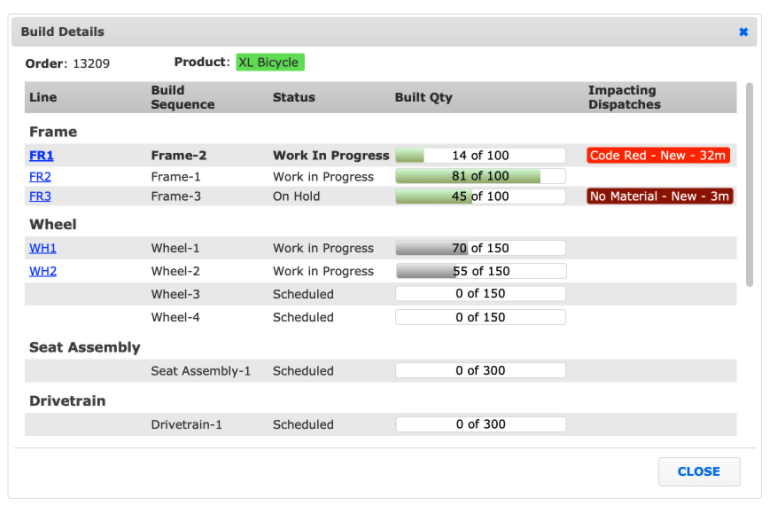
注文ルーティングテンプレートを使用すると、オペレーターポータルから直接複数のラインにわたってビルドが作成されているのを見ることができます。
この機能はL2Lサポートによってのみ有効にできます。有効にしたら、以下の設定手順に従ってください:
- 生産 > 注文ルーティングテンプレート > 新規追加 +
- テンプレートに名前を付けて、表すプロセスを説明します
- テンプレートが表す製品を選択します
- 必要に応じて、テンプレートから作成された注文に適用される特定の背景色とフォント色を識別し、上書き設定を行います
- 必要に応じて、説明にテンプレートが表すプロセスの詳細を入力します
- テンプレートから作成された注文にバーコードを適用する場合は、バーコードのフォーマットを選択し、必要なデータを入力します
- 保存
- 作成した注文ルーティングテンプレートを選択 > ビルドシーケンスを追加
- ビルドが必要な特定の注文がある場合は、「完了すべきシーケンス」を使用して依存関係を設定します。
- 開始すべきシーケンス - これらのシーケンスは、現在のシーケンスが開始される前に開始されなければなりません
- 完了すべきシーケンス - これらのシーケンスは、現在のシーケンスが開始される前に終了しなければなりません
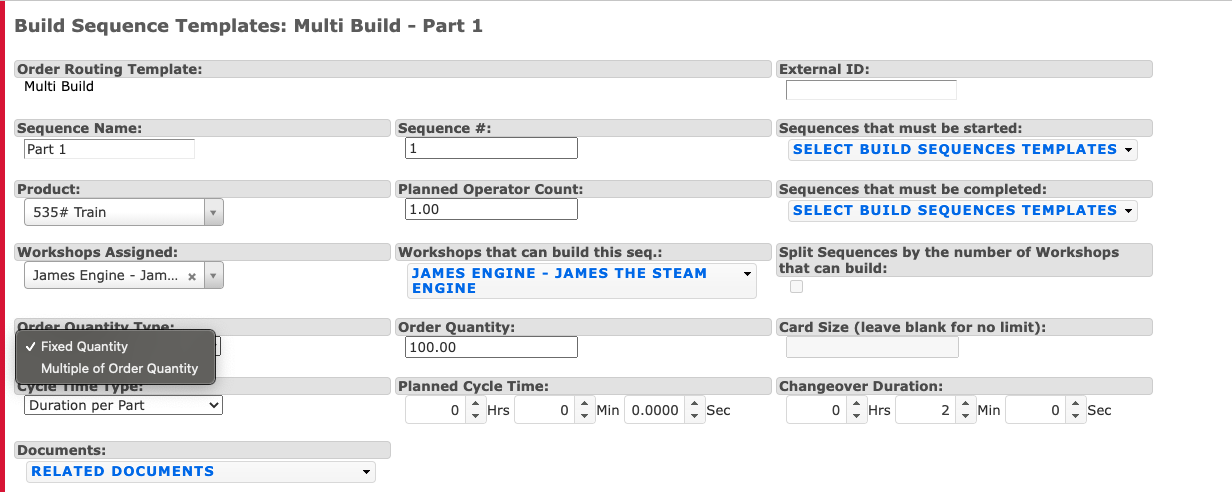
- 固定数量 - シーケンスは常に設定された量を使用します
シーケンスが固定数量を使用している場合、分割シーケンスとカードサイズは無効になります。固定数量のビルドシーケンスを分割する必要がある場合は、2つのビルドシーケンスを作成します。

- ビルドが必要な特定の注文がある場合は、「完了すべきシーケンス」を使用して依存関係を設定します。
- 注文数量の倍数 - 倍数を入力すると、製品注文の量にその倍数が掛けられます。0.5の倍数も可能です。
- 例) 倍数が2で、製品注文の数量が100の場合、ビルドシーケンスは200になります。さらに、倍数を2に設定し、2つのラインでビルドできる場合、注文数量が100の場合、ビルドシーケンスは各ラインで100になります。
- ライン数によるシーケンスの分割 (注意: これはL2Lサポートによって有効にする必要があります。オペレーターポータルのキューに複数ラインが表示されていない場合は、この機能をオンにする必要があります)。 - ビルドできるラインが2つ指定されており、「シーケンスの分割」にチェックが入っている場合、テンプレートから製品注文を作成すると、2つのシーケンスが生成されます - それぞれのラインに対して。さらに、テンプレートのシーケンス数量は2つのラインの間で分配されます。
- 例) 倍数が2で、製品注文の数量が100の場合、ビルドシーケンスは200になります。さらに、倍数を2に設定し、2つのラインでビルドできる場合、注文数量が100の場合、ビルドシーケンスは各ラインで100になります。
Use the "Built Quantity Calculation Method" setting from the Order Routing Template to set the "Built Quantity Calculation method" setting on orders from the template
If the Product Order's "Built Quantity Calculation Method" is "All Parts", the Product Order's Build Quantity will increment when the Built Quantity is incremented on any Build Sequence
If the Product Order's "Built Quantity Calculation Method" is "Parts from Build Sequence(s)", the Product Order's Build Quantity will only increment when the Built Quantity is incremented on the selected Build Sequences from the Parts from Build Sequence(s) selection
- Select "Create New Order" at the top or bottom of the Order Routing Page
- Enter the specific details for the order to be created
- Identify the specific order Name
- Select the Status the order should be created as
- Choose what Product the order should be created for, or the particular product that should be applied to certain steps
- Enter the Scheduled and Due Dates for the order
- If needed, select an Override Background and Font color to be applied to the individual order
- Specify the Order Quantity
- Add any further Description for the unique order, if required
- If used, fill in the Format and Data for a barcode for the order
- Save
Once the order is started on the Operator Portal, it will appear as follows in the Current Order widget:
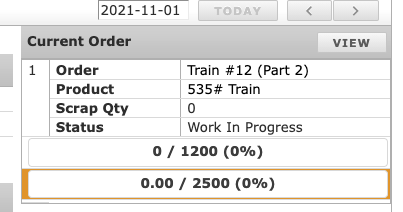
If you want to see the entirety of the order as to where it is at in the process, you can click on the 'Multi-line' button on the Current Order and it will bring up a new screen with the information.