Non Production Time Reallocation Tool
Last updated: June 19, 2026
Why?
It is extremely difficult to reallocate Planned Production time to Planned Non-Production time (aka Planned Downtime, Planned Idle time).
If you consider training, company meetings, fire drills, etc. as Planned Non-Production time. These events cannot be planned using pitch templates because they do not follow a predictable pattern, but they happen frequently enough that a simple approach is needed in order to maintain accurate metrics.
What?
We've created a Reallocation Tool that lives on the Production Schedule page that will create a closed dispatch, that moves the planned production time to planned non production time and in turn adjusts your LMPU metric accordingly.
How?
L2L Support can enable a Site Setting for you.
- From the Operator Portal (or the Production Menu), click More > Schedule.
- In the Schedule, click 'Reallocate'.

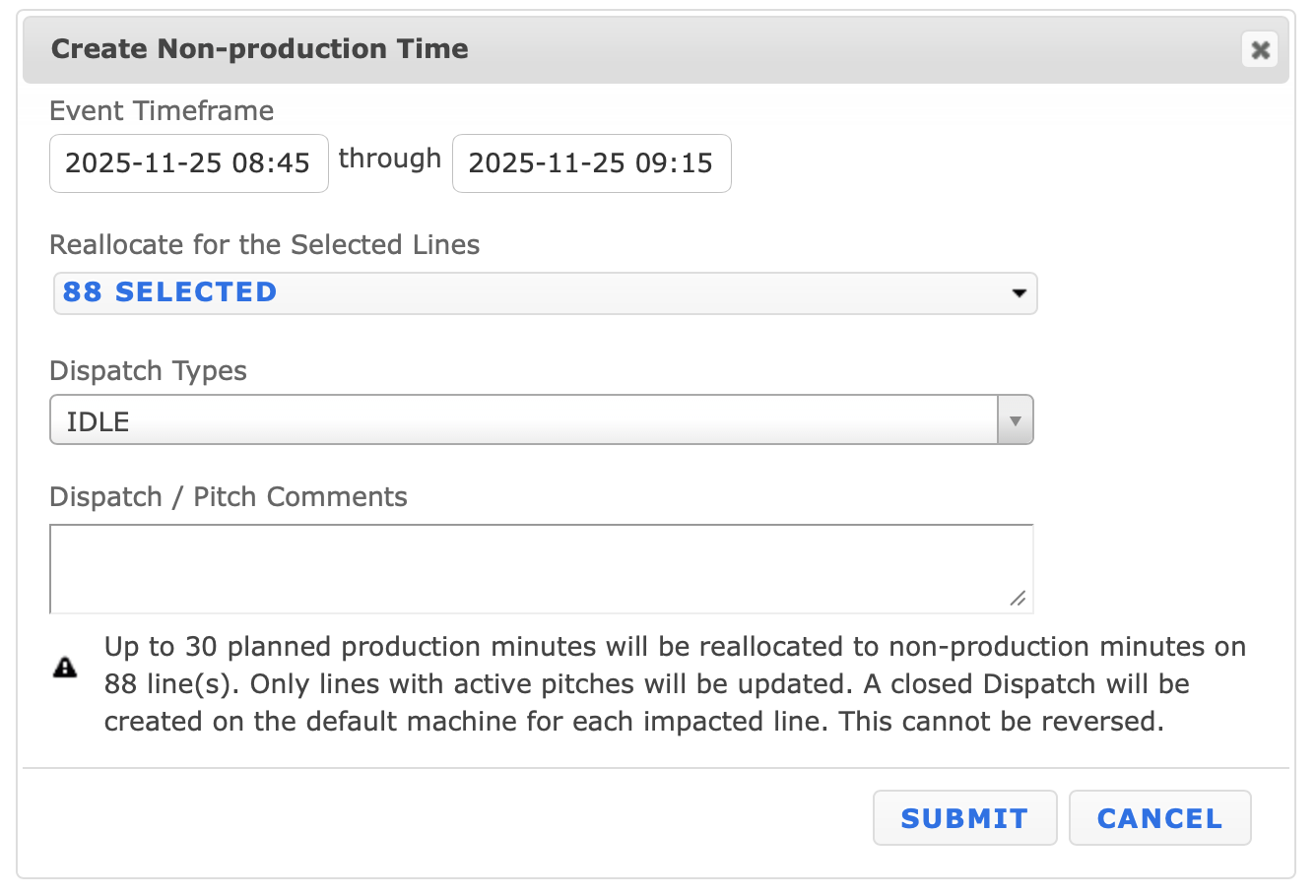
- Select the desired timeframe (when the event occurred).
- Choose the impacted Lines in that Area. (will only show lines within the area)
- Select a Dispatch Type to attribute the event to. Note: Cannot be a Down Dispatch Type).
- Enter in comments you'd like appended to those dispatches (optional). You will see a warning at the bottom of the comments, and it will calculate the minutes at the bottom.
- Submit.
Notes:
- You will need Planner Permissions in the production settings.
- The change to the Production/Non-Production Minutes. Your LMPU metric will also be adjusted to account for the change in minutes.
- If you had planned non-production minutes, this will add to them.
FAQs & Troubleshooting:
- The tool creates closed dispatches; no down dispatch types can be used.
- Dispatches are always associated to the default machine on the line.
- This tool is preferred over the two Planned Downtime Dispatch Type settings as it provides a faster, universal update to all production metrics utilizing planned production minutes—eliminating the need to launch individual dispatches.
- Warning: Actions performed with this tool are irreversible. Verify all data carefully prior to submission.
- A single event cannot exceed 24 hours. For downtime spanning longer than 24 hours, the reallocation tool must be executed multiple times to cover the full duration.
- To ensure data integrity, events cannot be backdated more than 72 hours from the current time. Please plan accordingly to address updates within this window.
- Other relevant articles:
- Tip: For tracking purposes, we suggest you create a specific non-impacting dispatch type i.e. Reallocation Time," and run a dispatch history report to see who reallocates time.