Order Routing Templates
Last updated: November 10, 2026
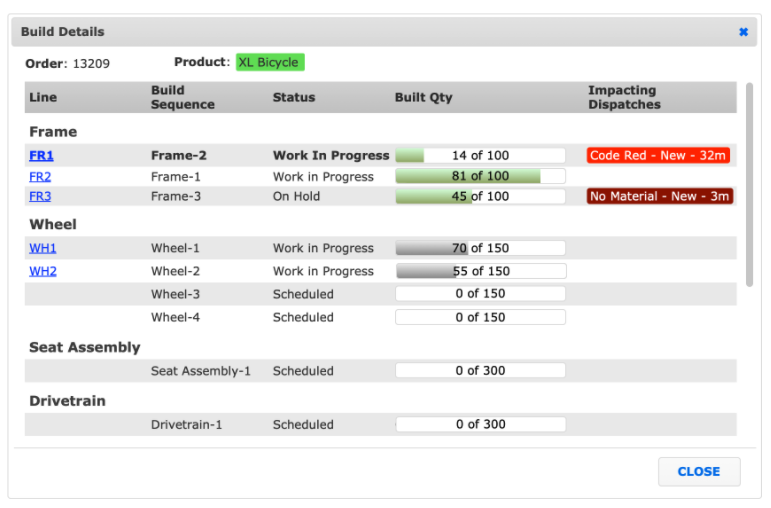
Using the Order Routing Templates, you can now see a build being created across multiple lines directly from the Operator Portal.
This feature can only be enabled by L2L Support. Once enabled, follow the setup instructions below:
Navigate to Production > Order Routing Templates > Add New +
Provide the template a Name to describe the process it represents
Choose the Product the template represents
Identify, if desired, any specific background and font colors that should be applied to orders created from the template via the Override settings
If needed, enter any additional details regarding the process the template represents into the Description
If a Barcode should be applied to orders created from the template, select the barcode Format and enter the necessary Data
Save
Select the created Order Routing Template > Add Build Sequences
If there is a designated order the build needs to occur in, use "Sequences that must be Completed" to set dependencies.
Sequences That Must Be Started: Use this to designate which preceding sequences should ideally be underway before this sequence begins, helping signal sequence order to operators.
Sequences That Must Be Completed: Use this to define dependencies where a prior sequence needs to finish before this sequence should take place.
Fixed Quantity - the sequence will always use the set amount
If the sequence is using Fixed Quantity, Split Sequences and Card Size become disabled. Create two build sequences if there's a need to split a fixed quantity build sequence.

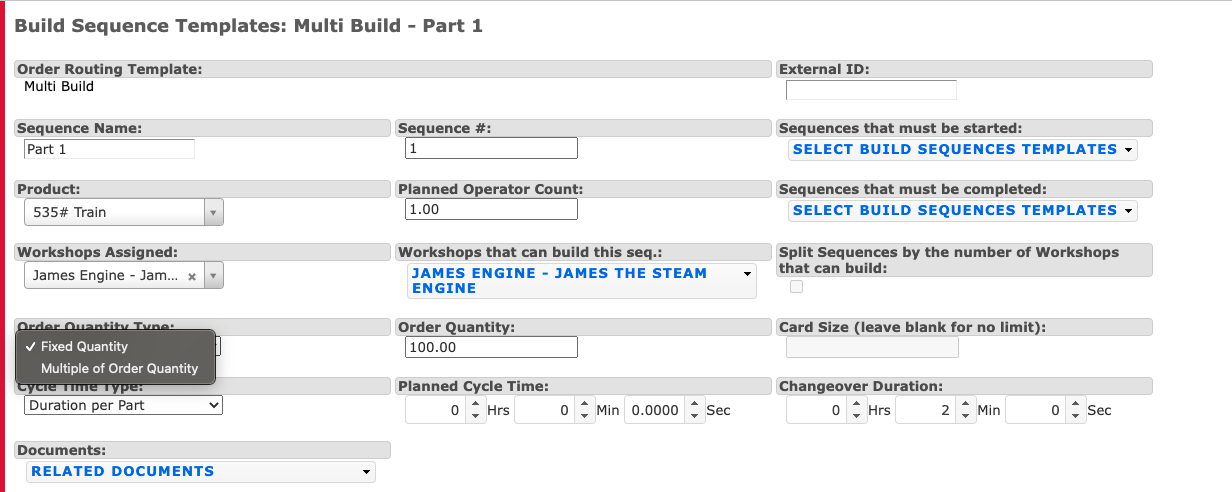
Multiple of Order Quantity - if a multiplier is entered, the amount on the Product Order will be multiplied by that amount for the Build Sequence. Increments of 0.5 are possible.
Ex) A multiplier of 2 and a Product Order quantity is 100, the Build Sequence will be for 200. Furthermore, if you select a multiplier of 2, have 2 lines that can build, and an order quantity of 100, the Build Sequences will be 100 for each line.
Split Sequences by the Number of Lines that can Build (Note: This must be enabled by L2L Support. If you are not seeing multi lines on your operator portal queue, this feature needs to be turned on). - if two lines that can build the sequence have been specified and Split by Sequences checked, creating a Product Order from the template will generate a two sequences - one for each line that can build. Additionally, the the template sequence quantity will between the two lines.
Ex) A multiplier of 2 and a Product Order quantity is 100, the Build Sequence will be for 200. Furthermore, if you select a multiplier of 2, have 2 lines that can build, and an order quantity of 100, the Build Sequences will be 100 for each line.
Once Build Sequences have been added, return to the Order Routing Template page
Use the "Built Quantity Calculation Method" setting from the Order Routing Template to set the "Built Quantity Calculation method" setting on orders from the template
If the Product Order's "Built Quantity Calculation Method" is "All Parts", the Product Order's Build Quantity will increment when the Built Quantity is incremented on any Build Sequence
If the Product Order's "Built Quantity Calculation Method" is "Parts from Build Sequence(s)", the Product Order's Build Quantity will only increment when the Built Quantity is incremented on the selected Build Sequences from the Parts from Build Sequence(s) selection
The template can now be used to create a Product Order. This can only be done manually or via API
Select "Create New Order" at the top or bottom of the Order Routing Page
Enter the specific details for the order to be created
Identify the specific order Name
Select the Status the order should be created as
Choose what Product the order should be created for, or the particular product that should be applied to certain steps
Enter the Scheduled and Due Dates for the order
If needed, select an Override Background and Font color to be applied to the individual order
Specify the Order Quantity
Add any further Description for the unique order, if required
If used, fill in the Format and Data for a barcode for the order
Save
Once the order is started on the Operator Portal, it will appear as follows in the Current Order widget:
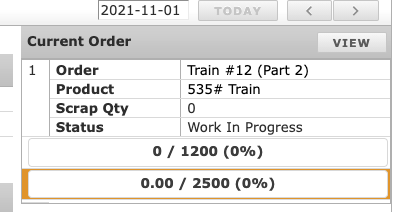
If you want to see the entirety of the order as to where it is at in the process, you can click on the 'Multi-line' button on the Current Order and it will bring up a new screen with the information.