Operator Portal Overview
Last updated: June 25, 2026
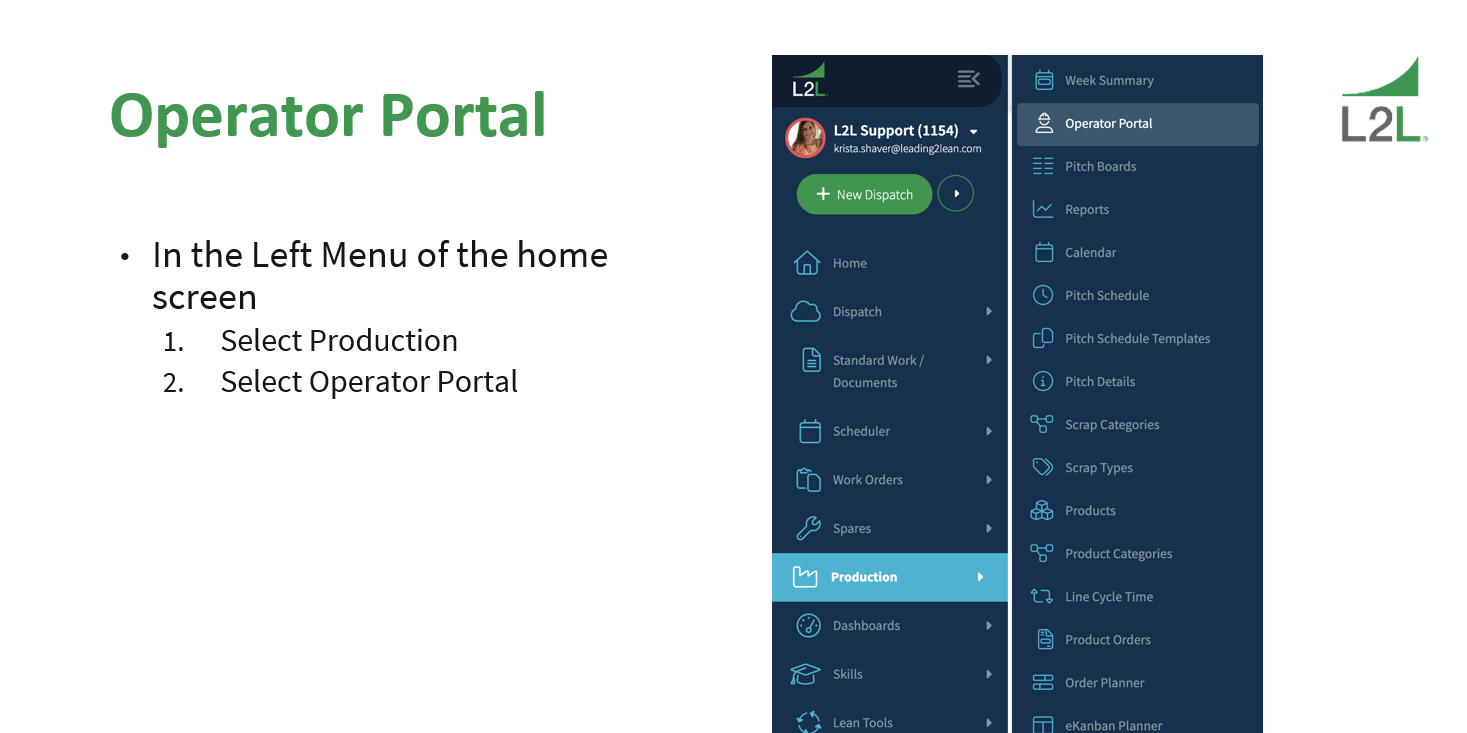
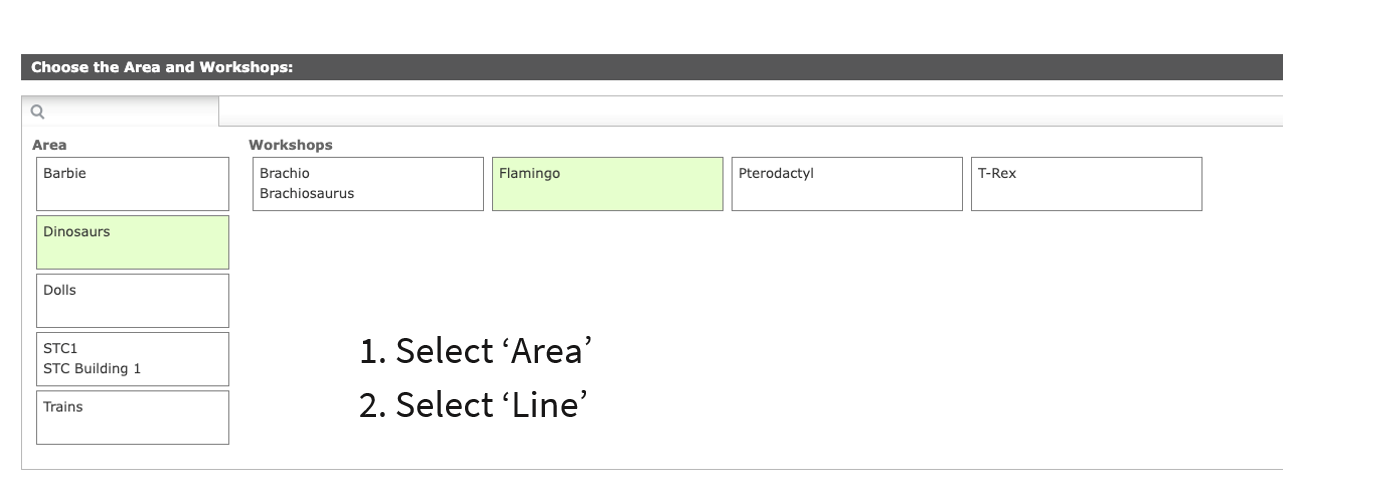
Operator Portal
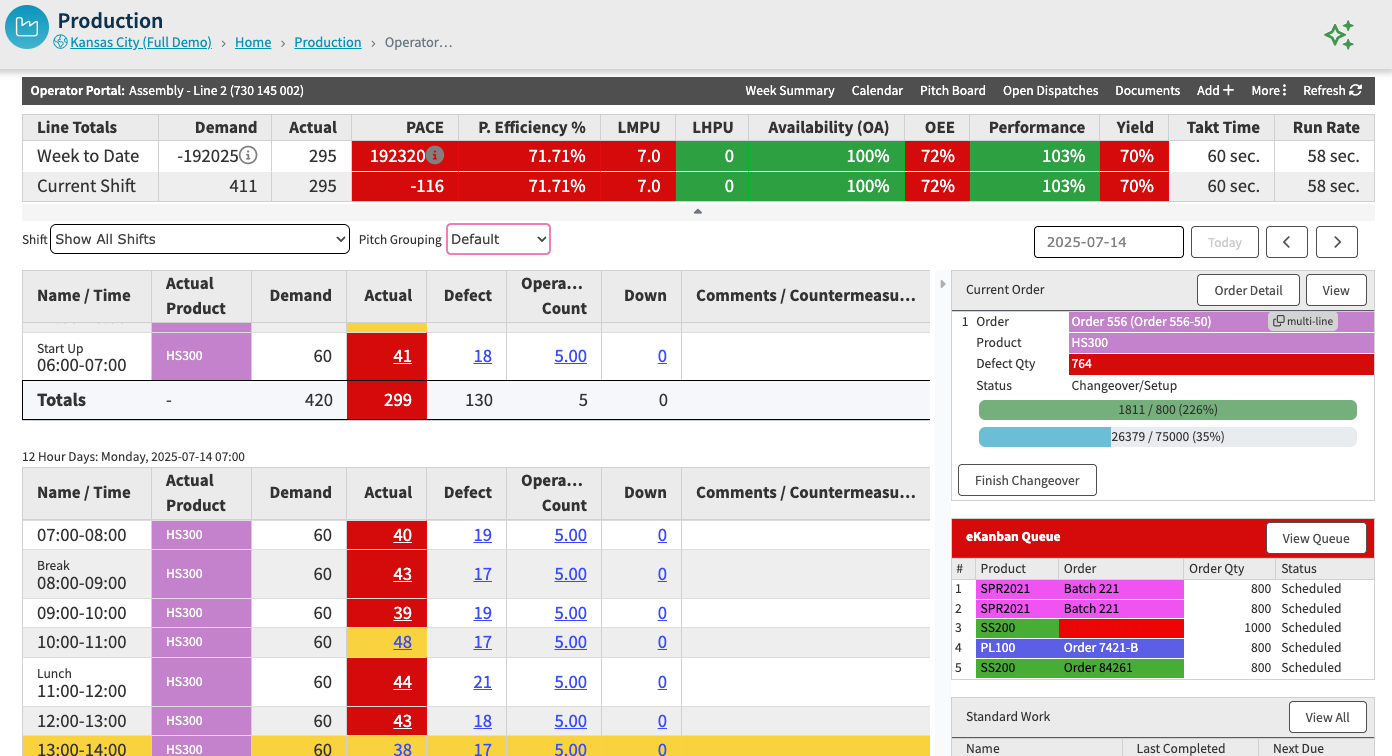
Collapsible Panels
You have the option to view the Week to Date and Current Shift Metrics, if you do not wish to view these you can click the arrow to hide.
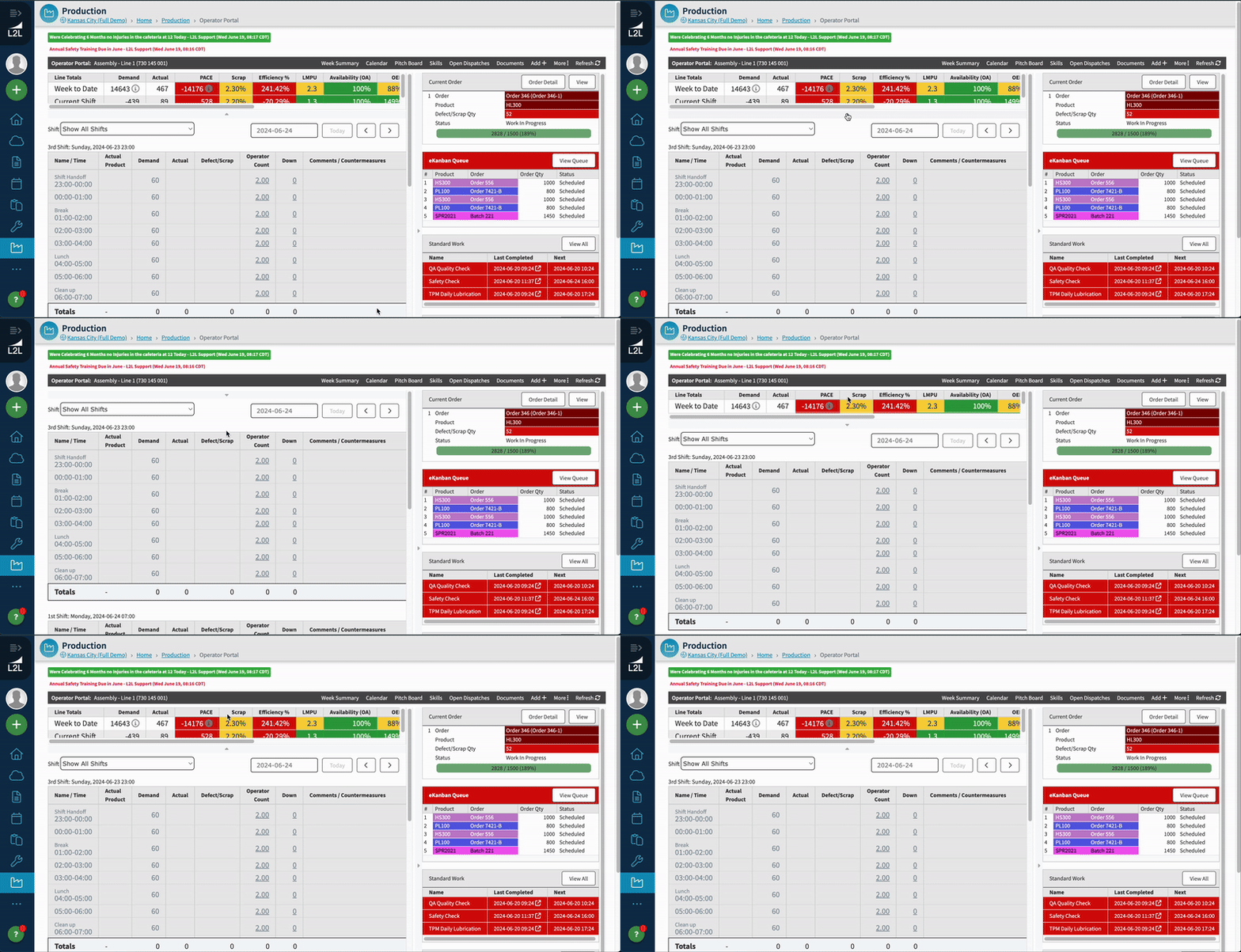
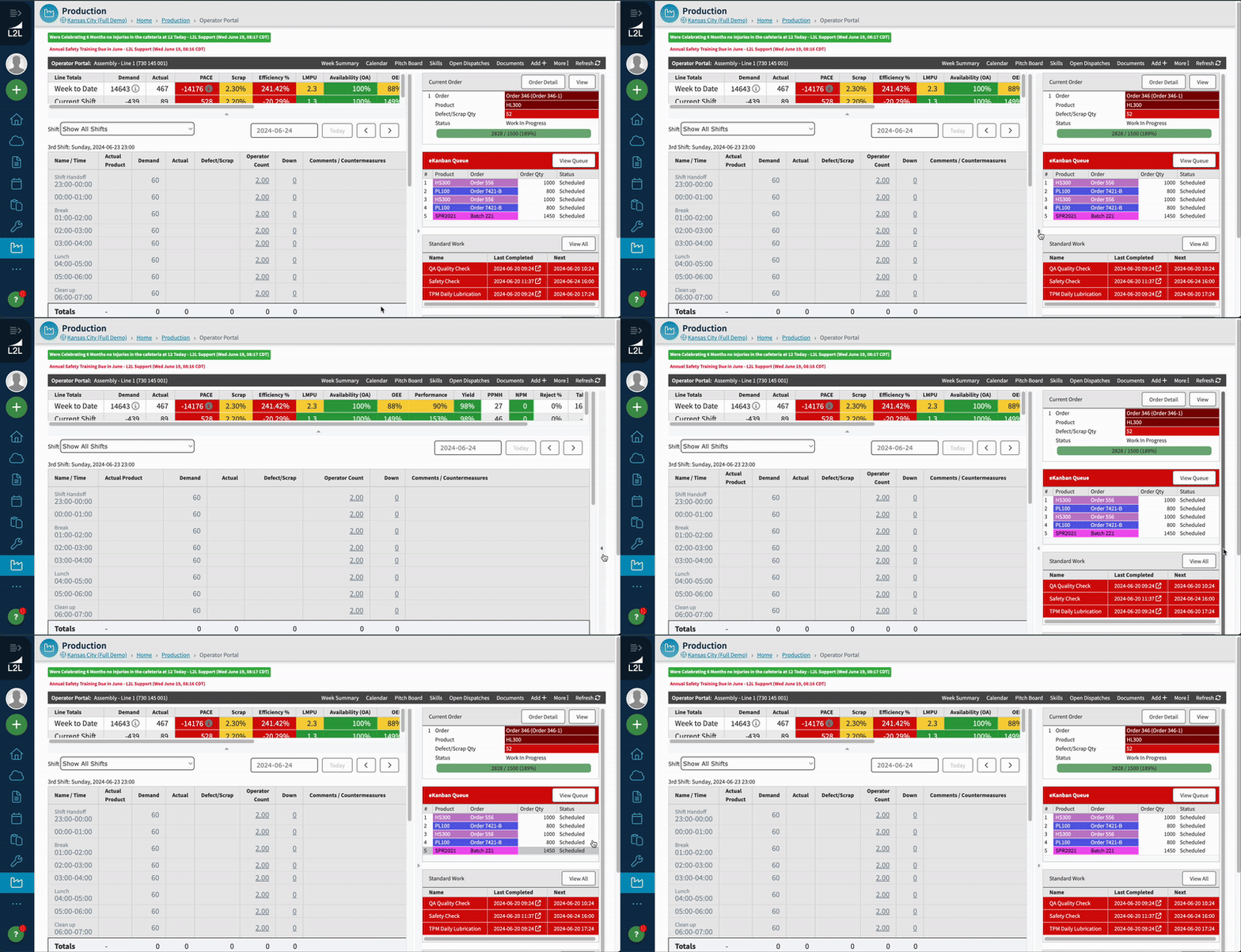
You can also collapse the right side panel for a cleaner, more efficient workspace.
Dispatch Entry within the Operator Portal
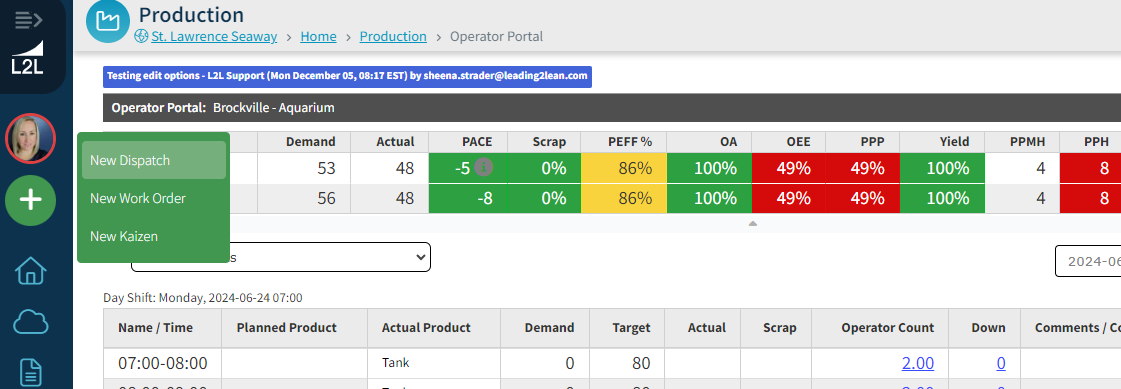
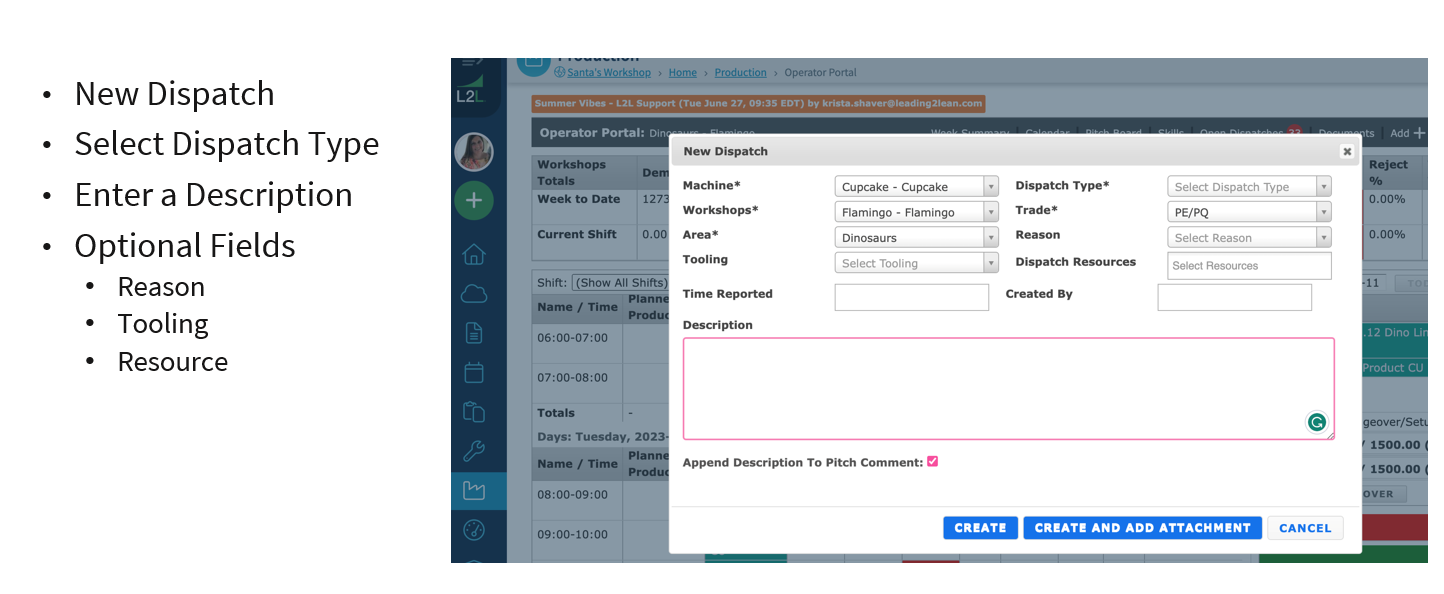
View Open Dispatches & History
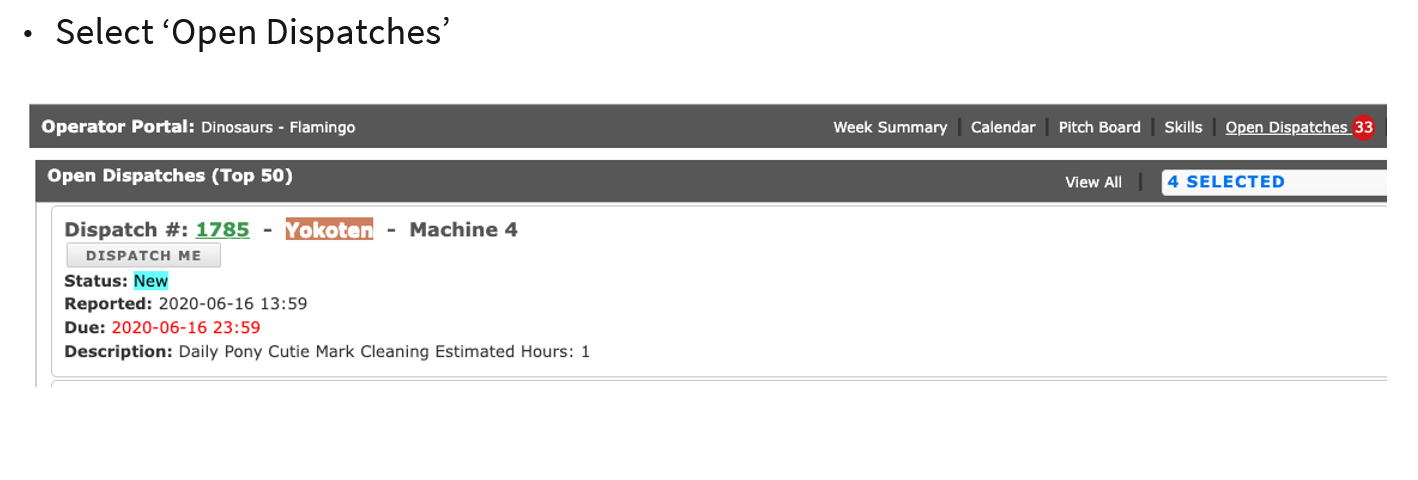
View History
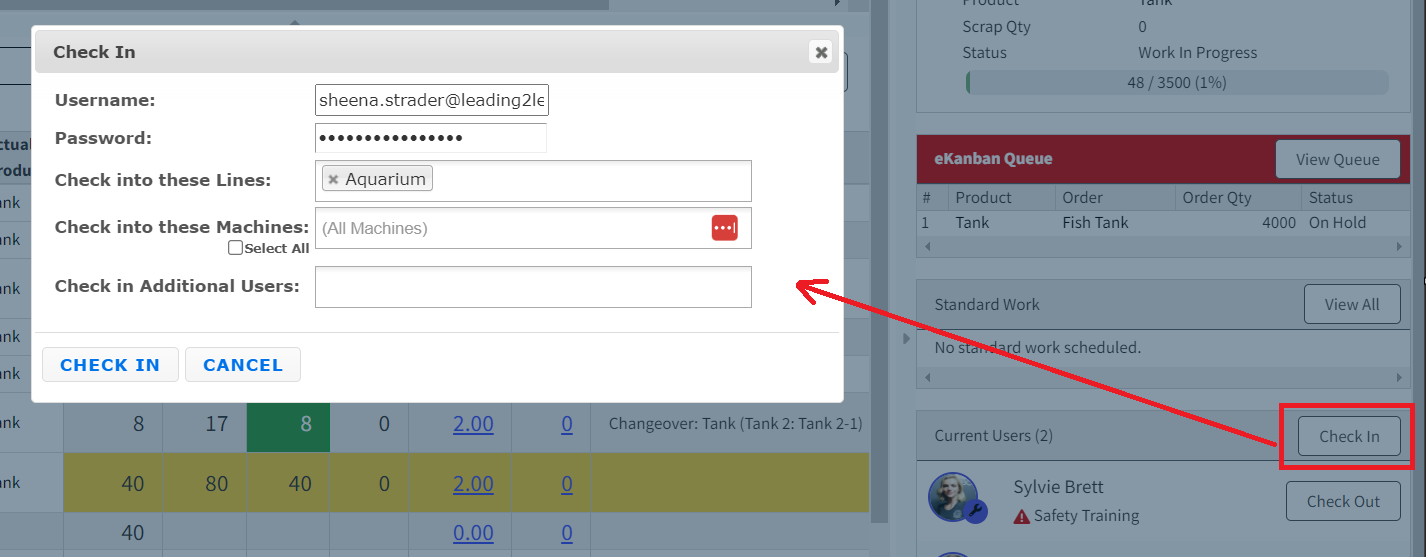
Operator Portal Check-In and Out
Check-in on the line and/or machine at the start of shift.
Enter your username
Enter password
Select Line/Machine to check into
Click Check-in
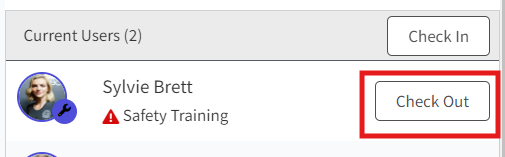
At the end of shift or when changing lines during the shift, be sure to Check Out by clicking Check-Out next to the user.
Operator Fix
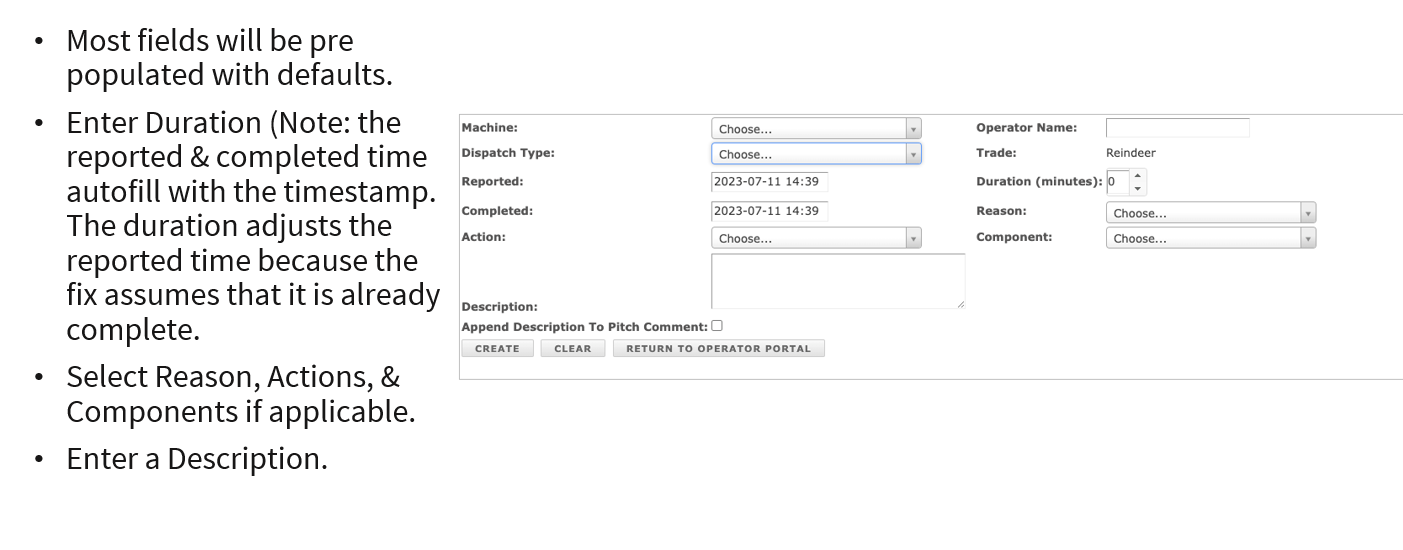
Operators can record activities performed by the operator by entering an Operator Fix.
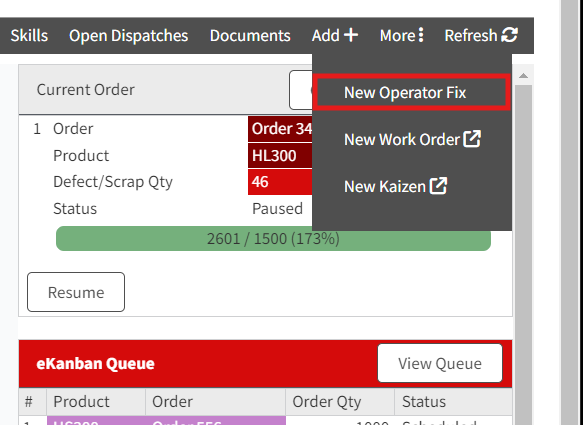
Select 'Add+' from the menu bar at the top.
Select 'New Operator Fix'
Entering Pitch Actuals and Scrap
Select 'Current Pitch' highlighted in yellow.
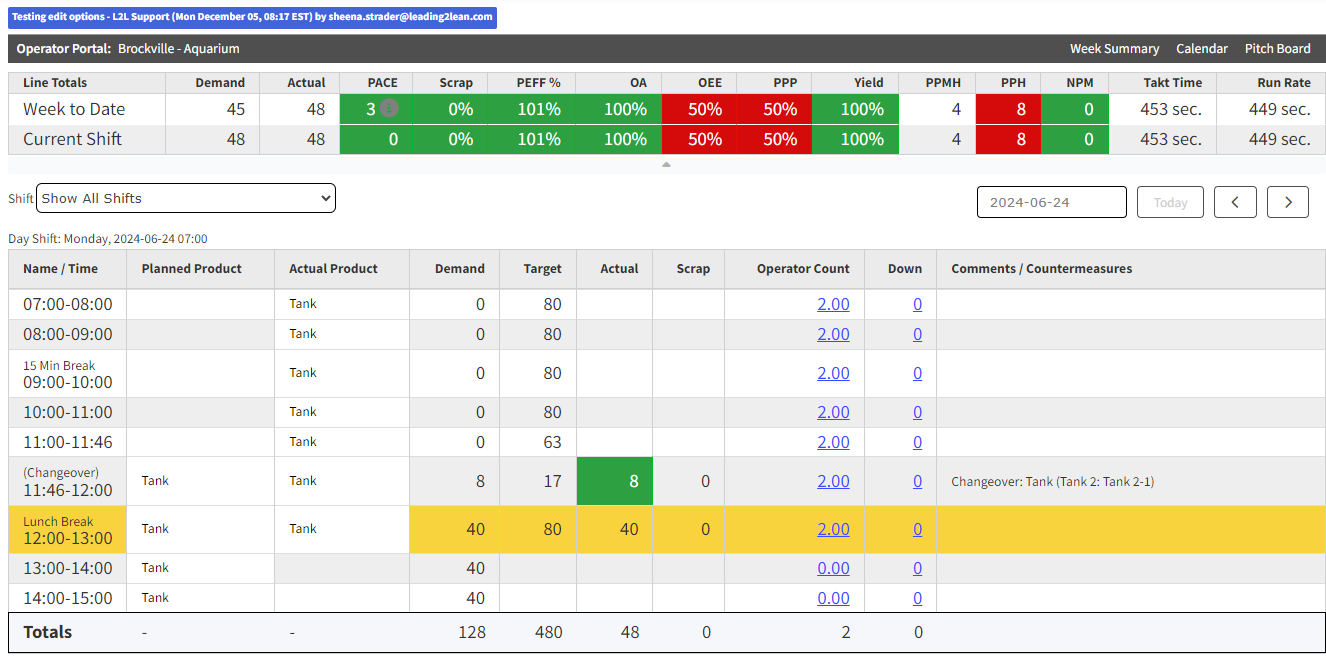
If running product orders, a product will already be selected. If not, you can select a product.
Enter the Actual.
Enter Scrap Quantity. Select a Type of scrap if applicable.
Add Comments.
Save.
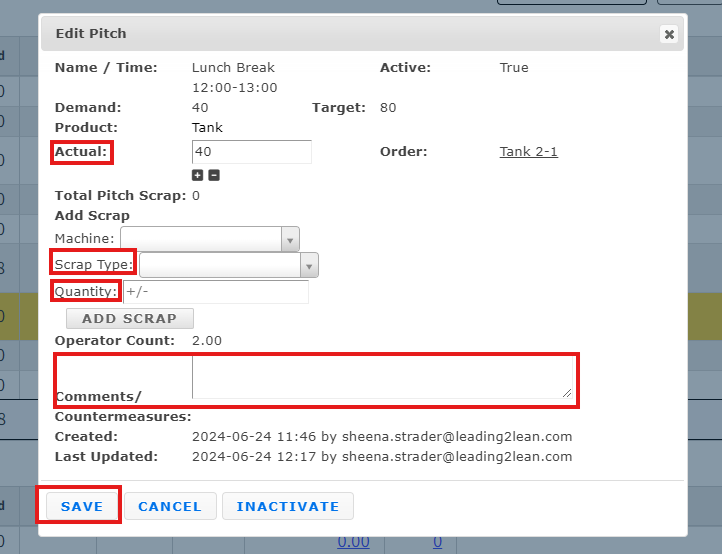
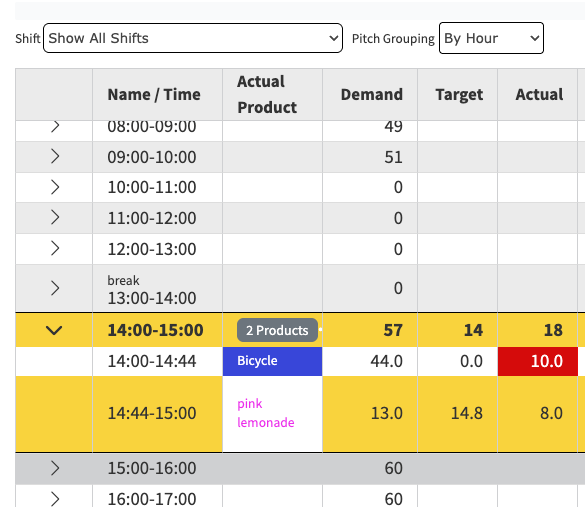
You can group pitches using the 'Pitch Grouping' dropdown at the top of the pitches. The grouping gives a cleaner look for operations that have a lot of products and changeovers throughout the day. Default is the standard view; this will break the pitches up for every product/changeover. You can choose to group by hour or by schedule (uses the pitch schedule template).
Note: If you are interested in this, this is a site option L2L has to enable. Please reach out to support.

Product Orders
The Ekanban Queue gives you a view of upcoming orders.
The current order is visible at the top right and highlights the status and percentage complete.
Placing Orders on Hold or Pause
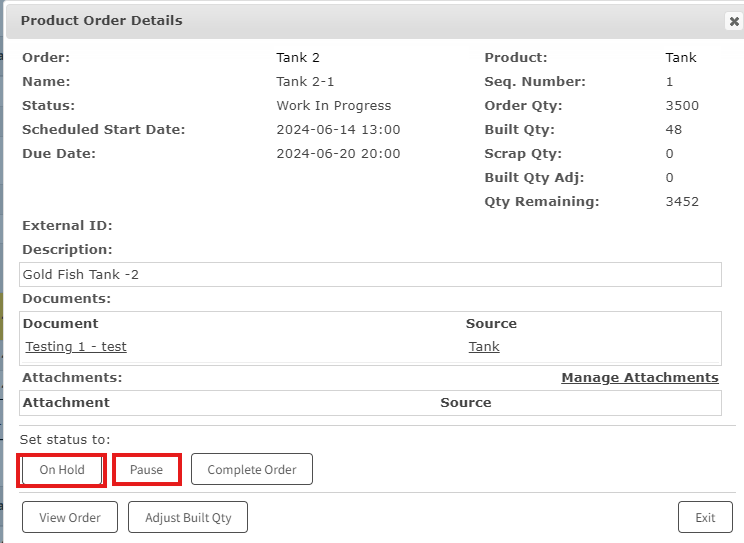
Select the Current Order.
Select 'On Hold' or 'Pause'
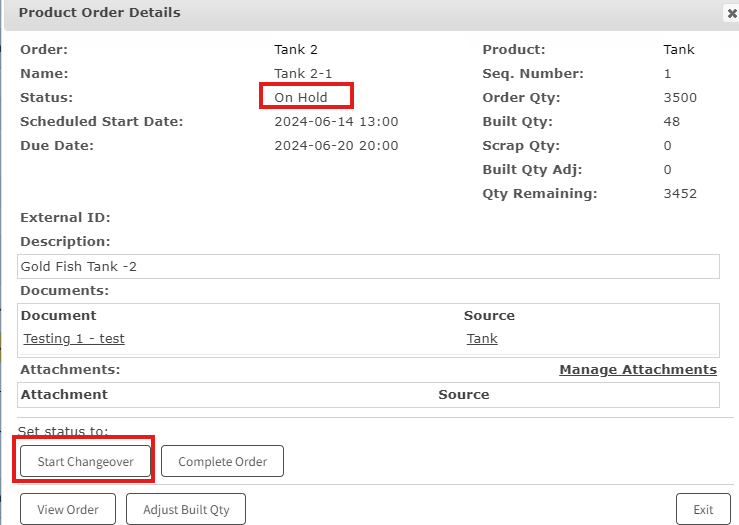
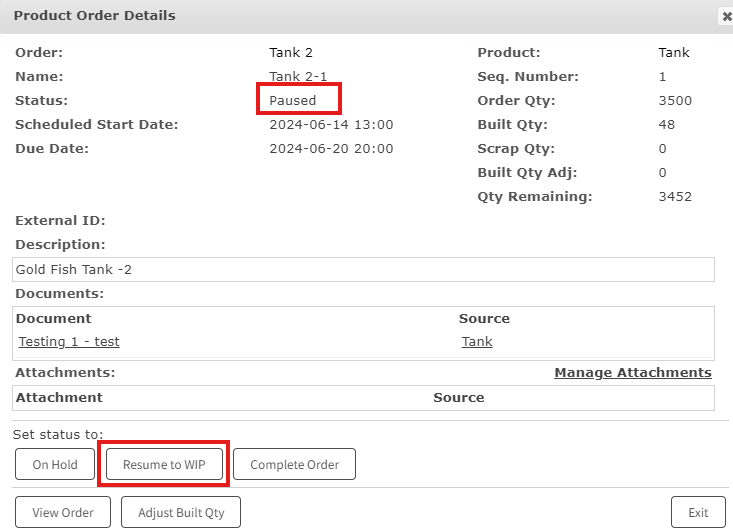
This will change the product order status to On Hold or Pause
On Hold - (Request a changeover to begin the product again' for material shortage, etc)
Pause - (manage scheduled downtimes without negatives impacting Overall Equipment Effectiveness (OEE) calculations. Used for breaks, etc. - doesn't require a changeover to start the product back up) We'll automatically place a WIP order on Pause at the end of a shift. Available on lines with eKanban Production enabled and Product Order Build Sequence in WORK IN PROGRESS.
On Hold
Paused
Starting a Changeover
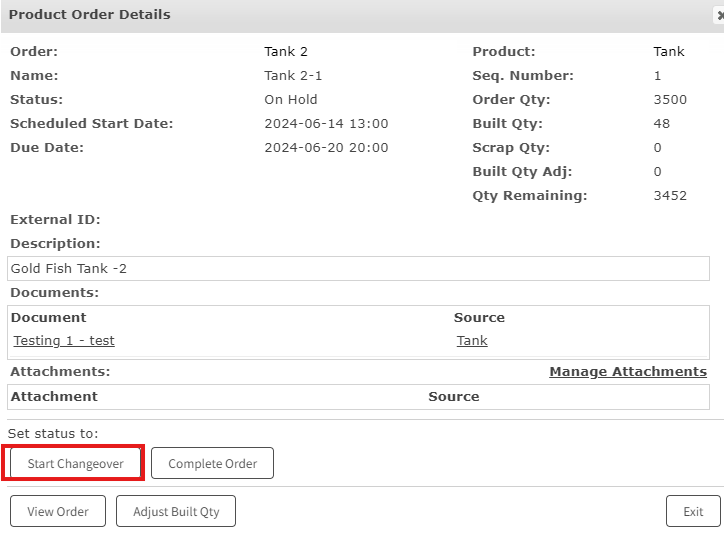
Select a Product Order from the queue and click 'Start Changeover'
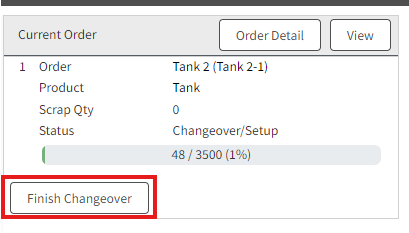
The order will now appear under 'Current Order'
If you have changeover times, you'll click the 'Finish Changeover to move the order to WIP Status.