Setup - Spares Part Movement
Last updated: June 19, 2026
Setup
First, enable part movement in Spares Settings.
You'll also need to assign someone as a Receiver in Spares Settings.
Then create a Dispatch Type for Part Movement and select both the Part Movement Dispatch Type and the Part Movement Machine in Spares Settings. When this is configured, a Dispatch is launched when a part movement request is made to the source site.
For definitions of these settings, see Spares Settings.
How to: Requesting Site
From the Spares Menu, Click 'Request Spares'
From there, you'll want to filter to 'All Sites'
Find the Part Number at the Site you want to request it from.
Submit. That's it!
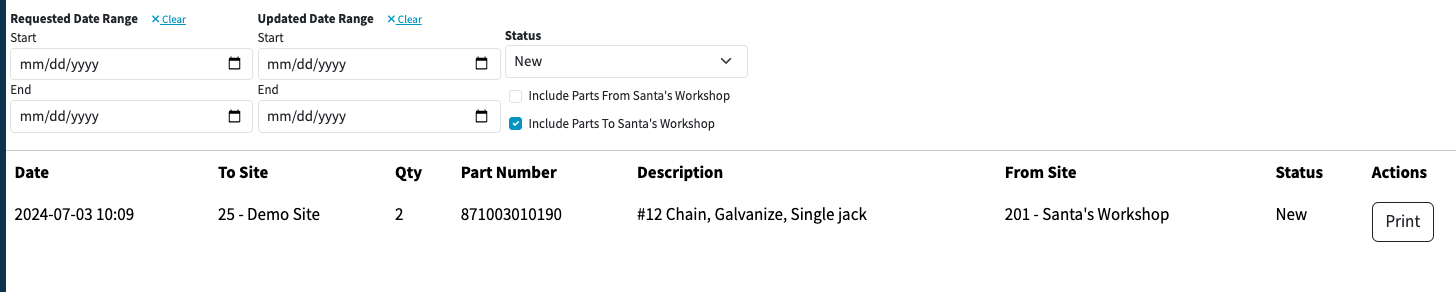
In the Parts Movement page under 'Include Parts To SITE', you'll see your requested part. You can also Print.
How to: Shipping Site
When another site requests a part, you'll receive a Dispatch. Note: Dispatch Type will need to be created and added to the Spares Setting for this to work.
From the Parts Movement page, you'll see requests from your site to be shipped to the requesting site. You are able to click Edit to enter a PO Number and change the status to Approved or Denied.
Movement History Report
This report shows the history of all requests between sites. It appears only when the part movement setting is enabled in Spares Settings.
