Work Orders: Cost Estimates and Resource Planning
Last updated: November 11, 2026
Beyond the basic schedule, you can add cost estimates and assign trades, resources, and hours to a work order. These help you plan the job and compare estimated costs with actuals.
Cost and tracking fields
Estimated External Costs: Add an estimated external cost for the job, such as travel, outside vendors or contractors, or equipment rentals. You can select a category for each.
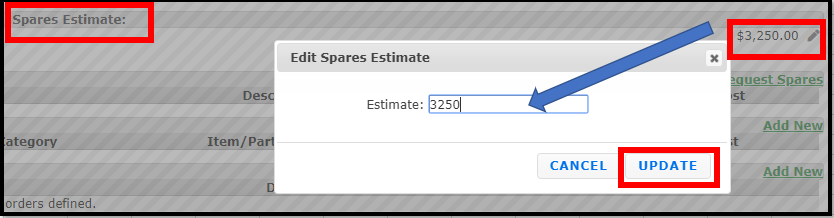
Spares Estimates: Add an estimated cost for spare parts used on the job.
Cost Center: If you use cost centers, tie one to the job.
Project ID: A free-text field for your company's project ID as a reference.
Notes: Add further instructions for the assigned resource to follow.
Cost estimations
Cost estimations help you understand the variance between estimates and actuals. The cost summary section compares all entered costs to the estimated costs.
External Costs Estimates: Estimate items like equipment rental and outside contractor labor costs.
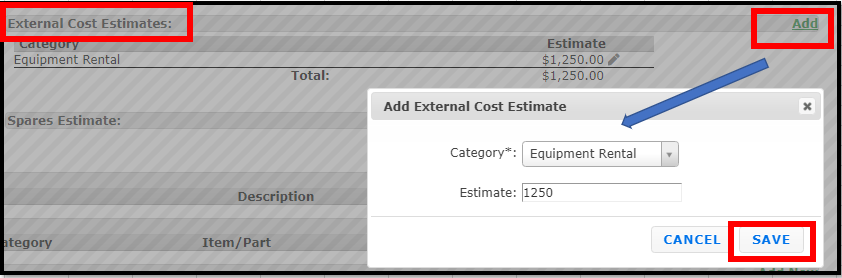
Note: To set up external cost categories, go to the main Setup menu and add External Cost Categories under the Dispatch Setup section.
Spares Estimates: Add the estimated costs for all parts needed for the work order.
Adding resources and trades
You can add one or more trades, resources, and estimated hours to complete the work by opening the work order and going to the Resource section. If the job needs multiple trades, click Add for each separate entry.
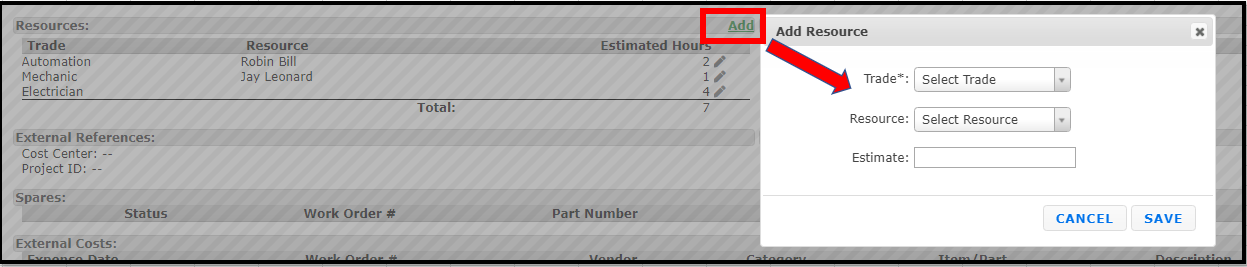

To edit or add to the resources, trades, or estimated hours, click the pencil icon on the right under the Estimated Hours heading.
You can assign a trade and estimated hours now and add more to the job later as it gets closer to the launch date.
Tip: Associate your resources to trades in Setup. When you select a trade on the work order and then add a resource, only the resources associated with that trade will be listed.