📕🎥 Setting up UOM Conversions for the Operator Console & Portal
Last updated: June 19, 2026
First, you'll want to make sure you have UOMs added from the Setup Menu.
Next, you'll want to associate your Products to the Default UOM in the Products Setup page. Note: Once the UOM is assigned you can only change it if it's not associated to any production data.
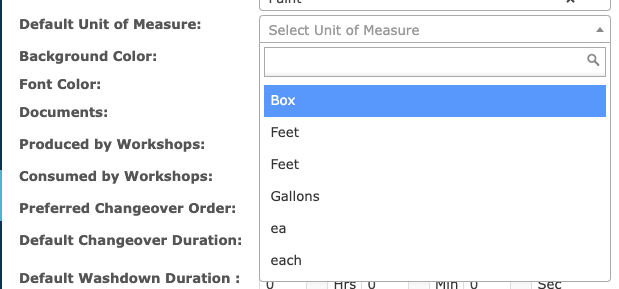
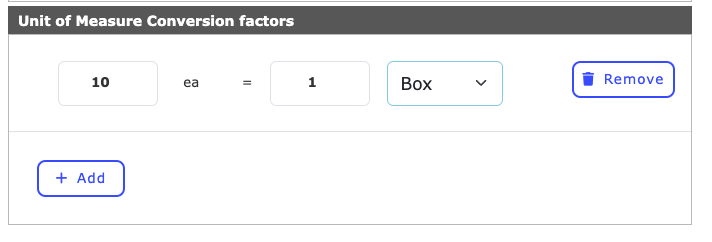
At the bottom of your Product Detail page, you'll find a box to add a Conversion Table. You can enter multiple conversion factors.
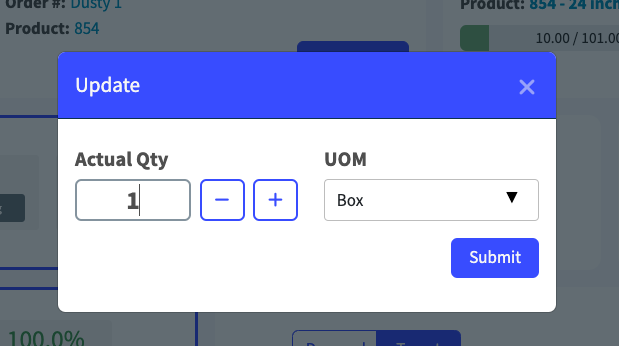
Now, from the Operator Console or Operator Portal, once you are running that product (order), when you click to add an 'Actual' you'll have the option to convert your actual into a different unit of measure.
For example, if you put in 1 box, your built quantity will decrease by 10 because your Product UOM Conversion Table (image above).

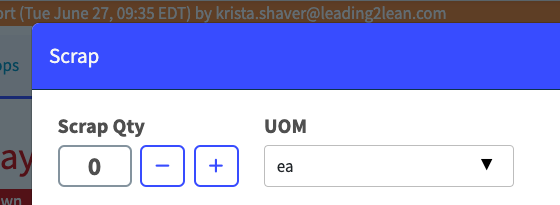
In addition to Actuals, you can also convert your Scrap.
UOM can also be sent via API when using the record_details and scrap_details. You can also add UOM when creating a product through the API.