Loading a Pitch Schedule
Last updated: June 19, 2026
In order to see Pitches on the Operator Portal, you need to have a Pitch Schedule Template loaded for the Line. You can only load a schedule if you have a template setup. If you haven't created a pitch schedule template yet, see this article.
- From the Production Menu, navigate to Pitch Schedule (alternatively, you can navigate to the Operator Portal for the Line you wish to load a schedule for and use the 'More' button).
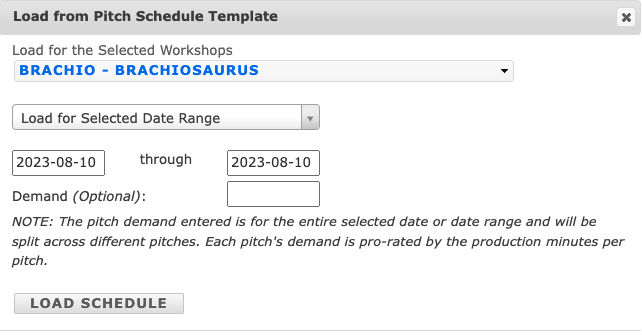
- Choose from the Area and Line from the dropdowns and select 'Load'. You will be presented with a pop-up window.
- If you know this schedule is being used on multiple Lines in this Area, you can select multiple Lines from the first dropdown to load simultaneously.
- The next dropdown gives you the option to load the schedule for a single day vs. a broader date range.
- Next, you have the option to load demand and the same time as loading the schedule. Note: The pitch demand entered is for the entire selected date or date range and will be split across different pitches. Each pitch's demand is pro-rated by the production minutes per pitch.
- Hit 'Load'.
Pro-Tips:
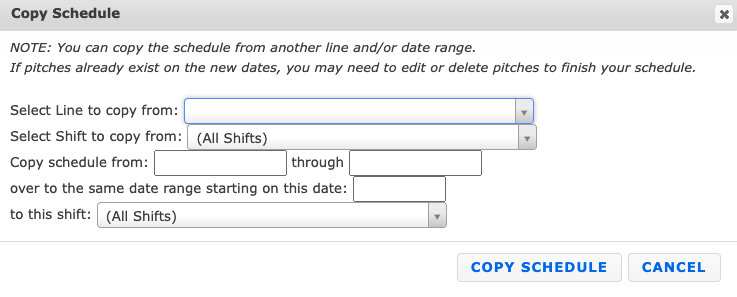
You can also copy the loaded schedule to other Areas & Lines from this same page.
When loading pitches for an extended date range - you may run into issues with timing out and pitches not fully loading. This is due to a large data set being loaded and causes performance issues causing the page to time out. We suggest you load pitches for smaller periods of time, such as month to month.