Rescheduling & Canceling Product Orders and Build Sequences
Last updated: November 11, 2026
When production schedules change, you can cancel or reschedule product orders and their build sequences in several ways. This article covers each option.
Canceling product orders
Every product order has one or more build sequences. You can't edit the status of the product order itself, only the statuses of its build sequences.
Option 1: Cancel individual build sequences
Click into the build sequence, click Edit, and change the status to Canceled. Repeat for each sequence you want to cancel.

Option 2: Bulk-cancel in the eKanban Planner
Open the eKanban Planner and view your product orders.
Filter the list so only the product orders you want to cancel are displayed.
Select the new status and click Set New Order Status.

Rescheduling product orders
There are three ways to reschedule in the UI and one through the API.
Option 1: eKanban Planner (single Area and Line)
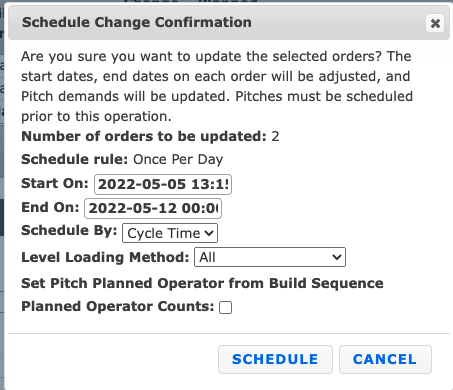
If your build sequences are allocated to one Area and Line, open the eKanban Planner, click the Scheduling button, and use the Start/End fields to update the order dates.
Option 2: Order Planner drag and drop (multiple Areas or Lines)
If your build sequences aren't defined by one Area and Line:
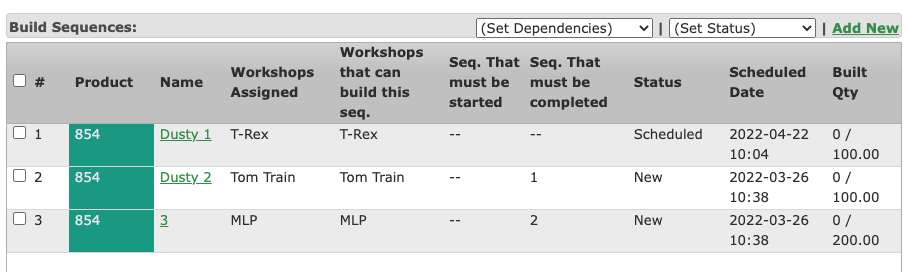
Make sure the order has dependencies set up for its build sequences.
Open the Order Planner.
Drag and drop one of the sequences to the desired date and time. The rest of the dependent sequences will follow.
Option 3: Mass-edit scheduled dates from the Product Order screen
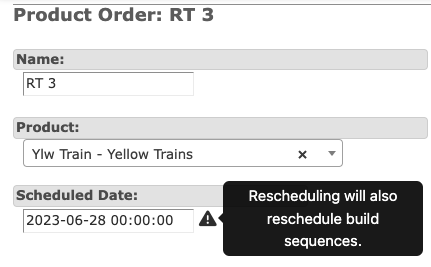
From the Product Order page, click Edit and change the Scheduled Date for all build sequences in eligible statuses.
Can be mass edited | Cannot be mass edited |
|---|---|
New, Planning, Scheduled, Ready | On Hold, WIP, Changeover, Completed, Canceled, Cleanup |
Option 4: Reschedule with the API
Use the Product Orders and Build Sequences APIs with a script your team builds. The script can filter through scheduled sequences and update their start and end dates.

Scheduling a line on short notice
Need to run a production line tomorrow on overtime? Schedule it from the Production Calendar. Check out this video on the drag-and-drop production scheduling functionality.