Product Orders: Creating & Editing
Last updated: November 11, 2026
Product Orders allow you to plan ahead using the scheduling tools L2L offers. This article covers creating a product order, the key fields, what each status means, and the tools available once the order is saved.
Creating a product order
To create a product order manually, go to Production > Product Orders > Add New, then fill in the following:
Name
Status (see the status table below)
Product
Scheduled Date
Due Date
Order Quantity
Is this an eKanban Order? Allows you to add multiple build sequences to the order. Build sequences are the individual orders that make up the total order.
Description (optional)
Barcode Information (optional)
Important: You must have at least one build sequence per order to complete the order in the Operator Portal.
Product order statuses
The number next to each status is the API integer returned by, or needed for, the Product Orders and Build Sequences APIs.
API value | Status | When it's used |
|---|---|---|
0 | New | Default status when importing product orders without defining a status on the spreadsheet. |
1 | Planning | The planning stage of your product order. |
2 | Scheduled | You're ready to run the order. The order appears in the eKanban queue of the Operator Portal. |
3 | Ready to Build | Works like Scheduled, but tells operators which orders are ready to run next. |
4 | Changeover/Setup | The interim time between orders while you set up or change equipment for the next product. |
5 | Work in Progress | The order is currently being worked on. |
6 | On Hold | The order is on hold (for example, out of materials, a more urgent order, or a plant shutdown). |
7 | Completed | The order is done. |
8 | Canceled | The order is no longer needed or has been removed. |
9 | Cleanup | The order is in a clean-up state before being completed. |
10 | Paused | Only available in the Operator Console (see below). |
Paused: Operators select Pause (for example, when going on break) and Resume when they return. Orders are also paused automatically when a shift ends and no other shift is in place for that line. When an order is paused, the Build Sequence updated timestamp shows Order Status Manager as the user who performed the action.
Editing a saved product order
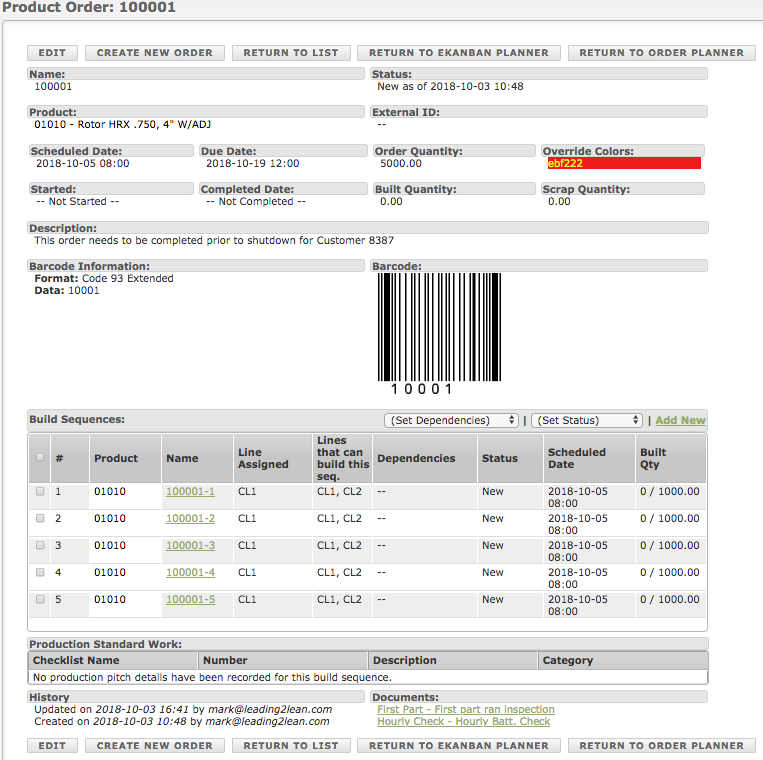
Once you've saved the order, click Edit to add more details or use these options:
Set Dependencies: Requires certain build sequences to be completed before the next one starts. Select all sequences or check individual ones, then enable the feature. The details appear in the Dependency column.
Set Status: Change the status of some or all sequences in the order. Select the sequences, pick the new status from the drop-down, and confirm in the pop-up.
Add New: Opens the add/edit build sequence page to add a new build sequence.
Production Standard Work, Attachments, and Documents: See Adding Documents, Attachments, and Standard Work to Product Orders.
Quick links
Create New Order: Creates a copy of the existing order. For example, if you want to run the same order next month, use this to create a new order, then update details such as the name, dates, and description.
Return to List: Returns to the list of all product orders.
Return to eKanban Planner: Opens the eKanban Planner for the line you were last scheduling.
Return to Order Planner: Opens the Order Planner for the last area you were scheduling, with any lines you filtered.
Split Order: Splits an order into two parts. For example, if you're pushing out as much product as possible in a quarter and have to stop production halfway through a run, you can split the order so one half counts in the first quarter and the other half in the second quarter when production resumes.
Check out this overview video of the Split Order option for product orders.