Overview
Editing Daily Shift Times lets you make day-specific schedule adjustments for lines and resources within a Resource Shift. Use this page to schedule working days, remove days, and mark planned shutdown dates.
Prerequisites & Preparation
Required Permissions: Setup or Administrator access.
Dependency: Resource Shifts and Lines must already be configured in the system.
Step-by-Step Configuration
- Go to Setup > Resource Shifts.
- Open the Resource Shift you want to update.
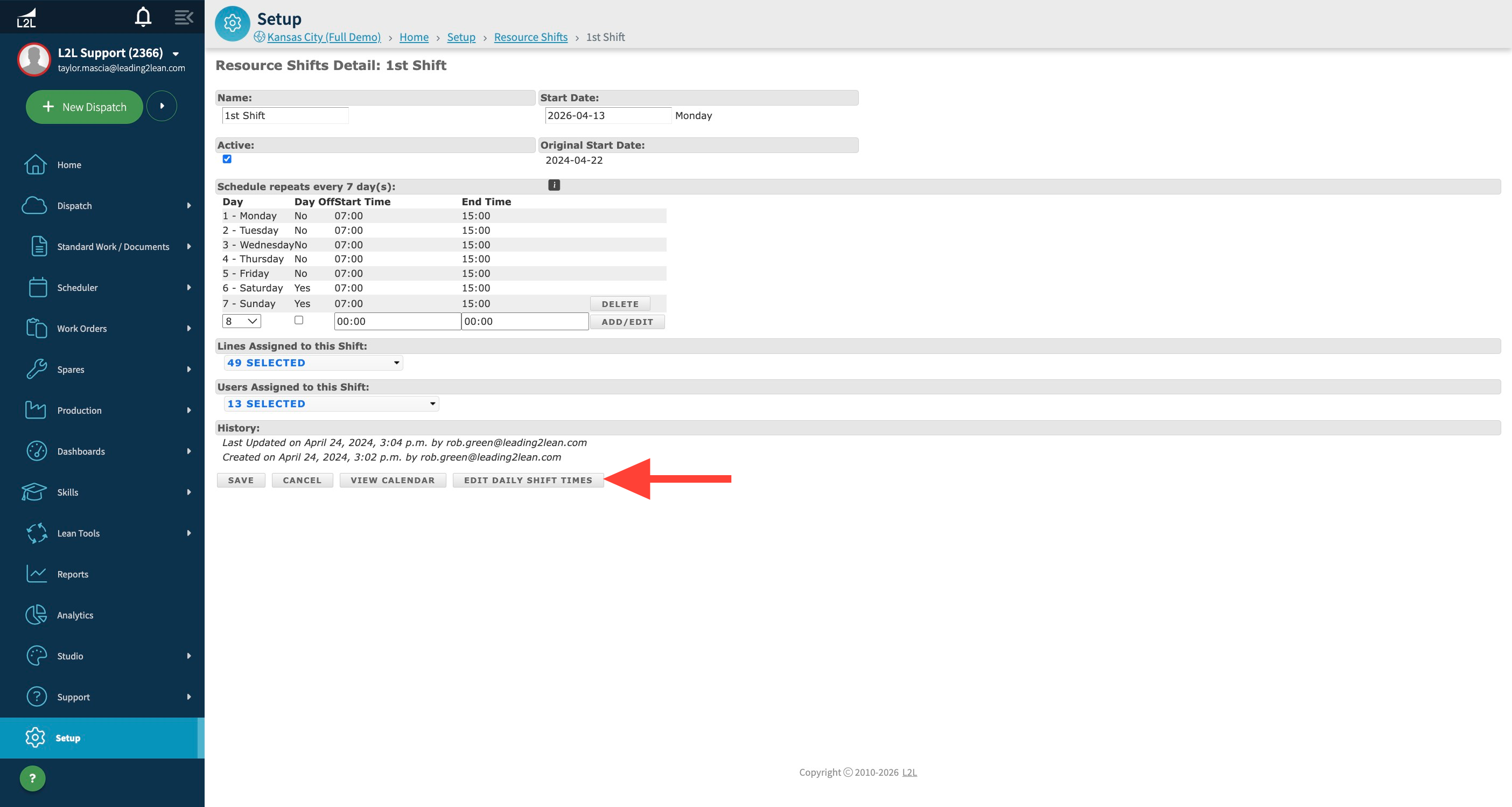
- Scroll to the bottom of the shift detail page and click [EDIT DAILY SHIFT TIMES].
- On the Edit Daily Resource Shift Times page, enter the start date and end date, then use the Value Stream, Area, Line, and Shift filters to narrow the schedules you want to review. Click [APPLY FILTERS] to load the matching records.
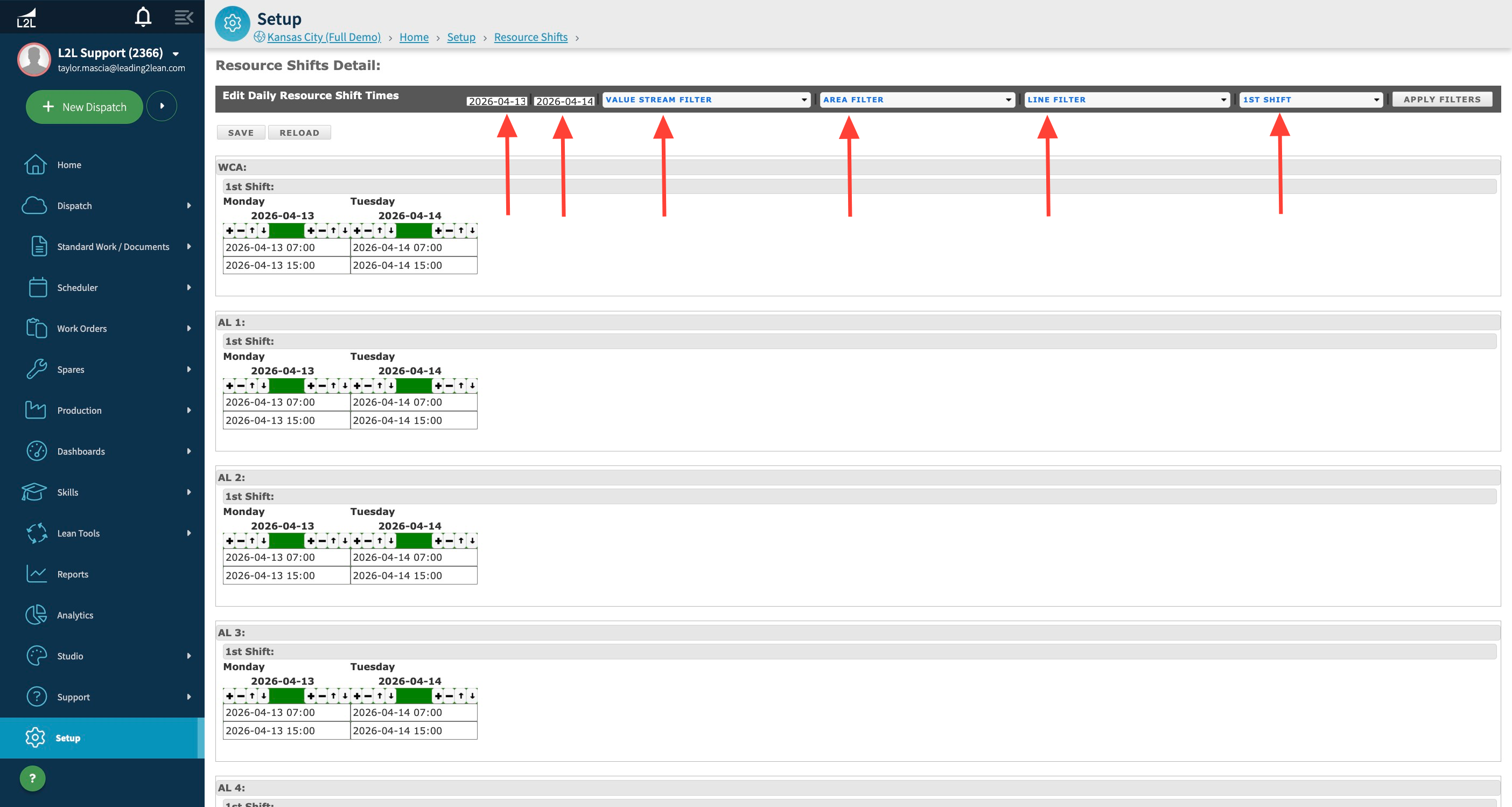
- Use the available controls for each line to adjust daily schedules as needed. Set working dates to green and mark shutdown dates as red.
- Click [SAVE] to apply the updated daily shift times.
Note: If the site does not use the Production module, you can load a larger time period in the calendar view and then remove specific dates for holidays or shutdown periods.
The video below is supplemental. Use the written steps above as the primary workflow.