Spares File Import
Last updated: July 13, 2026
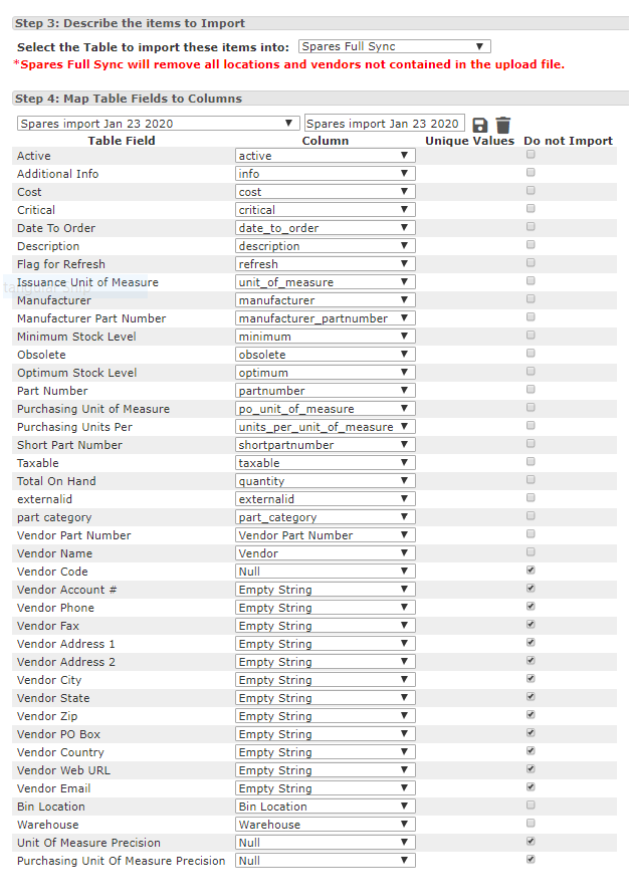
In Step 4, you will need to map your fields to match your spreadsheet. Each Table Mapping Name should match the Column drop-down name. Sometimes you will have a Table Mapping that doesn't have a corresponding Column Header and does not need to be imported; you can empty string or null that column header and click the 'Do Not Import' box.
Staged Uploads with Incomplete Data: If you're importing parts without complete information (for example, you want to load parts now and add vendor details later), map only the fields you currently have available. For vendor fields or other data you're not ready to load yet, set them to Null or Empty String and check the 'Do Not Import' box. You can add the missing information in a subsequent import. This approach works even if you only have access to Spares Full Sync and not Spares Vendors Sync.
Once all of your fields have been mapped, you should see a 'Do Import' button. Once clicked, a confirmation message with your site will pop up. Click okay.
Multiple Bin Locations
When mapping parts with multiple bin locations, you will want to map the total on-hand quantity to the bin quantity on your spreadsheet. Not doing so will result in a display issue (double #) for your total on-hand quantity.
When mapping, you will want to make sure you have Qty by Bin filled in on the spreadsheet and the mapping field Total on Hand mapped to Qty by Bin. (When creating your spreadsheet, the part would need multiple rows to set this up)


External Master
The External Master field is used to indicate which system is the master record for a Spare part. If set to True, a Spare part is managed by an external system, such as an ERP, MRO, or even Spreadsheet. If set to False, L2L is considered the master record for the Spare part. The import will default your Spare parts External Master to True if the field is not mapped or is null.
Most often, all Spares will have External Master set to either True or False. In some cases a plant may have a mix, where some Spares are managed from L2L only, and other Spares are managed externally. This is the reason for having the External Master setting on the part.
Some Spare reports only report on Spare parts where the External Master is set to False.
When performing a Spares Sync, the upload tool will remove all locations and vendors from all parts in the system if the location or vendor is not included in the uploaded file and the External Master field on the part is either True, Null, or not mapped.