How to Add/Edit Scheduled Events
Last updated: September 28, 2026
Creating and managing scheduled events (like Preventative Maintenance, calibrations, and inspections) helps ensure your equipment and tooling remain fully operational.
1. Accessing the Scheduler
Navigate to the left main menu.
Click Scheduler, then select All Schedules.
(Optional) Filter your list using the filters in the header bar.
Click Add New in the upper-right corner of the Schedule List bar.
Tip for Tooling: If you want to keep Tooling schedules separate from Machine schedules, consider creating a dedicated TOOLING category. You can then navigate directly via Scheduler → Tooling → Add New.
2. Basic Information & Event Setup
Fill in the core parameters for the event:
Name: Enter a clear identifier for the schedule.
Dispatch Type: Choose the type of task being generated.
Comments: Add any extra context or instructions.
Trade: Select the trade responsible for performing the work.
Do Event Shadowing: Check if you use event shadowing to capture resource usage across interval types.
Estimated Hours: Set expected labor hours per interval (captured alongside shadowing).
Owner(s): (Optional) Only assign an owner if the schedule is consistently handled by the same individual.
3. Configure Schedule Types & Intervals
Step A: Choose the Schedule Type
One Time Event: Non-repeating, single occurrence.
Fixed Interval: Repeats on a rigid schedule regardless of completion date.
Example: A monthly PM set for the 20th will always trigger on the 20th of each month, even if last month's PM was completed late.
Floating Interval: Resets the next due date based on the actual completion date.
Example: A monthly PM due on the 20th is completed 5 days late (on the 25th). The next PM will float to launch 1 month from the completion date (the 25th of next month). This prevents redundant work.
Note on "Day of Month" with Floating: Using "Day of Month"
Using "Day of Month”, this works differently in the way it will cycle forward one month from last completion and then look to see what the Day setting is (Day of Month) and then use that day to set the due date.
Example: The due date was 09/22 and you complete it on 09/18, the next due date would be 10/22 (Recommended: Use Interval Type: Days and enter the explicit number of days for predictable floating schedules).
Step B: Select the Occurrence Interval Type
Choose between Days, Hours, Cycles, Calendar Monthly, Calendar Weekly, Calendar Daily, Calendar Yearly, or Calendar Shifts.
Key Rules by Interval Type:
Weekend Exclusion (for Days, Hours, Cycles): You can toggle "Exclude Weekends." Weekends are still counted in the interval math, but if a launch date lands on Saturday or Sunday, the dispatch pushes to the next business day.
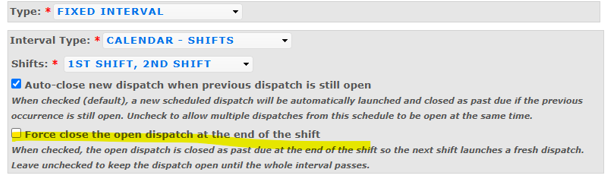
Calendar Type- Shifts (fixed interval): Set schedules against specific shifts. Dispatches launch automatically at the start of the designated shift.
Calendar Daily: Allows you to add the shift you want the schedule to launch against.
Note: Adding the shift will automatically fill the Next Launch Time (shift start) and Next Due Time (shift end). You can change the next scheduled time during that shift if needed.
Force Close Option: Admins can check "Force close open dispatch at end of shift" to auto-close uncompleted tasks as past-due, ensuring the next shift starts fresh. Note: if a dispatch is marked completed, the system will not auto-close it. Leaving this unchecked keeps the dispatch open until the interval expires.
Cycle-Based Schedules: Cycle counts have no calendar date anchor. A due date will not be assigned to the dispatch until the machine/tooling current cycle count actually surpasses the set cycle_due threshold. (therefore, you won’t seen a due date on a dispatch until we know its past due)
We do however, have a feature to estimate due dates. Check out this article for more details.
Annual & Monthly: Annual cycles operate on a strict 12-month interval; Monthly schedules trigger on the exact same numerical day each month.
Step C: Choose Occurrence Type Settings:
Estimate Hours – enter how many hour you think the PM should take to complete.
Launch Prior – (days, hours, cycles, use dates in schedule): You can choose how long before next launch date you want the PM to launch. Use dates in schedule is popular, as you set that time frame when selecting the dates when you select a machine/tooling in the machine list and the system will keep that interval moving forward.
4. Managing Overdue & Launch Logic
No Duplicate Dispatches: If a scheduled event remains incomplete when the next cycle arrives, the system will automatically launch and close as past due in the background.
Auto-Close new dispatch when previous dispatch is still open. Admins can configure dispatches to auto-close or choose 'keep new dispatch open' so newer dispatches remain active and visible until manually completed or timed out. Note: This only provides links for 'open' dispatches; it will not show open/completed dispatch links.

Late Completions: If an event is finished after subsequent instances were already due, the system accounts for all skipped/overdue events upon completion.
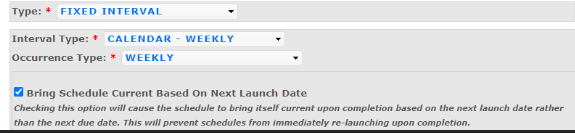
Bring Schedule Current: If enabled in your Scheduler Settings, you can use "Bring Schedule Current Based on Next Launch Date" to catch up lagging schedules.
Important: This setting changes scheduling behavior from fixed intervals to completion-based. When enabled, the next occurrence is recalculated based on the actual completion date instead of preserving the original fixed day-of-week or day-of-month.
To maintain a schedule on its original fixed interval (e.g., always on the 20th of each month), consider turning off "Bring Schedule Current".
5. Machine vs. Tooling Selection
Tooling Schedule Checkbox: When scheduling tooling, tooling for these machines are likely similar and interchangeable. These are often items that need to be removed, replaced, changed out for repair or calibration: Dies, Molds, Fixtures, Jigs, Gauges, Cutting Equipment, patterns, templates, etc.

Check Tooling Schedule.
Note: Checking this box automatically converts the mandatory selection from Machine List to Tooling List.
Multi-Type Schedules: You can attach multiple PM frequencies (e.g., Monthly and Yearly) to a single schedule.
How it works: Include both monthly and yearly steps in one document, or link separate Monthly and Yearly PM documents to the schedule. The schedule header will indicate the active type upon launch.
6. Setting Launch & Due Dates:
Launch Date: The initial date the dispatch is created and sent to technicians.
Due Date: The target completion date.
Best Practice: Leave enough lead time between launch and due dates to allow for adequate planning (e.g., launching an annual PM two weeks before it is due).
Lead Time Consistency: The time gap between Launch Date and Due Date remains fixed for all future occurrences unless manually updated here.
7. Adding Documents, Trades & Spare Parts
Select your equipment from the Machine List / Tooling List (use the right-hand filter to narrow choices). Click Save.
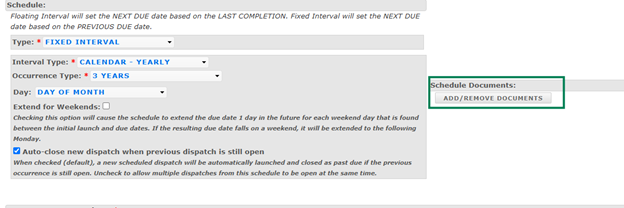
If adding documents, select the relevant procedure files and click Save. (There are two options for documents. You can add Schedule Documents or Occurrence-specific Documents.)

Resources & Spare Kits: After saving the schedule, you can return to the schedule to:
Add required trade resources and estimated labor times per trade.

You can also add assigned Resources to the specific machine so the resource is assigned to the that dispatch when it launches.

Attach BOM Kits / Spares required for the job. 📄 Spares Kitting - The Process

Calendar Drag-and-Drop Pro-Tip
Moving scheduled events on the Scheduler Calendar using Click & Drag or Drop & Drag will not generate log entries in the schedule history. Because calendar adjustments happen frequently, history logging is disabled for drag actions to keep your system clean.