Production Standard Work Checklists
Last updated: August 7, 2026
The Operator Portal launches Standard Work checklists to operators during production shifts. To use this feature, the associated Document Category must have Production Standard Work enabled.
Check out a step-by-step walkthrough of setting up a standard work checklist here.
1. Prerequisites & Document Setup
Before launching Standard Work checklists on the Operator Portal, ensure the following setup steps are complete:
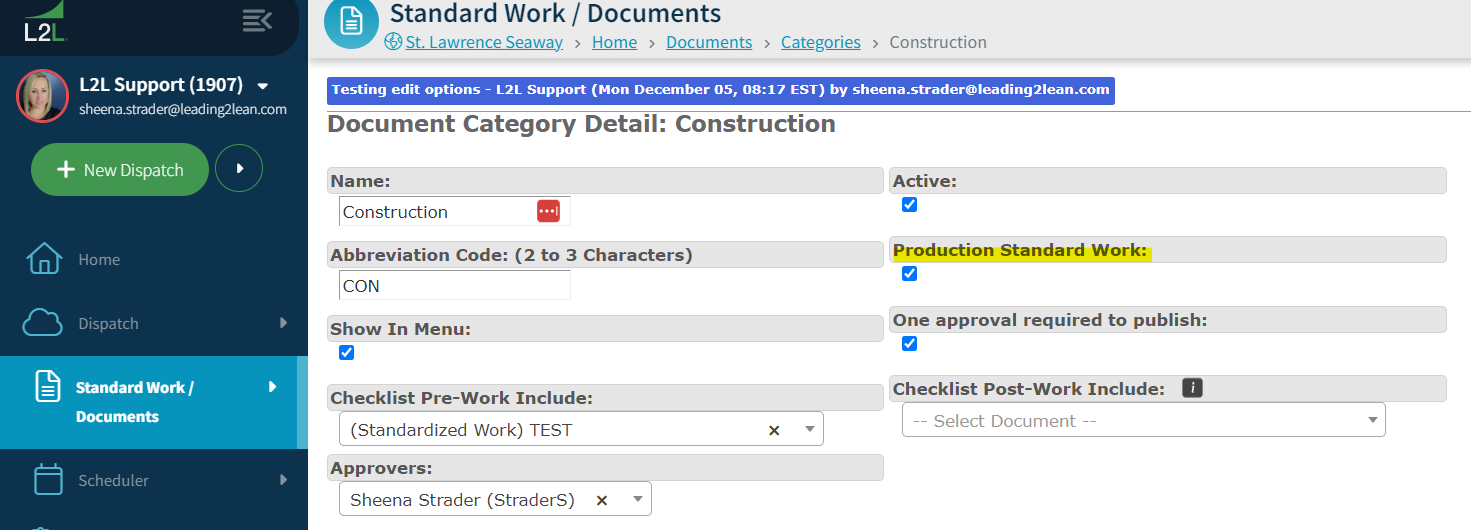
Enable Document Category: Check the Production Standard Work box in the detail page for the document's category. This enables the Production Standard Work configuration options within the checklist template.
Link Lines (Not Just Areas): Assign specific lines to the document in addition to areas. Area-level linking alone will not display the checklist on the Operator Portal.
Product / Line Association: Product Order-based and build sequence-based schedules require the document to be directly linked to both the product and the line.
2. Schedule Types & Trigger Options
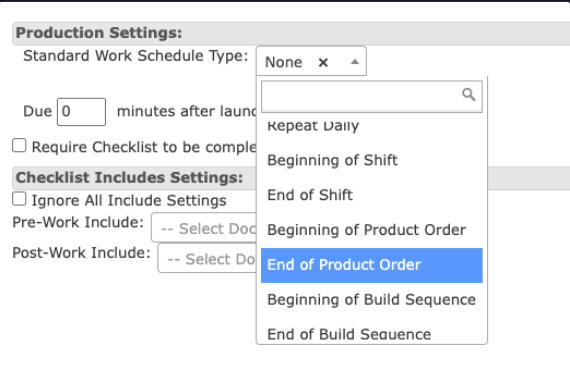
When editing a checklist under Production Standard Work, choose one of eight Schedule Types:
Repeat: Launches at a recurring interval (in minutes) set by the author.
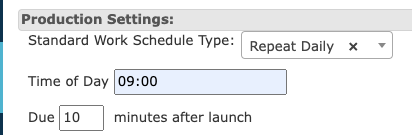
Repeat Daily: Launches at a specified time every day.
Beginning of Shift: Launches at a set time relative to shift start (requires shifts to be defined in the Setup menu).
End of Shift: Launches at a set time relative to shift end.
Beginning of Product Order: Launches when an order starts.
End of Product Order: Launches upon order completion.
(Note: The system automatically prepends the order number to the checklist name in the Operator Portal, e.g., 09181986 Training Process Checklist).
Beginning of Build Sequence: Launches for each individual build sequence of an order.
End of Build Sequence: Launches when a build sequence is completed.
Launch vs. Due Time: You can set standard work to launch before it becomes due (e.g., launch Daily at 9:00 AM, due 10 minutes later).
3. Operator Interface & Visual Status Indicators
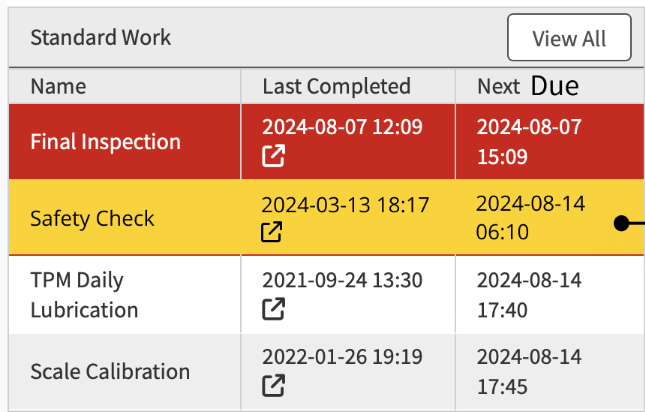
Display Locations: Launched checklists appear on the Operator Portal as a pop-up window and in the Standard Work section of the Operator Console.
(Note: Pop-ups can be disabled in Production Module Settings > Operator Portal Settings).
· If you are using shift based scheduling, you will only see the due date for the current shift you are in.
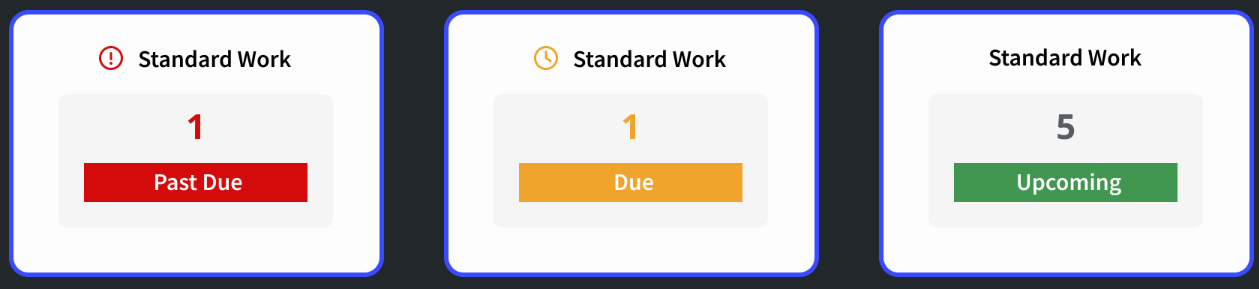
Status Colors:
Yellow: Launched, but not yet due.
Red: Past due.
4. Key Operational Rules
Incomplete Documents Block Next Launch: If a Standard Work checklist is launched and opened, it remains incomplete and must be submitted before the subsequent Standard Work checklist will launch.
Shift-Based Tracking: Standard Work configured by shift applies to the production line based on that shift schedule:
Example: If Operator 1 completes a "once a shift" checklist for Shift A, the portal will display the next due date as the next day Shift A is scheduled to work. When Operator 2 logs in for Shift B, the display updates to show when the checklist is next due for Shift B.
Reviewing Past Submissions: Operators can review completed checklists in the Operator Portal by clicking the box with an arrow icon next to the document name under Last Completed.
Keep Scope Narrow: Checklists in the Operator Portal should be concise and focused rather than multi-page forms.
Some customers do not use the production module and often ask if you can still use standard work. The answer is, yes. You can do this by using the Role-Based Home Page.