Setup & How to - Spares Cycle Counting
Last updated: June 19, 2026
Set up:
In the Spares Settings you'll need to enable Cycle Counting, Add a Dispatch Type for Cycle Recounts (Note: You will want to create a new Dispatch Type for this), and a Cycle Count Recount Machine to Open the Dispatch against. You'll also want to assign some people the new Cycle Counting permission.
Part Classifications
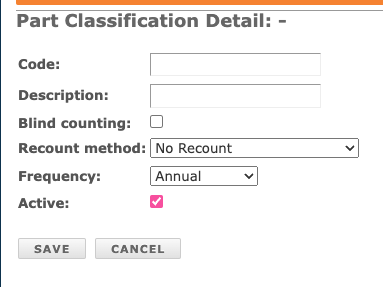
From the Spares Menu, click 'Part Classification'. Click Add New and fill in the information.
- The Code & Description can be edited.
- Blind Counting - checking this box means that the person counting cannot see the quantity on hand. Not checking this box means the counter can see the quantity on hand while performing the new count.
- Recount Method: No Recount or Inventory Manager Recount. The latter means a Dispatch will be created to notify the recount manager to perform a recount for that part. Recount only launches one Dispatch. The Dispatch needs to be complete before the next count cycle starts or it will not launch a new dispatch.
- Frequency: Choose how often you want this count performed. Weekly, Monthly, Quarterly, Semi-Annual, Annual.
Inventory Control
Now that you have created the classifications, you'll need to add it to the parts to be counted. You'll also need to add a next cycle count date. Both of these items can be added en mass via the import tool. Though, not required you can also add a last cycle count date if you know it
How to:
On the Spares Cycle Counting Guide, at the top, you'll see a drop down for Warehouses, Locations, Classifications, and Due Dates.
- Due Dates are additive. As an example if you select Due this Month, you're also capturing what is due this week, due today, and past due. Other options include 'No Due Date', and 'Recount'.
- Location search is a partial search on the part's location only. This will help you focus on a specific area of the warehouse at a time.

On the main part of the page, you'll find the parts to be counted. These are sorted by location alphanumerically.
You'll enter your count and hit next. It will auto save and place a green box around the part you just completed. You can click into the green box to edit. If your number does not match the on hand quantity, a Dispatch will be launched for a Recount if the Part Classification requires it.
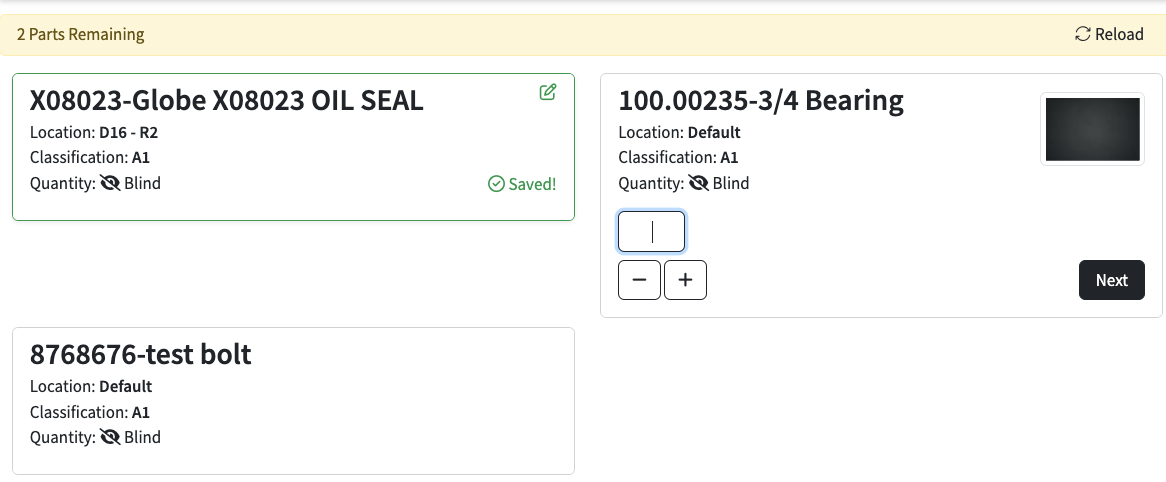
Of Note: Inventory Managers performing the count and entering a different quantity will not launch a Dispatch.
Reports
Within the Cycle Count Page you'll see a burn up report.
- last counted and current count makes up the average cycle days
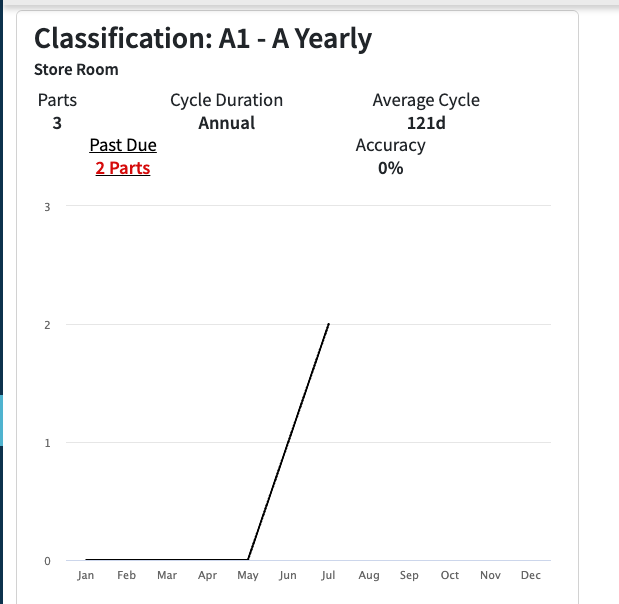
Cycle Count History Report

Integration
Part adjustments are included in the /spares/ API as Inventory Adjustments. You can read more in the Spares Integration article.
Import
You can also import the part classification code, next cycle count and last cycle count by downloading this template https://docs.google.com/spreadsheets/d/1wgbSSXnixGnxYUDlwRip8RihNfESUntdx7ONVweOGVU/edit?gid=467114459#gid=467114459 and importing via the Spares Full Sync.