Bulk Checklist Transcription Upload
Last updated: June 19, 2026
Ever wish how great it would be to just upload a PDF and have that information transcribed into a checklist? Well, no more wishing!! This feature is now available in the Standard Work/Documents section.
What are the perks of using the bulk checklist transcription upload?

Please note: Prior to uploading the documents, you will want to make sure you have your document categories created.
- Under the Documents Module menu, you will see an option for Upload Multiple Documents
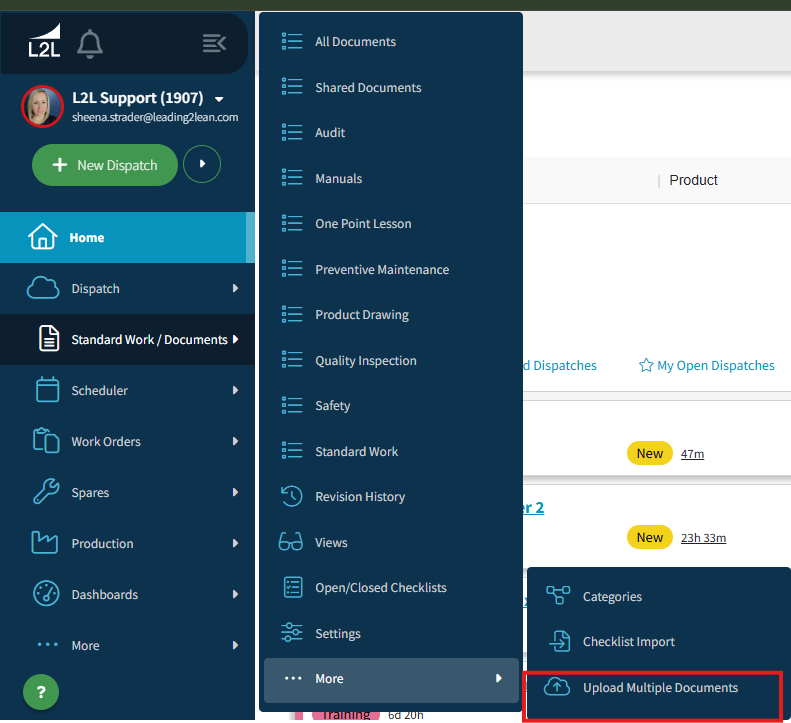
When selecting the Upload Multiple Documents, you will see the Document Upload Section
- Now you will select your Document Category
- The next section, Document Handling, is where you will need to select the Convert to Checklists
- Here is where you will select the PDF or multiple PDF files you wish to upload using Choose Files
- Last, you will select Upload Files

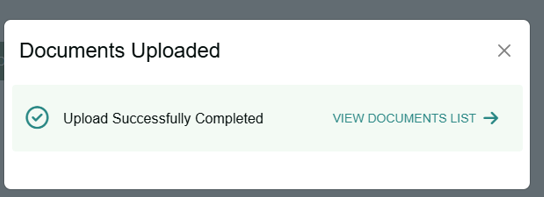
- Once you have uploaded your files, you will see Documents Uploaded: Upload Successfully Completed
- You will also see a link for View Documents List: This takes you to the documents that are currently pending for transcription.
- You will be brought to the status page where you will see the document Pending until it's Complete. If you open the document before it is complete, you may see a failure error.


Note: A URL is created here; you can copy that URL to view this batch once you navigate from the page i.e. company.leading2lean.com/documents/batch/41/ or search the documents under Import Batch if you know the number.


- Once completed, the document is now in a Pending Revision status.

- When the transcription status is complete, if you do not see a pending revision, please view the document history and select the revision in order to preview the transcribed checklist template and approve and/or publish.


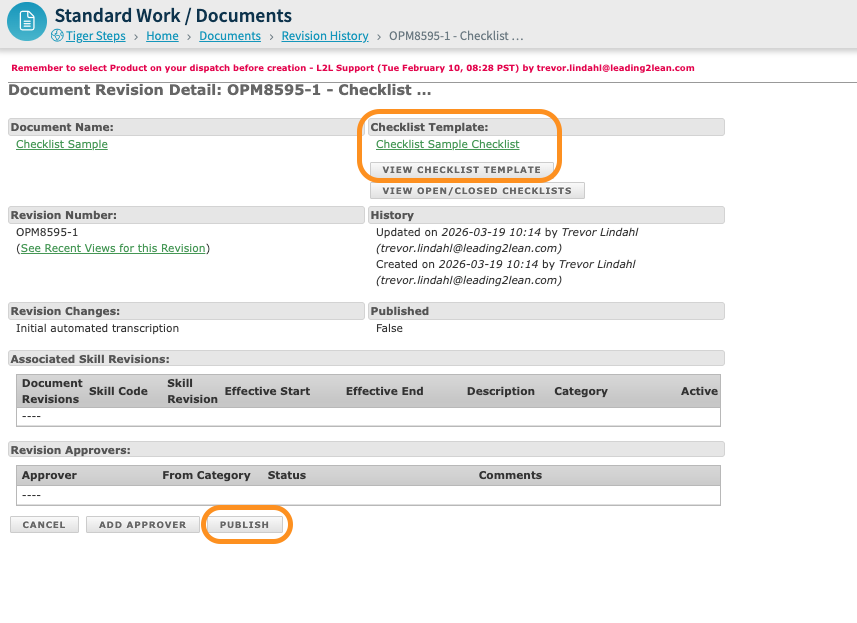
- This gives you a chance to go in and view the newly created checklist and make any changes you want to specific settings and/or question tasks. (Note: this will upload dates, short fields, and task descriptions. We do not upload tables, images, or videos.)
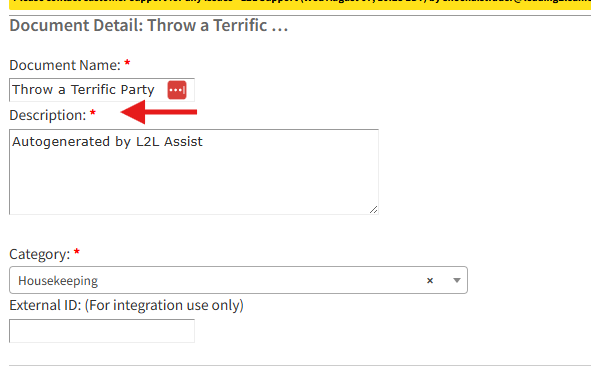

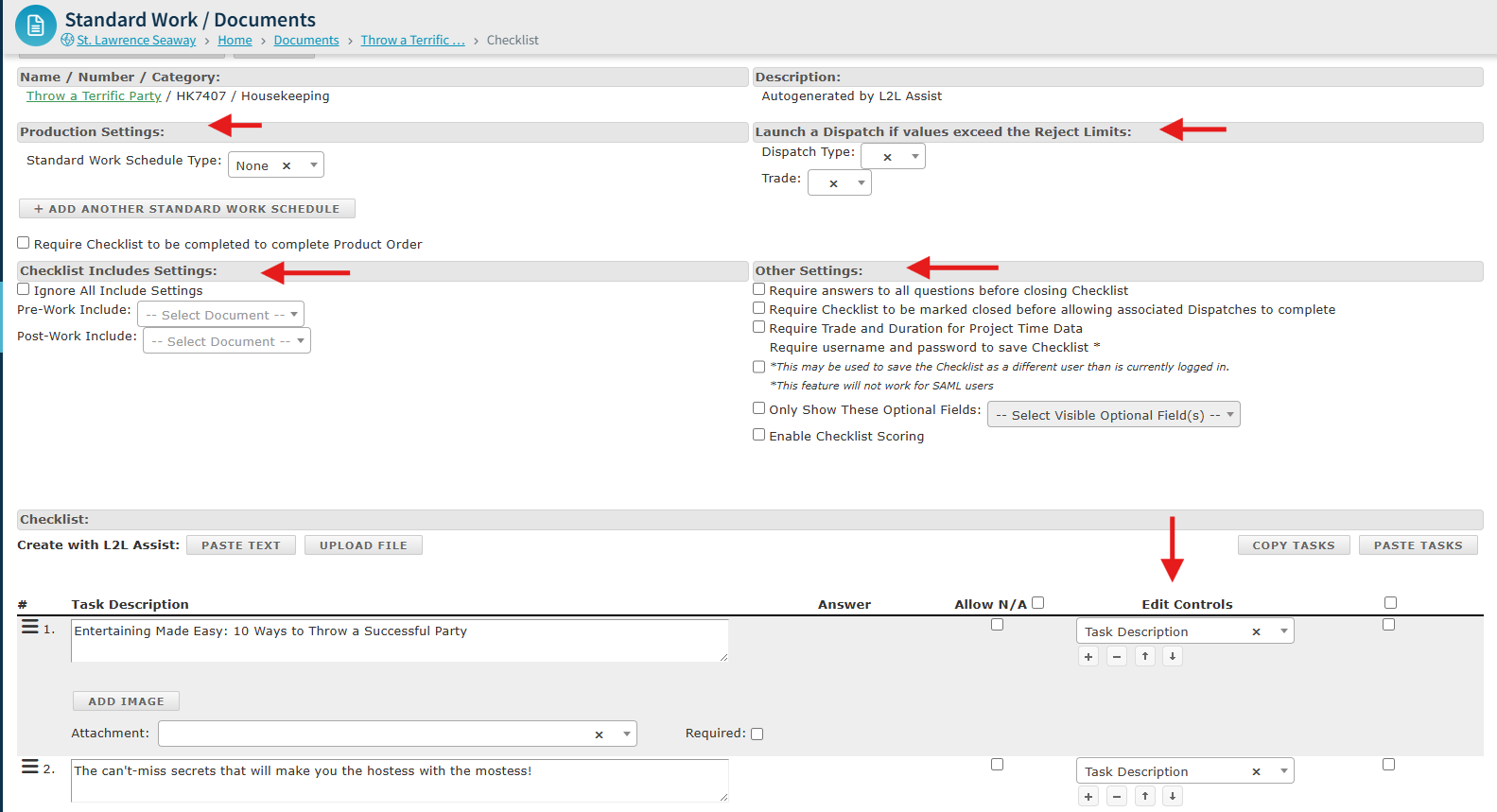
- Once you have settled on the final product, you will save, approve, and publish the checklist!
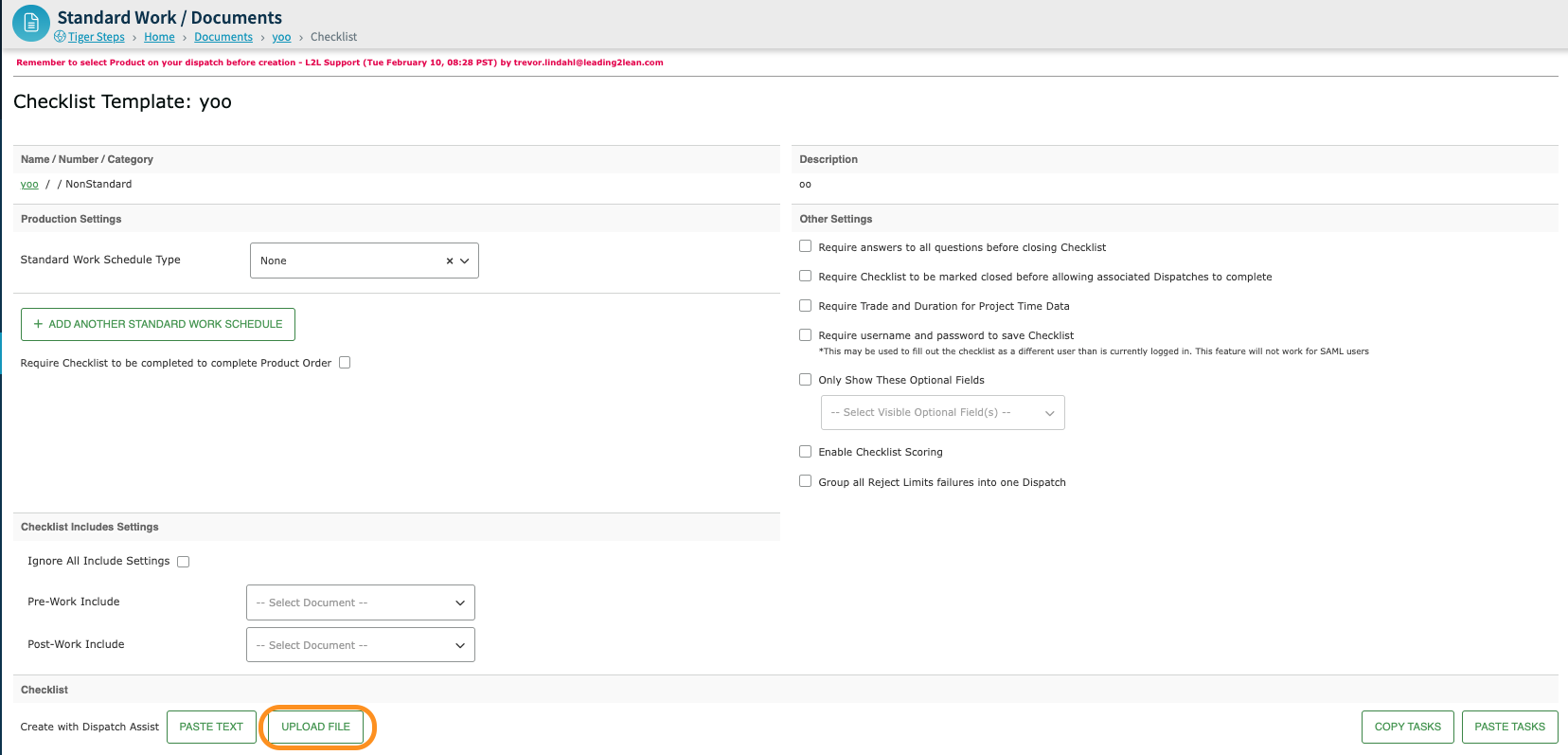
If you are only looking to create a single checklist using the transcription tool, you may follow an alternative workflow by first creating a new document. You will give the document a name, description, category, and define any applicable document criteria before saving and creating a new document revision. Then you will select "Create a Checklist Template" and, once viewing the checklist template, select "Upload File" to perform the checklist transcription and preview the transcribed checklist template to make any adjustments before saving/publishing the revision.