Automated Bulk Scheduling with Draft Plan on the Maintenance Planner (Shop Floor Execution Customers Only)
Last updated: November 3, 2026
The Draft Plan tool in the Maintenance Planner uses AI to automatically distribute backlog work onto technician timelines based on trade skills, availability, shifts, and capacity.
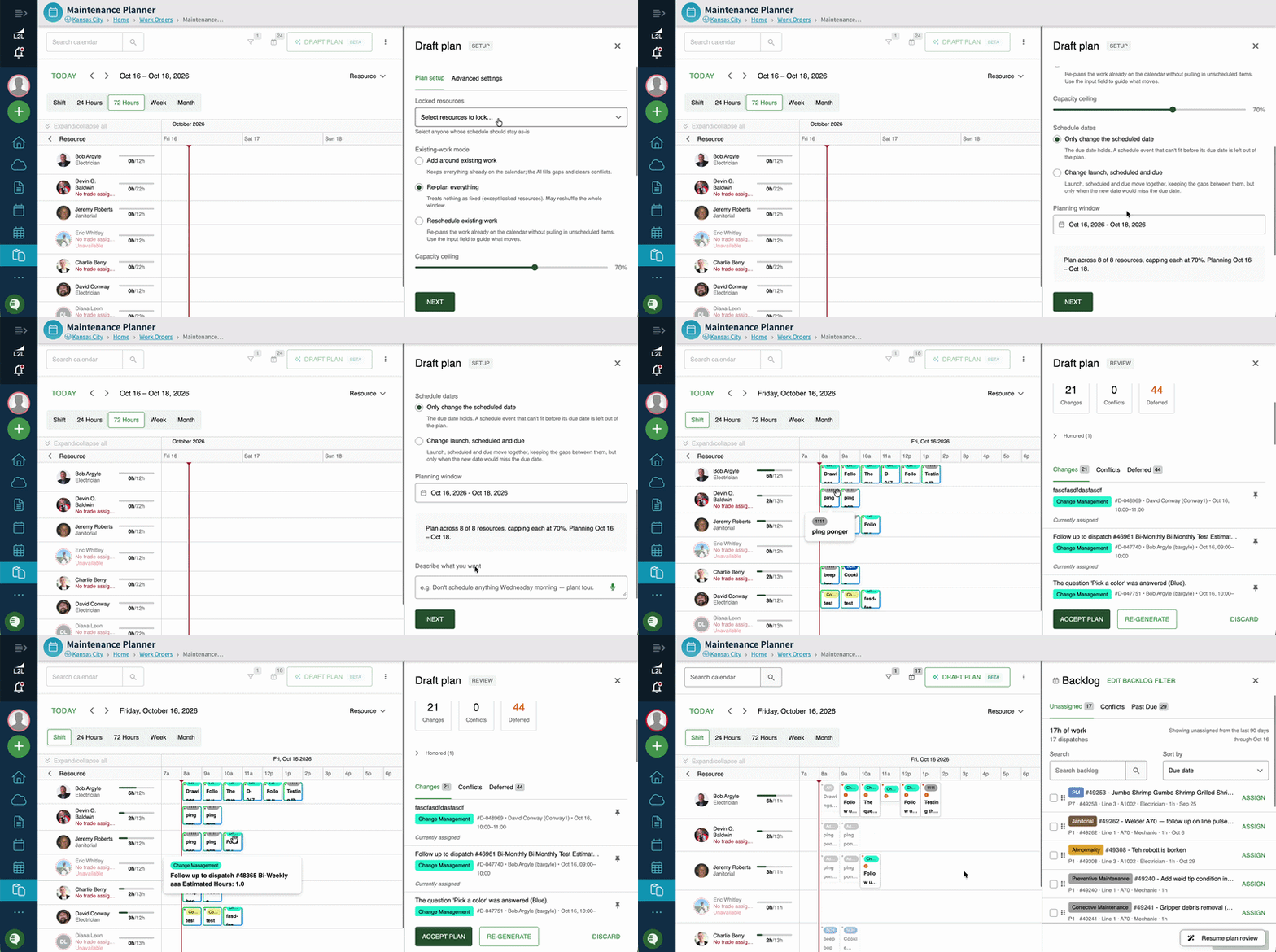
How to Draft a Plan:
Apply filters to your Backlog (e.g., target a single line or trade).
Set your visible planning window to 1–2 weeks for optimal performance
Click Draft Plan on the toolbar and choose a planning mode:
Add around existing work (Default): Preserves existing calendar items and fills open gaps.
Reschedule existing work: Re-organizes work already placed on the calendar.
Re-plan everything: Clears unaccepted assignments and builds a new schedule from scratch.
Lock Resources: Specify any "Locked Resources" whose current schedules should remain unchanged.
Provide Context: Enter custom instructions in natural language (e.g., "Resource X is new and needs 2–3 hours of low-level work" or set custom capacity limits).
Generate: Click Generate Plan. Suggested additions will appear on the calendar with a distinct gradient border outline.
Review & Finalize: Review proposed changes (highlighted with gradient outlines) and check the Deferred tab for tasks that could not fit. You can Accept the schedule to finalize it, provide feedback to Adjust, or click Re-generate.
AI Planning Agent & Smart Automation
Automated Scheduling: Leverage auto-scheduling suggestions, smart presets, and bulk AI recommendations. You retain full control to preview, adjust, and accept recommendations before applying them.
Instant Conflict Resolution: Identify overbooked technicians or overlapping schedules instantly, and resolve issues in two clicks or fewer.
Smart Capacity Management & Coverage Adjustments
Capacity Indicators & AI Rules: Define capacity limits across your team or trades to guide the AI Planning Agent and prevent double-booking during automated schedule generation.
Key AI Behaviors:
Natural language prompts override default mode rules when conflicts arise.
Prioritizes jobs by Due Date first, followed by Dispatch Type Priority.
Matches tasks based on assigned Trade (does not account for machine-level certifications).
Accepting an AI draft will not modify original PM due dates.