Link to L2L Studio app in Dispatch
Last updated: June 19, 2026
Once you have built and deployed an app using L2L Studio, you can add a link to your app inside of L2L Dispatch. This makes your apps super easy to find so your front line workers can save precious time. Here's how.
Add a Link
- System Manager Admins can open the Studio Apps setting screen. This can be found here: Setup → System Setup → L2L Studio Apps
- If you don't see the Studio Apps link, contact your L2L Account rep.
- Click the Add New button
- Enter the following:
- App Name - This will be used to build the menu
- URL - This is a link to your live Bubble App. This can be found in your Bubble Editor under Settings → Domain / email, or, if the app has not been deployed, by clicking the "Run" button for the app on the Apps List.
- Icon: Choose an icon from the link to use as your indicator on the Operator Portal or Console. fontawesome.com/search
- Other options:
- Show in Menu - shows the link in the main L2L side panel under 'Studio'.
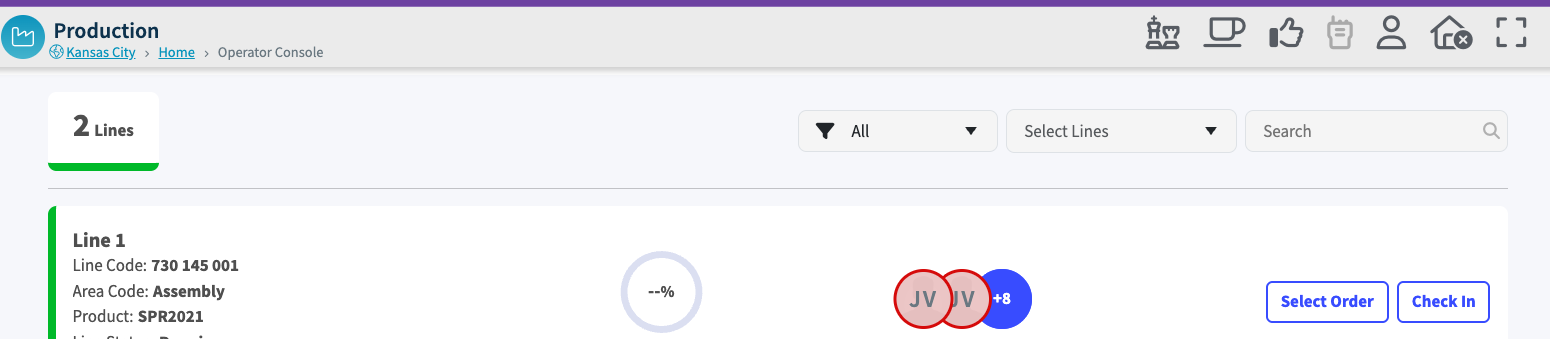
- Show in Operator Console - shows an icon to click on from the Operator Console.
- Show in Operator Portal - shows an icon to click on from the Operator Portal.
- Open in New Tab
- Click Save to add the new L2L Studio app.