Maintenance Planner Setup & User Guide
Last updated: November 5, 2026
How-To Guide: Getting Started with the Maintenance Planner
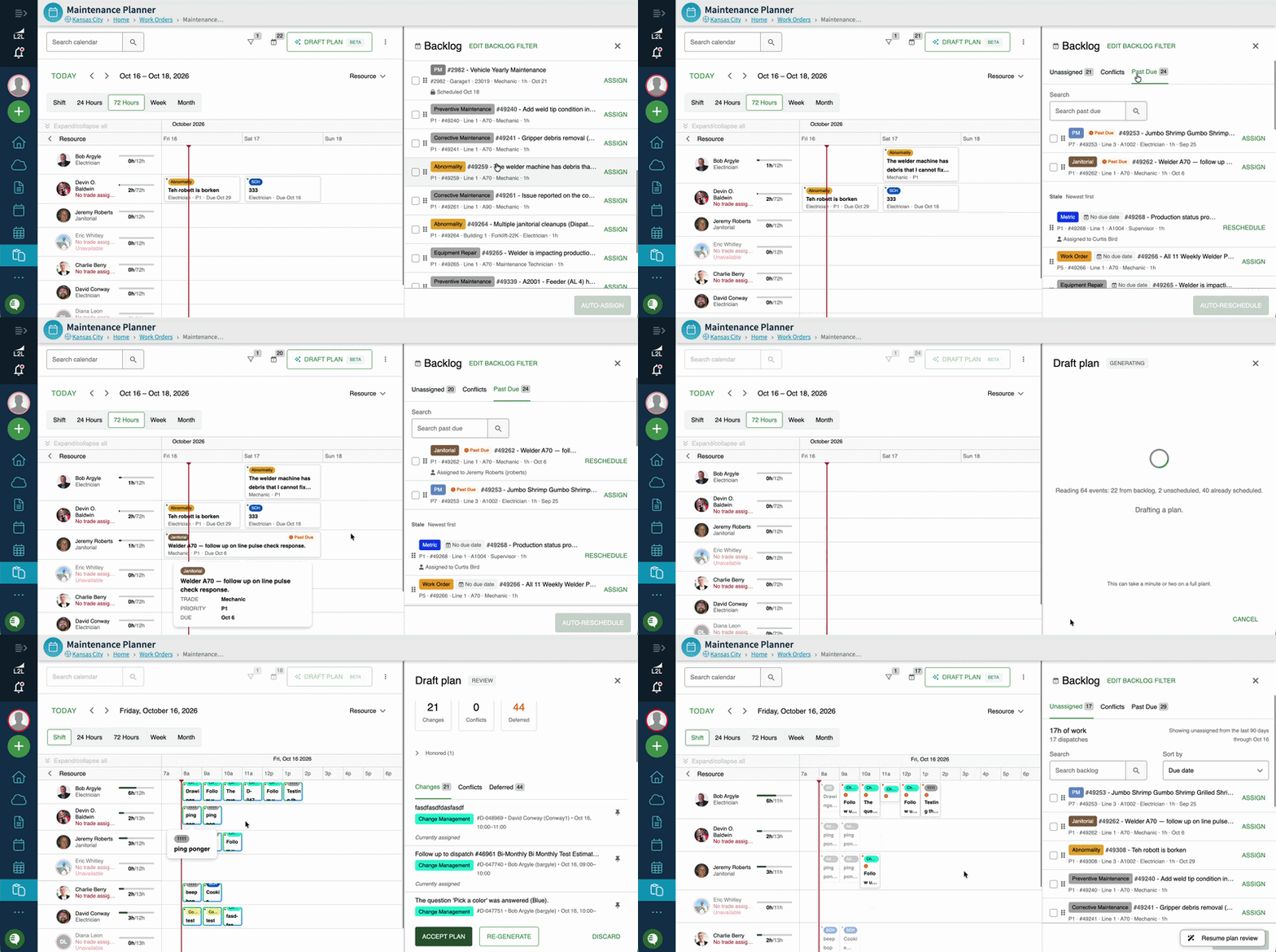
Designed as an interactive, desktop-optimized scheduling timeline, the Maintenance Planner streamlines team schedules, eliminates double booking, and automates backlog management using AI-driven planning.
This guide covers setup requirements, navigating core features, and step-by-step solutions for common troubleshooting scenarios.
1. Access & System Setup
Accessing the Planner
Navigation: The Maintenance Planner is accessible via the left navigation menu under Scheduler, Work Orders, or Dispatch.
Permissions: Permission to drag, assign, or edit schedule cards follows the user permissions set under Scheduler > Settings. If a user cannot edit or move cards on the timeline, grant edit rights within Scheduler Settings.
Device Support: The platform is optimized strictly for desktop displays and is not supported on tablet or mobile devices.
Configuration Requirements
Assign Trades: All resources (technicians/mechanics) must have an assigned Trade to appear in the Maintenance Planner views.
Shift Boundaries: Defining shifts in the user setup displays visual shift boundaries (gray bars) on the calendar, highlighting standard working hours and helping flag off-shift assignments.
2. Getting Started with Quick Actions
New to the Planner? Nothing displays until you apply filters or select a Quick Action. Use the quick actions at the top of the page to jump straight into the view you need:
Plan today: Focus on the work that needs to happen in the current day.
Plan the week: See and balance the coming week across your team.
Plan the month: Get a longer look ahead for upcoming preventive and scheduled work.
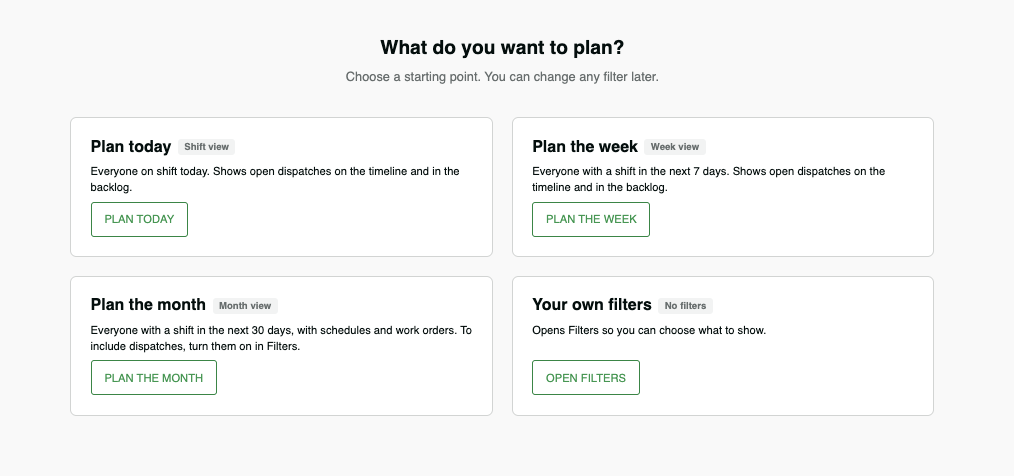
Each quick action sets up the calendar for you, so you can start scheduling without configuring filters first.
Your own Filters: Opens Filters so you can choose what to show.
Reset: Clicking "Reset" in the filters returns the calendar to the initial quick-action selection screen at any time.
3. Navigating the Backlog Panel
The Backlog Panel on the right side of your screen acts as a central hub for managing unassigned work.
Backlog: View open, unassigned dispatches, upcoming work orders, and scheduled events.
Past Due: Track past-due activities. The Past Due tab now also includes:
Work with no due date
Work that has a resource assigned but isn't scheduled on the calendar yet
Conflicts: Identify resource double-bookings in real time.
Backlog Search & Filtering
Backlog Filters are managed via the Backlog tab inside the Filters menu, as well as the local search bar and sort parameters on the Backlog panel.
Use the search bar to quickly locate specific activities. The Past Due tab now has its own search box as well.
Use the Backlog search bar to locate unassigned activities only. If a dispatch has already been assigned to a technician, it will not appear in Backlog search; search for it from the planner/calendar view instead. The Past Due tab has its own search box as well.
Please note: Calendar filters and Backlog filters operate independently. Narrowing your calendar view will not filter the backlog panel.
Note: The Backlog panel defaults to showing activity from the last 90 days.
Clearing Unscheduled or Stale Work
Navigate to Backlog > Past Due and expand the Stale section.
Click and drag an item onto a technician's timeline and chosen day. Use multi-select to drag items in bulk.
If an item remains stuck on an old reported date, open the card details and explicitly assign a Scheduled Date.
Why the counts may not match: the badge counts and the Dispatch Portal's unassigned count use different scopes. The Dispatch Portal counts everything unassigned. The Backlog counts only what matches its own filters and planning window.
Having trouble locating "missing" work? Work is never lost; if it isn't on the calendar, check these Backlog locations:
Work is… | Where to find it |
|---|---|
Unassigned, or has no scheduled date | Backlog > Unassigned |
Past its due date and not complete | Backlog > Past Due |
Open, no due date, no activity for 12+ hours (reported within 90 days) | Backlog > Past Due > Stale |
Assigned outside the planner with no scheduled date | On the calendar, on its reported date |
A PM occurrence that hasn't launched yet | On the calendar as a dotted-outline card (needs Schedules checked) |
Closed or completed | Hidden unless Show completed is checked |
4. Filters: Where, Who, and What
Filters for the backlog and calendar have been simplified into three sections. Filters stay tucked away until you click on them, keeping the screen clean while you plan.
Where: Area, Line, Machine, Sub Asset, plus Value Stream. Each sub-level narrows the options available in the next.
Who: Resources, Trade, Resource Category, Line, and Shift.
What: Dispatches (type, priority, status, show completed), Work Orders (status, show completed, show unscheduled), and PM Schedules.
You can still create saved filters to quickly return to the views you use most.
Save your view by clicking + in the filter menu. Select Set as homepage to automatically load this configuration upon logging in.
Please note: Calendar filters and Backlog filters operate independently. Narrowing your calendar view will not filter the backlog panel.
Calendar/planner search can only find assigned dispatches if the planner filter above the calendar is configured to include dispatches.
5. Calendar Grouping & Views
Grouping (on the main page)
Grouping options are no longer inside the filters. You'll find them directly on the main Planner page, so you can switch how the calendar is organized in one click:
Group by Resource
Group by Line
Group by Machine
Year View
The Year view gives you a high-level look at your maintenance across the full year, showing what is Past Due, Planned, and Completed.
View Settings
Card fields: Choose the fields you want to see on each card.
Show shifts: Display shift boundaries (and edit shifts from here).
Show capacity indicator: See how many hours of each resource's shift are scheduled versus remaining.
Darken weekends: Gray out weekends so you don't inadvertently schedule over them.
Warnings: Warnings pop up to let you know if a resource is at capacity, unavailable, and more.
6. Manual Scheduling & Multi-Resource Assignments
Drag-and-Drop: Drag cards directly from the backlog panel onto a technician's timeline on the calendar.
Multi-Select Drag-and-Drop: Select multiple cards at once and drag them onto the calendar together to schedule work in bulk.
Multiple Resources: To assign a task to more than one technician, drag the card to the first technician, open the card details, and manually add additional resources.
Card Customization: Customize cards to display relevant details, such as dispatch IDs, status, or truncated text.
7. Managing Capacity & Estimated Hours
Setting Default Hours
All dispatches default to a 1-hour duration estimate unless specified otherwise. To avoid skewed capacity numbers:
Go to Setup > Dispatch Types.
Define realistic Estimated Hours for each dispatch type (these serve as scheduling defaults).
PM Schedule configurations will override these defaults once launched. Individual card durations can also be edited manually on the board.
Capacity Calculations & Shifts
Resource Capacity: Calculated strictly from the individual technician's assigned Shift. Production schedules are not factored into resource availability.
Unassigned Shifts: Technicians without assigned shifts appear fully available, leading to accidental over-allocation. Always assign a shift to every technician.
Line/Machine Views: Production shifts are not utilized for capacity calculations when grouping by Line or Machine.
8. Rescheduling & Manual Actions
Task | Steps |
Assign Single Job | Drag card from Backlog onto a resource row and date. |
Assign Bulk Jobs | Multi-select cards in Backlog, then drag the group onto a technician row. |
Add Second Technician | Open the scheduled card details and add additional resources manually. |
Update Launched Dispatch Dates | Open card details $\rightarrow$ Edit Dispatch $\rightarrow$ adjust Scheduled or Due Date. |
Update Recurring PM Dates | Edit the main PM schedule in the Scheduler module. (Note: Occurrences cannot be set prior to the last closed occurrence date). |
Day Detail View | Click any day header to expand into a full 24-hour timeline. |
Horizontal Navigation | Use |
Undo Action | Click the |
9. Visual Indicators & Warnings
Reading the Cards:
Card looks like | It means |
|---|---|
Gray dotted outline, no number | A PM schedule occurrence that hasn't launched a dispatch yet. Indicates scheduled events without an attached dispatch number. |
Solid card with a dispatch or WO number | Launched work: a real dispatch or work order |
Gradient outline | A change proposed by Draft Plan, not yet accepted. Indicates unconfirmed, AI-generated schedule proposals. |
Lock icon | Locked: Draft Plan won't move or reassign it. Signifies that the scheduled date is fixed. On a locked row, you can drag the card to assign a resource, but that drag will not reschedule it to a different day. |
A work order and its dispatch stacked | The same job shown twice; collapse them, or filter out one type |
Control what's on each card: use View to choose the fields shown, turn on show shift boundaries, and darken weekends.
Warnings & Overlaps: Warnings flag scheduling attempts made outside of assigned shift boundaries, during periods marked as unavailable, or when a technician is fully booked.
10. Common Display Symptoms & Fixes
Symptom | Cause | Fix |
|---|---|---|
A person is missing from the rows | The resource has no Trade or no Shift, or has no value for an active Line or Shift filter | Give the resource a Trade and Shift on the Resources page, or remove the Line/Shift filter |
Rows show, but no cards | The work has no Scheduled Date or Due Date | Add a date, or find the work in the Backlog (section 4) |
Dragged cards "disappear" | The Dispatches checkbox under What is unchecked | Check Dispatches |
"Too many items" or nothing loads | The filter is too broad for a long timeframe | Narrow by Line or Trade, or shorten the timeframe |
Switching Group By wiped the filters | Resource grouping and Line/Machine grouping use different filter sets | Pick Group By first, then set filters |
Picking a person drops the team you chose | Filters don't combine Team + individual resource yet ("match any" isn't supported) | Use Trade or Team alone, or save separate filters |
11. Frequently Asked Questions (FAQ)
Q: How are reactive dispatches without a due date handled?
A: Reactive dispatches without a set due date appear in the backlog and on the Past Due tab. To prevent reactive items from extending indefinitely across the calendar view, they automatically default to a 1-hour duration estimate, which you can manually edit as needed.
Q: Can I modify fixed/recurring schedules directly in the Maintenance Planner?
A: You can move individual instances of an event on the timeline. However, permanent changes to fixed schedule logic must still be updated within the main Scheduler module.
Q: Can I view or filter my schedule by lines or machines?
A: Yes. Use the Where filter to narrow work to specific lines or machines, or use the grouping options on the main page to organize the calendar by Resource, Line, or Machine.
Q: Where did the grouping options go?
A: Grouping by Resource, Line, and Machine moved out of the filters and onto the main Planner page for quicker access.
Q: I assigned a resource, but the work isn't on the calendar. Where is it?
A: Work that has a resource assigned but no scheduled time now appears on the Past Due tab, so it doesn't get lost. Drag it onto the calendar to schedule it.
Q: Why can't I find a dispatch in Maintenance Planner search?
A: First confirm you are searching in the correct place: Backlog search is for unassigned dispatches, while assigned dispatches must be searched from the planner/calendar side. If searching from the calendar, make sure the planner filter above the calendar includes dispatches. If results are still missing, clear or reset filters, expand the calendar date range to when the dispatch should appear, verify the selected Site, Area/Line, and Department scope, and confirm you are on the correct Backlog or Past Due tab (such as Open or Unassigned).