Maintenance Planner Setup & User Guide
Last updated: October 21, 2026
How-To Guide: Getting Started with the Maintenance Planner
Designed as an interactive, desktop-optimized scheduling timeline, it streamlines team schedules, eliminates double booking, and automates backlog management using AI-driven planning.
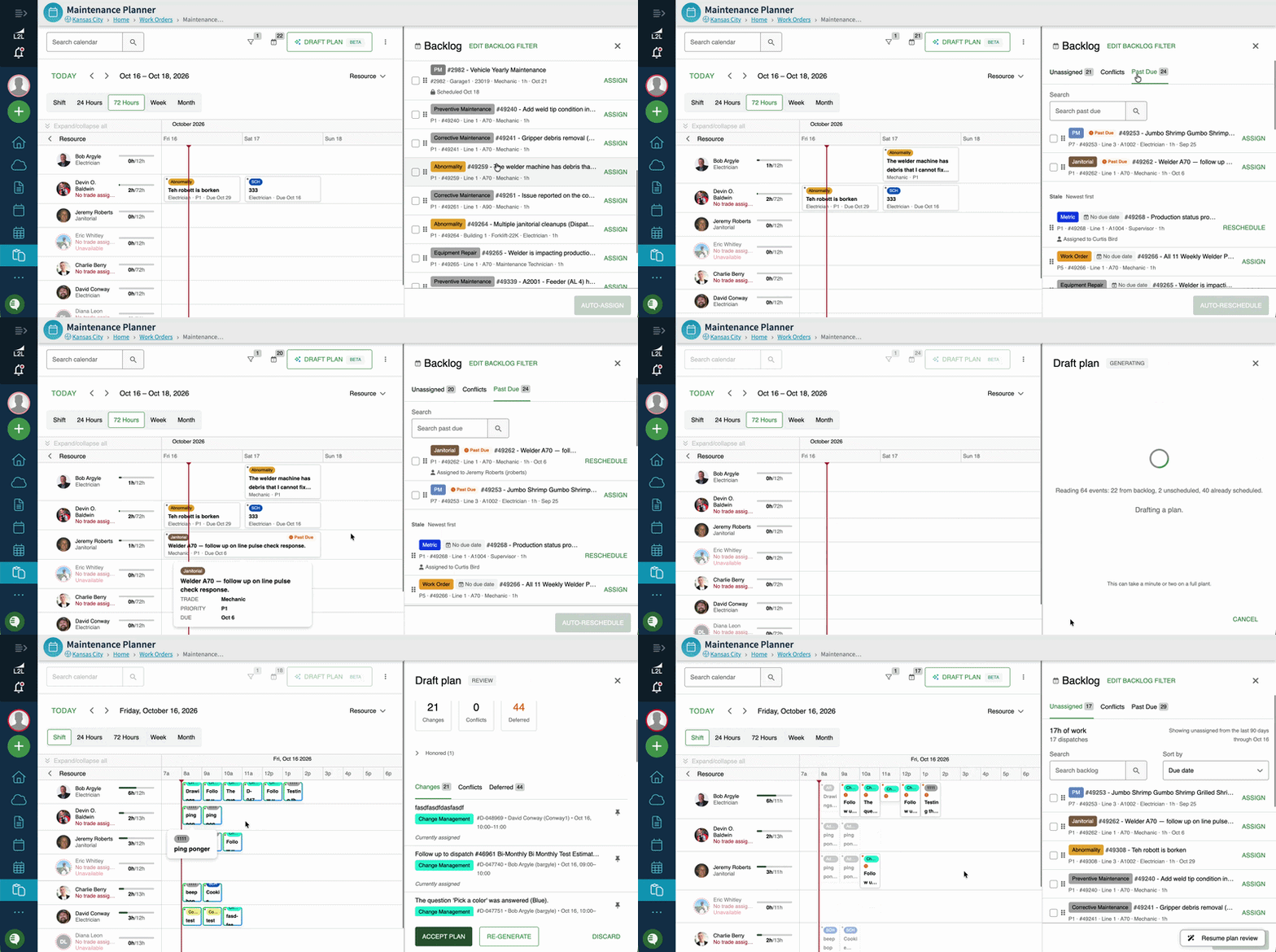
1. Access & System Setup
Accessing the Planner
Navigation: The Maintenance Planner can be accessed temporarily via the Dispatch menu, as well as directly from the Scheduler or Work Orders sections.
Permissions: Access permissions mirror those of the Scheduler module.
Device Support: The platform is optimized strictly for desktop displays and is not supported on tablet or mobile devices.
Configuration Requirements
Assign Trades: All resources (technicians/mechanics) must have an assigned Trade to appear in the Maintenance Planner views.
Shift Boundaries: Defining shifts in the user setup displays visual shift boundaries (gray bars) on the calendar, highlighting standard working hours and helping flag off-shift assignments.
2. Getting Started with Quick Actions
New to the Planner? Use the quick actions at the top of the page to jump straight into the view you need:
Plan today: Focus on the work that needs to happen in the current day.
Plan the week: See and balance the coming week across your team.
Plan the month: Get a longer look ahead for upcoming preventive and scheduled work.
Each quick action sets up the calendar for you, so you can start scheduling without configuring filters first.
3. Navigating the Backlog Panel
The Backlog Panel on the right side of your screen acts as a central hub for managing unassigned work.
Backlog: View open, unassigned dispatches, upcoming work orders, and scheduled events.
Past Due: Track past-due activities. The Past Due tab now also includes:
Work with no due date
Work that has a resource assigned but isn't scheduled on the calendar yet
Conflicts: Identify resource double-bookings in real time.
Backlog Search & Filtering
Use the search bar to quickly locate specific activities. The Past Due tab now has its own search box as well.
Click Filters to narrow the backlog (see Filters: Where, Who, and What below).
Note: The Backlog panel defaults to showing activity from the last 90 days.
4. Filters: Where, Who, and What
Filters for the backlog and calendar have been simplified into three sections. Filters stay tucked away until you click on them, keeping the screen clean while you plan.
You can still create saved filters to quickly return to the views you use most.
5. Calendar Grouping & Views
Grouping (on the main page)
Grouping options are no longer inside the filters. You'll find them directly on the main Planner page, so you can switch how the calendar is organized in one click:
Group by Resource
Group by Line
Group by Machine
Year View
The Year view gives you a high-level look at your maintenance across the full year, showing what is Past Due, Planned, and Completed.
View Settings
Card fields: Choose the fields you want to see on each card.
Show shifts: Display shift boundaries (and edit shifts from here).
Show capacity indicator: See how many hours of each resource's shift are scheduled versus remaining.
Darken weekends: Gray out weekends so you don't inadvertently schedule over them.
Warnings
Warnings pop up to let you know if a resource is at capacity, unavailable, and more.
6. Manual Scheduling & Multi-Resource Assignments
Drag-and-Drop: Drag cards directly from the backlog panel onto a technician's timeline on the calendar.
Multi-Select Drag-and-Drop: Select multiple cards at once and drag them onto the calendar together to schedule work in bulk.
Multiple Resources: To assign a task to more than one technician, drag the card to the first technician, open the card details, and manually add additional resources.
Card Customization: Customize cards to display relevant details, such as dispatch IDs, status, or truncated text.
7. Automated Bulk Scheduling with Draft Plan (Shop Floor Execution Customers Only)
The Draft Plan tool uses AI to automatically distribute backlog work onto technician timelines based on trade skills, availability, shifts, and capacity.
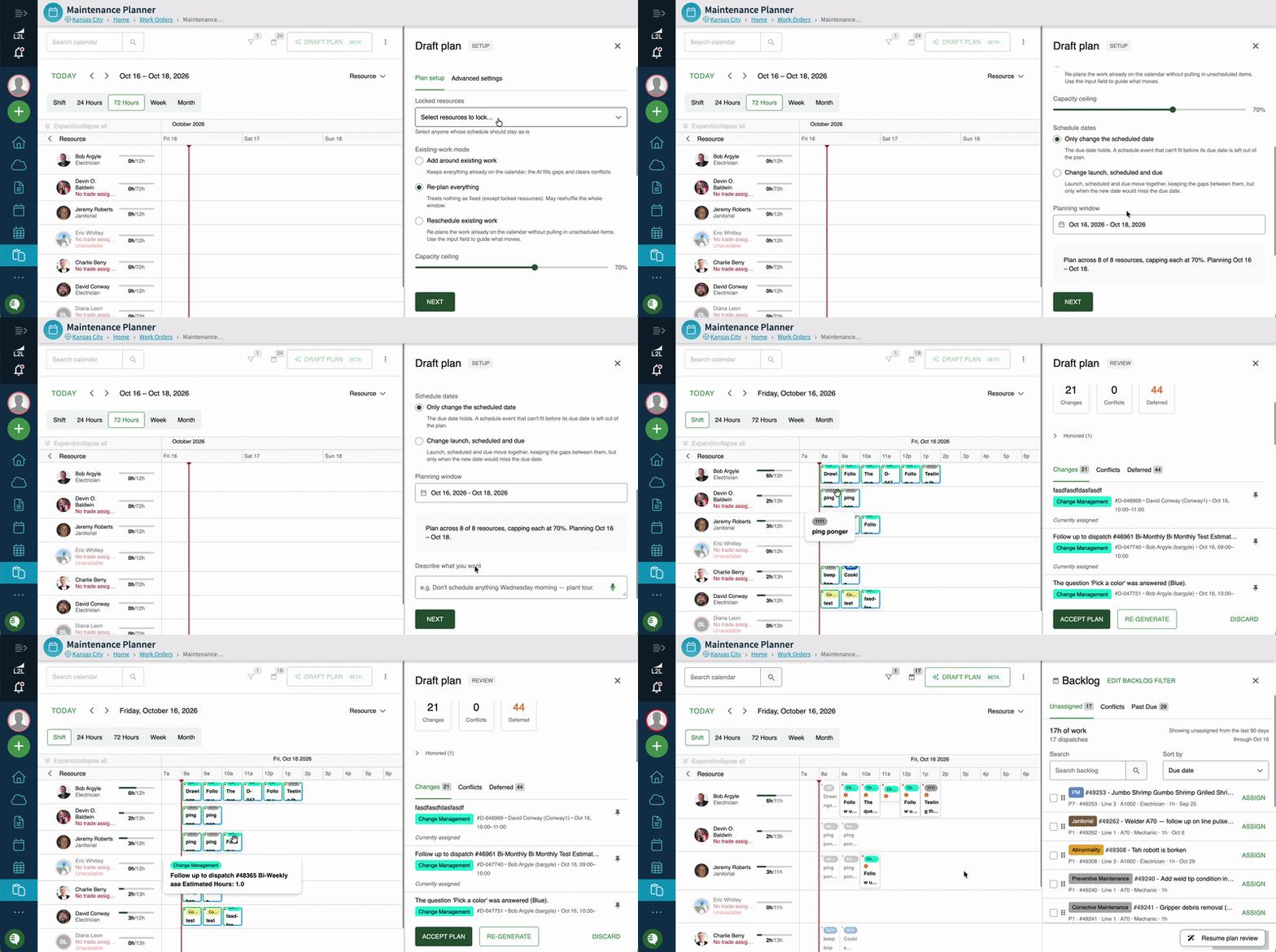
How to Draft a Plan:
Click Draft Plan to open the setup panel.
Lock Resources: Specify any "Locked Resources" whose current schedules should remain unchanged.
Provide Context: Enter custom instructions in natural language (e.g., "Resource X is new and needs 2–3 hours of low-level work" or set custom capacity limits).
Generate: Click Generate Plan. Suggested additions will appear on the calendar with a distinct gradient border outline.
Review & Finalize: Review the plan summary. You can Accept the schedule to finalize it, provide feedback to Adjust, or click Re-generate.
AI Planning Agent & Smart Automation
Automated Scheduling: Leverage auto-scheduling suggestions, smart presets, and bulk AI recommendations. You retain full control to preview, adjust, and accept recommendations before applying them.
Instant Conflict Resolution: Identify overbooked technicians or overlapping schedules instantly, and resolve issues in two clicks or fewer.
Smart Capacity Management & Coverage Adjustments
Capacity Indicators & AI Rules: Define capacity limits across your team or trades to guide the AI Planning Agent and prevent double-booking during automated schedule generation.
8. Visual Indicators & Warnings
Card Outlines:
Gray Dotted Outlines: Indicate scheduled events without an attached dispatch number.
Gradient Outlines: Indicate unconfirmed, AI-generated schedule proposals.
Lockbox: Signifies that the scheduled date is fixed. On a locked row, you can drag the card to assign a resource, but that drag will not reschedule it to a different day.
Warnings & Overlaps: Warnings flag scheduling attempts made outside of assigned shift boundaries, during periods marked as unavailable, or when a technician is fully booked.
9. Frequently Asked Questions (FAQ)
Q: How are reactive dispatches without a due date handled?
A: Reactive dispatches without a set due date appear in the backlog and on the Past Due tab. To prevent reactive items from extending indefinitely across the calendar view, they automatically default to a 1-hour duration estimate, which you can manually edit as needed.
Q: Can I modify fixed/recurring schedules directly in the Maintenance Planner?
A: You can move individual instances of an event on the timeline. However, permanent changes to fixed schedule logic must still be updated within the main Scheduler module.
Q: Can I view or filter my schedule by lines or machines?
A: Yes. Use the Where filter to narrow work to specific lines or machines, or use the grouping options on the main page to organize the calendar by Resource, Line, or Machine.
Q: Where did the grouping options go?
A: Grouping by Resource, Line, and Machine moved out of the filters and onto the main Planner page for quicker access.
Q: I assigned a resource, but the work isn't on the calendar. Where is it?
A: Work that has a resource assigned but no scheduled time now appears on the Past Due tab, so it doesn't get lost. Drag it onto the calendar to schedule it.