Concurrent Work In Progress (Start/Stop)
Last updated: September 9, 2026
What is Concurrent WIP?
Concurrent Work In Progress (CWIP) is when two or more product orders are running on the same production line at the same time — meaning parts from different orders are being transformed or assembled simultaneously, not one after the other.
The key distinction is what's happening at any given moment. If you finish one order before starting the next, that's sequential. CWIP is when parts from two or more orders are in process on the same line at the exact same time.
A few common examples:
Assembly LinesA 5-station assembly line always has 5 units in process simultaneously. As the last part of Order A comes off the end, Order B's first part enters the front. For a moment, 4 parts from Order A and 1 from Order B are being assembled at the same time. That overlap is concurrent WIP.
Multi-Lane Film or Cutting LinesA line running two different film widths through separate cut lanes at the same time is producing two orders concurrently — one per lane.
Thermoforming / Injection MoldingA machine running multiple mold sets simultaneously — each set dedicated to a different product — is a concurrent WIP scenario. Every cycle produces output for multiple orders at once.
Multi-Bay Filling StationsA filling manifold that charges 48 cylinders simultaneously — potentially with different products — starts, fills, and stops all 48 at the same moment. That's concurrent WIP at scale.
Understanding Capacity
When a line runs concurrent orders, the system needs to know how much of the line each order is using. That measurement is called capacity.
Capacity is simply a count of how many units of production your line can handle simultaneously. A line running a single order has a capacity of 1. Add a second lane, a second mold set, or a second operator — and the capacity becomes 2. A filling station running 48 cylinders at once has a capacity of 48.
Different types of lines increase their capacity in different ways:
Physical Lanes: Each independent lane on a multi-lane line adds 1 to capacity. A film line with two active cut lanes running different products has a capacity of 2 — one per lane.
Mold Sets: On a thermoforming or injection molding machine, each set of mold cavities dedicated to a product adds to the line's capacity. Four mold sets running simultaneously means a capacity of 4.
Checked-In Operators: On an assembly line, each operator represents one unit of work in progress moving through the line. An operator checking into the line increases capacity by 1; checking out decreases it by 1.
The system uses each order's capacity value to calculate demand, target, performance, and OEE accurately. This is what makes CWIP metrics reliable — without it, running concurrent orders produces inflated or deflated numbers that don't reflect what actually happened on the floor.
Capacity is set per order at scheduling time by your planners — operators on the floor do not need to manage it. F
Setting Up CWIP on a Line
CWIP must first be enabled at the site level by L2L — reach out to L2L Support to get that turned on for your site. Once it is, you can configure any line to use it yourself.
Configure the Line
Open the line you want to configure and set its concurrency mode.
Setup › Lines › [select your line] › Concurrency Mode
⚠Prerequisite: Product Orders must be enabled on the line before you can enable CWIP. The system will prevent saving the setting otherwise.
There are three concurrency modes to choose from:
Only One Order In Progress (Default)
Standard mode. One active order at a time, with automatic start/stop hygiene managed by the system. Most lines use this.
Multiple Orders - Independent Start/Stops
Each order starts and completes on its own schedule. Multiple orders can overlap on the line simultaneously without a shared start or stop event.
3. Multiple Orders - Start/Stop in Groups (Product Order Groups)
A set of orders starts and stops together as a group. All orders in the group share a common start and complete event.
ℹ Setting a line to Independent Start/Stop or Product Order Groups does not prevent you from running a single order. You can always run one order on a CWIP-enabled line — you simply have the option to run more when needed.
ℹ If you want to enable the Operator Count Determines Capacity setting on a line, that option also appears in the line configuration.
Running Production — Independent Start/Stop
In Independent Start/Stop mode, each order on a line is managed separately. You can start an order, continue running it, and complete it without affecting any other order running on the same line at the same time.
This is the right mode when your line transitions from one product to the next gradually — for example, the front of the line begins feeding a new order while the back is still finishing the current one.
Starting an Order
From the line view in the Operator Console, locate the next scheduled order and tap Start Order. It immediately becomes active alongside any orders already running. Orders always appear in the sequence they were scheduled — the list does not re-sort.
Adding Actuals
Each active order tracks its own actuals. When you open the pitch, you will see each running order listed separately. Add the count for whichever order's parts just came off the line. You can update each order independently, in any sequence, at any time.
Completing an Order
When the last part for an order comes off the line, open that order and tap Complete. The remaining orders on the line continue running without interruption.
Two-Terminal Workflow
If your line has a terminal at the start and one at the end, concurrent orders fit naturally into a split workflow:
Beginning of Line - Starts new orders
Monitor upcoming scheduled orders
Tap Start Order when the next product enters the line
Can start the next order before the current one completes
End of Line - Tracks completion
Add actuals as finished parts come off
Tap Complete when an order is fully done
Each order managed without touching the others
Both terminals can operate simultaneously. The operator at the start can begin a new order while the operator at the end is still logging actuals and closing out the previous one.
Running Production — Product Order Groups
Product Order Groups are for lines where multiple products run simultaneously with a shared start and stop — the group starts together and completes together as a unit.
This is the right mode when your process produces multiple part numbers from a single continuous operation — for example, a mold that produces two different parts on every cycle, or a cutter that outputs two widths from the same run.
How the Pitch Looks
Rather than showing a cluttered set of sub-pitches, the pitch view groups actuals by product. Each product in the group appears separately with its own running count. Entering actuals means recording a count for each product in the group.
Starting and Completing a Group
Starting or completing any order in the group starts or completes all of them. The individual products within a group do not have independent start or stop controls — their lifecycle is tied together.
ℹ Operators do not manage capacity allocation within a product order group. The split between products is determined at scheduling time when planners set the planned allocated capacity for each build sequence in the group.
Operator Count Determines Capacity
This line setting changes how capacity is divided between concurrent orders during a transition from one order to the next. Rather than using fixed planned capacity values, the system calculates each order's share of the line dynamically — based on how many parts remain in each order and how many operators are currently checked in.
Setup › Lines › [select your line] › Operator Count Determines Capacity
How It Works: Ramp-Down and Ramp-Up
Picture a line with 5 operators. Each operator station handles roughly one item at a time. As one order approaches completion, its parts begin moving out of the line while the new order's parts start entering from the front. The system uses the remaining build quantity of each order to determine what fraction of the line's capacity belongs to each one at any given moment.
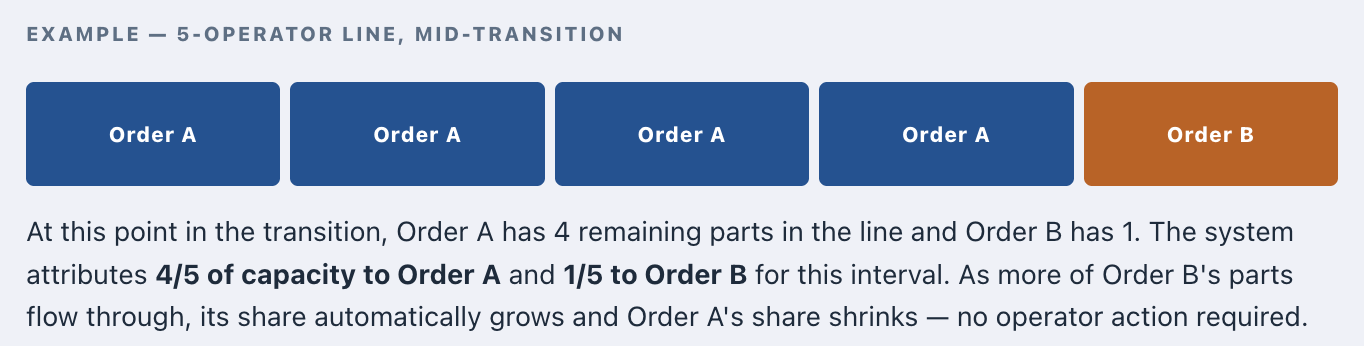
The calculation is based entirely on remaining build quantity. No one on the floor adjusts anything as the transition happens — the system derives it when actuals are entered.
When Metrics Update
Capacity attribution is calculated at the point actuals are entered. If an operator checks in or out between actuals entries, the updated operator count takes effect at the next entry. This means there may be a brief window between a headcount change and when it appears in the metrics — roughly as long as it takes to log the next actual.
Important Constraint
⚠ Parts must ramp down from one order and ramp up to the next in scheduled sequence. This setting works on the assumption that when transitioning between orders, the outgoing order's remaining parts move through the line before the incoming order's parts reach the end. Interleaving parts from two orders at the same station — sending them through in an alternating pattern — breaks the assumption the calculation relies on and will produce inaccurate capacity attribution in the metrics. Under normal production this constraint holds naturally. In rare cases like a quality hold where one order must be set aside, the metrics will reflect the deviation, but the system continues running normally.
Operator Changes During a Run
When an operator checks in or out while concurrent orders are running, the total capacity is recalculated across all active orders at the next actuals entry. Adding an operator mid-run increases attributed capacity from that point forward; removing one decreases it. If operators are checked in but no order is currently active, their presence does not contribute to any metric — capacity only applies when there is production to attribute it to.
FAQs
Q: How do I schedule my CWIP orders?
A: You can use the ekanban planner just like you would for a regular order. See more https://support.leading2lean.com/articles/1237138251-production-ekanban-planner-setup?lang=en