How to Update Schedule Dates
Last updated: September 24, 2026
Updating schedule dates ("Next Launch," "Next Scheduled," and "Next Occurrence") requires that no active dispatch exists.
Common Issues
Launch/due dates are greyed out or uneditable.
Saved dates immediately revert to unexpected values.
Important Limitation: The scheduler has two date constraints that prevent certain updates: Past dates: You cannot set launch or due dates prior to the last closed occurrence's due date. When a dispatch is closed, it automatically sets the next due date, and the system prevents resetting the occurrence due date to anything earlier than that date. Future dates: You cannot set due dates earlier than an already-set future due date. When you attempt to backdate a schedule that has a due date already set in the future, the system will revert the dates back to the future date. Both limitations are intentional system behavior to maintain schedule integrity.
Standard Process (When an Active Dispatch Exists)
Inactivate & Save: Set the schedule to inactive and save.
Close Dispatch: Complete the open dispatch (add a comment noting a schedule adjustment).
Update Schedule: Adjust the required date fields.
Reactivate & Save: Set the schedule back to active and save.
If there is an active dispatch, we recommend waiting for the dispatch to be closed, then edit the schedule. To avoid dispatches being launched as soon as a dispatch is closed, here's how you can manually update the schedule:
Inactivate the schedule, then click "Save." Don't worry, you'll re-activate the schedule in a few moments.
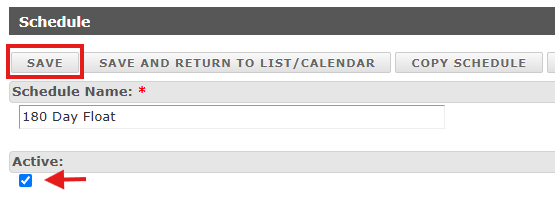
Complete the pending dispatch. Be sure to make a comment that you are making a schedule adjustment.
Return to the schedule, modify the desired fields.
Activate the schedule, then save.
Resetting Dates Prior to Last Closed Occurrence
If you need to set dates earlier than the last closed occurrence's due date, use this workaround:
Inactivate the schedule and save
Go to Add Machines> Add a 'dummy' machine (any machine as you will not keep it) Remove the correct machine by hitting the X and save.

Re-add the correct machine using the same steps with the desired launch/schedule/due dates and remove the 'dummy' machine. Save.
Note: If you had resources assigned, you will need to re-add these.
Verify all settings are correct
Reactivate the schedule
This procedure bypasses the system limitation by effectively resetting the schedule's occurrence history.
Your changes will take effect the moment you reactivate the schedule.
Notes:
If you are doing this via export/import, the same steps apply. You will want to inactivate the current schedule first. When you reimport, we can mark that active column to True to reactivate.
Due Dates on Open Dispatches can be adjusted, and in turn will adjust the due date on the Scheduled Event if you have enabled this feature. If you do not want the due date to change on the Scheduled Event, only on the Open Dispatch, disable this feature in the Scheduler Settings.