SwipeGuide: Manually Setting a Skill Level ⚙️
Last updated: June 19, 2026
Manually setting a skill level is a quick and easy way to adjust the skill levels of individuals in your team.
When to Manually Set a Skill Level
You can manually set a skill level for any skill with the status In progress. This can be helpful in situations like:
- Getting Started: When you need to update many skill levels at once
- Correcting Mistakes: If you made an error when submitting an assessment and need to adjust a level
- Recording Experiences: For experienced team members who don't need to develop their skill further but need their level recorded
💡Note: Manually setting a skill level does not allow you to share written feedback. If you want to provide additional feedback, please follow the steps for assessing a skill.
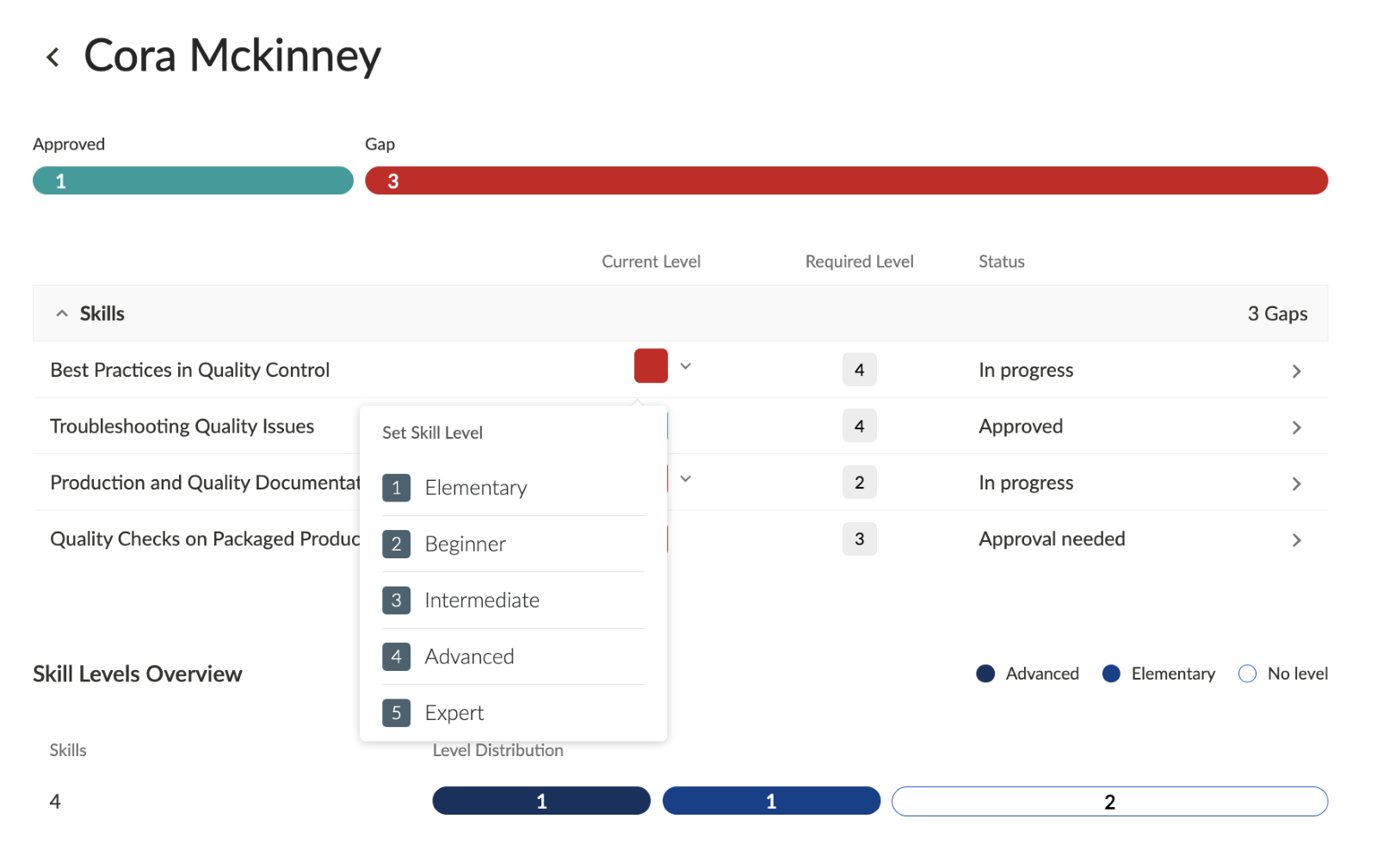
Manually Setting a Skill Level
1. Click Smart Skills in the main menu
2. Click on the team name to open the Skills Matrix
3. Click on a name to view their details
4. Find the skills that are in progress
5. Click on the drop-down arrow next to the current level and select the new level
🔔 The individual will receive a notification with their updated skill level
👣 Follow the step-by-step instructions in SwipeGuide